

Purpose
Purpose
The integration supports user and group lookups, System Log retrieval, policy inspection, account suspension and restoration, password expiration, session revocation, and IP blocklist management.
Supported Versions
Supported Versions
/api/v1 identifies the API version. It does not identify an Okta product release or certify compatibility with a particular AirMDR connector release.Authentication
Authentication
The supplied AirMDR connection form uses an Okta API token and the Okta organization domain.Although the AirMDR field is named Api_key, enter the API token generated in the Okta Admin Console.Okta authenticates API-token requests using the following authorization scheme:Enter only the raw token value in AirMDR’s credential field.The token inherits the creating administrator’s permissions. If that account’s permissions change, the token’s effective permissions change accordingly.
Role-Based Access Considerations
Role-Based Access Considerations
Select access according to the skills the integration will execute.
Create Okta API Token
- Login into the Okta Admin Console.
- Enter your admin username and password, then click Sign In.
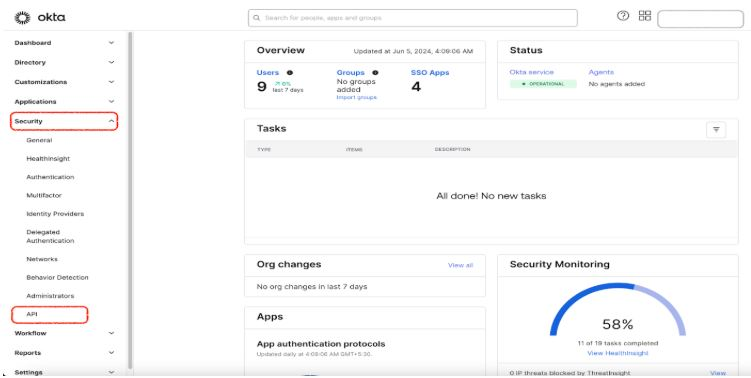
Create the API token using an administrator account with permissions for the AirMDR skills you intend to use. Okta API tokens inherit the permissions of the administrator who creates them; permission to create a token does not automatically provide access to remediation actions.For the suspend-user and Unsuspend user in okta skills, use a token created by a Super Admin or Org Admin. For Add IP To Okta Blocklist Zone and Remove IP From Okta Blocklist Zone, use a token created by a Super Admin, as specified for these AirMDR skills.A token created by a Read Only Admin cannot perform these remediation actions. A Group Admin token does not provide the network-zone management permissions required for the blocklist skills.The list of RBACs (Role-Based Access Control) to create Okta API tokens are as follows:
- Super Admins
- Org Admins
- Group Admins
- Group Membership Admins
- Read Only Admins
- In the Okta Admin Console, click on Security in the top navigation bar.
- From the dropdown, select API.
- Under the API section, click on the Tokens tab.
- Click the Create Token button.
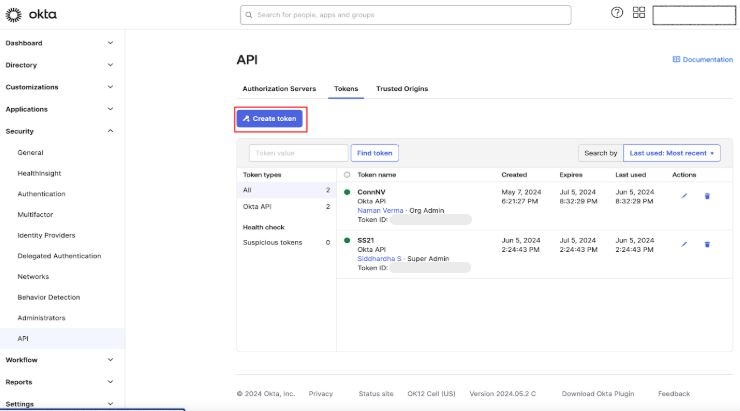
- In the Create Token dialog box, enter a Token Name (e.g., “Companyname Okta API Token”).
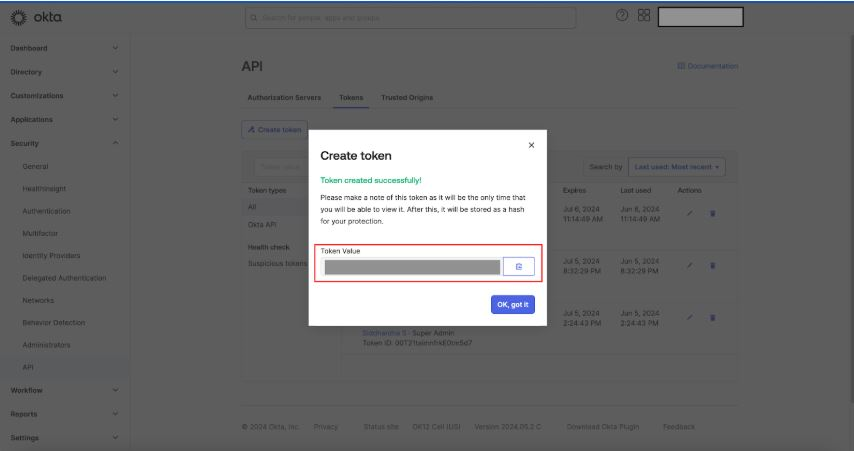
- Click Create Token to generate the new token.
After creation, Okta will display the new API token.
- Click Done to finish the process.
Email the API token and the Okta Base URL to AirMDR.
Optional: Revoke an API Token
If you need to revoke the token at any time:- Go back to the API Tokens page in the Okta Admin Console.
- Find the token you want to revoke and click on the Revoke button next to it.
Configure Okta in the AirMDR Integrations Dashboard
- Navigate to AirMDR, provide the credentials, and click Login
- Navigate to the AirMDR Integrations Dashboard in the left navigation pane and select Integrations.
- Use the search option, enter the keyword “Okta”, select the Connections tab, and click Add New Connection.
- Enter an unique name to the Instance (e.g.,
your org name-Okta) to easily identify the user connection by AirMDR and brief Description to showcase the purpose. - Enter the generated API Key and Base Domain in the Authentication Details field params, and click Save.
Skills Provided by this Integration
Investigation and Discovery — Read-only
Additional Information
🧰 Error Handling
🧰 Error Handling
Common Failures
These status and error-code mappings follow Okta’s API error reference.Skill-Specific Recovery
Rate-Limit Recovery
- Review the available rate-limit headers.
- Respect
X-Rate-Limit-Reset. - Reduce parallel executions or request frequency.
- Use backoff for subsequent retries.
- Review the Rate Limits dashboard if throttling continues.
- Inspect the current user or network-zone state.
- Determine whether the original operation completed.
- Retry only if the action is still required.
- Record the final verified outcome.
Important: A timeout does not establish that a write operation failed.
🔄 Monitoring & Logs
🔄 Monitoring & Logs
AirMDR Execution ResultsReview the following information for each execution:Do not include tokens or complete authorization headers in logs.Recommended Log Levels
- Selected connection and skill.
- Target resource and operation options.
- Execution timestamp and reference.
- Returned records or action outcome.
- Available HTTP status and provider error details.
- In the Okta Admin Console, go to Reports > System Log.
- Select the time range covering the AirMDR execution.
- Search using the relevant actor, target user, IP address, or event information.
- Expand matching events.
- Review the actor, target, outcome, and available request details.
- Compare the events with the AirMDR execution result. help.okta.com
These are operational recommendations. Okta System Log uses its own severity fields.Log Retention and Rate LimitsOkta maintains a rolling 90-day System Log window. Export records when longer retention is required.
🛑 Security & Access Best Practices
🛑 Security & Access Best Practices
👉 Support & Maintenance
👉 Support & Maintenance
- 📧 Contact AirMDR Support through your designated support channel.
- 🔁 Rotate credentials regularly. Recommended cadence: As per your internal security policy
- 🔄 Replace a token before expiration.
🛑 Data Flow & Security
🛑 Data Flow & Security
Data Flow
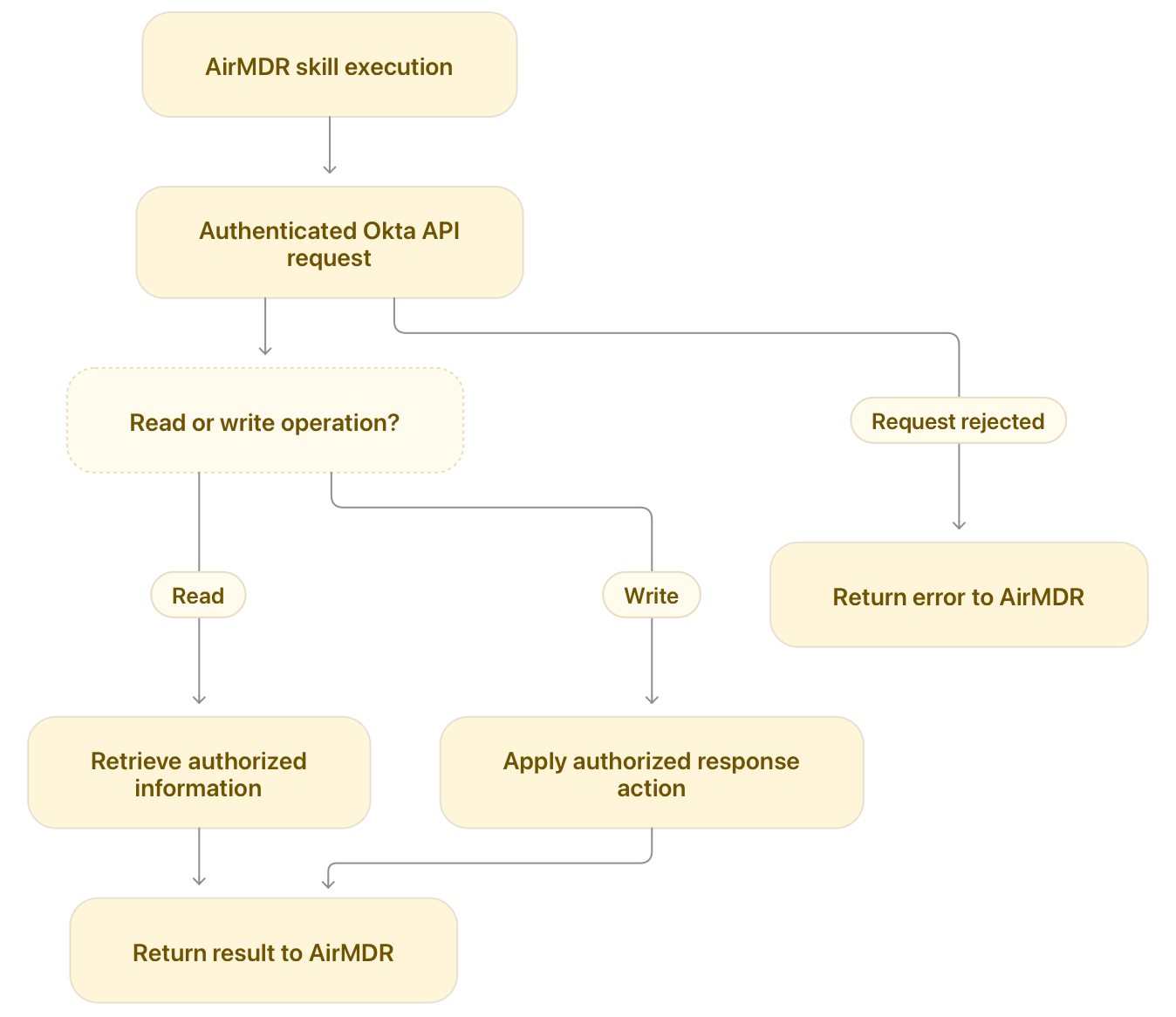
- An AirMDR workflow executes an Okta skill using the selected connection.
- The integration sends an authenticated request to the organization’s Okta API.
- Okta evaluates the token, permissions, target resource, and applicable restrictions.
- A read operation retrieves information; an authorized write operation changes the target state.
-
AirMDR receives the result or error.
Ports and Endpoints
These are API reference families rather than a complete trace of the connector’s internal requests.Encryption and Credential Protection