

Purpose
Purpose
The Confluence integration enables AirMDR to:
- Retrieve pages, blog posts, comments, tasks, and attachment metadata.
- Search content and identify related pages, spaces, labels, and users.
- Review space permissions and role assignments during access investigations.
- Retrieve page history and hierarchy to understand content changes and relationships.
Supported Versions
Supported Versions
Authentication
Authentication
Authentication methodAirMDR authenticates using HTTP Basic authentication with:
- Email: The email address of the Atlassian account that owns the token.
- API Token: A token created for that account.
Scoped tokens must use Atlassian’s API gateway. These credential requirements also match the supplied AirMDR connection screenshots.
Role-based access considerations
Role-based access considerations
Pre-requisites
An active Atlassian account with access to the required Confluence Cloud site.Permission to create API tokens under your organization’s Atlassian policies.
Setup Steps
1
Confirm the integration account’s access
- Open your Confluence Cloud site.
- Sign in using the account that will own the AirMDR API token.
- Open each space that AirMDR must access.
- Open a representative page in each space.
- Confirm that the account can view the required content.
- If access is missing, ask the relevant administrator to grant the required permissions.
A valid token can authenticate successfully while individual skills fail because the account cannot access their target content.
2
Obtain the Atlassian account email
The email is an existing account identifier; you do not generate it.
- In Confluence, select your profile avatar.
- Select Account settings.
- Open Email.
- Copy the email address associated with the account.
- Use this address in the AirMDR Email field.
airmdr-confluence@example.comAtlassian documents the navigation path through the avatar, Account settings, and Email.Use the email of the account that creates the token.
3
Create an API token
Choose one of the following methods.Option A: Create an API token with scopes
- Open Atlassian API tokens.
- Select Create API token with scopes.
- Enter a descriptive name, such as
AirMDR-Confluence-ReadOnly. - Select an expiration date.
- Select Confluence as the app.
- Select the scopes listed in Section 3.3.
- Select Create.
- Copy the token into an approved password manager.
- Open the same API tokens page.
- Select Create API token.
- Enter a descriptive name and expiration date.
- Select Create.
- Copy the token into an approved password manager.
Atlassian permits token lifetimes of 1–365 days. The token value cannot be retrieved after the creation screen is closed.
If prompted, complete Atlassian’s identity verification before creating the token.
4
Obtain the Site URL
- Return to your Confluence site.
- Open the Confluence home page or any page within that site.
- Check the browser address bar.
- Copy the scheme and hostname.
- Remove
/wikiand any remaining page path.
The supplied AirMDR field guidance accepts the site root and ignores paths after the hostname. Entering the root URL keeps the configuration clear.
5
Obtain the Cloud ID
Complete this step when using a scoped API token.Method A: Retrieve it in your browser
- Open a new browser tab.
- Enter the following address, replacing
your-domainwith your site hostname: - Press Enter.
- Locate the
cloudIdvalue in the response: - Copy only the value, excluding the quotation marks.
- Paste it into the AirMDR Cloud ID field.
This method requires access to Atlassian Administration.
- Open Atlassian Administration.
- Select the organization that owns your Confluence site.
- Navigate to Apps → Sites.
- Select the required site.
- Check the browser address bar for a URL containing:
- Copy the identifier immediately after
/s/.
Confluence Credential Reference Table
Validate Connectivity
Use this when troubleshooting credentials outside AirMDR. Set the account email:ATLASSIAN_EMAIL='airmdr-confluence@example.com'
For a scoped token, set:
read:page:confluence scope for these read operations.
Configure Confluence in AirMDR Integrations Dashboard
- Navigate to AirMDR, provide the credentials and click Login
- Navigate to the AirMDR Integrations Dashboard in the left navigation pane and select ADMIN → Integrations.
- Use the search option, enter the keyword “Confluence”, select the Connections tab, and click + New Connection button.
- Use the following values in the AirMDR integration configuration screen:
Expand Advanced Configuration if required. (Optional)
- In Remote Agent, select an AirMDR Remote Agent when Confluence API requests must run through an approved network route. Ensure the selected agent can resolve and reach
api.atlassian.comfor scoped API tokens, or your Confluence site hostname for unscoped API tokens, over HTTPS. For direct connectivity from AirMDR, leave this field unselected. - In Expiry, select the Atlassian API token’s expiration date or an earlier date required by your organization’s credential-rotation policy.
Expiry controls credential validity in AirMDR. It does not automatically rotate, extend, or revoke the token in Atlassian. Before expiry, create a replacement token, update API Token and Expiry, save and validate the connection, and then revoke the previous token when it is no longer required.
- In Remote Agent, select an AirMDR Remote Agent when Confluence API requests must run through an approved network route. Ensure the selected agent can resolve and reach
- Click Save.
Skills provided by this Integration
Search and Identifier Resolution
Search and Identifier Resolution
Space and Content Retrieval
Space and Content Retrieval
Page Hierarchy and Change History
Page Hierarchy and Change History
Comments, Labels, and Tasks
Comments, Labels, and Tasks
Space Permissions and Role Investigation
Space Permissions and Role Investigation
Permissions and Roles by Skill
The following permissions apply to the Atlassian account connected to AirMDR. All listed skills perform read-only operations. Confluence user means an authenticated account with permission to access the Confluence site. API scopes apply when using a scoped API token and do not override the account’s resource permissions.Organization, site, or space administrator access is not a blanket requirement for these skills. Grant only the access needed for the intended investigations.
Additional Information
🧰 Error Handling
🧰 Error Handling
Recovery sequence
- Confirm the expected Confluence site.
- Confirm the token owner’s email.
- Check token expiration and validity.
- Verify Site URL and Cloud ID configuration.
- Validate the current user.
- Test a known accessible space and page.
- Check scopes for the failing skill.
- Check connectivity from the selected execution environment.
- Retry the affected skill.
🔄 Monitoring & Logs
🔄 Monitoring & Logs
Where to checkRecommended log levelsWhere logging controls are available:
Recommended monitoringMonitor for:
- Repeated authentication failures.
- Permission errors affecting previously accessible content.
- Rate-limit responses.
- Remote Agent connectivity failures.
- Upcoming token expiration.
- Unexpectedly empty or incomplete results.
Do not log tokens, authorization headers, or complete sensitive document bodies
🛑 Security & Access Best Practices
🛑 Security & Access Best Practices
✅ Do
- Use a dedicated integration account: Use an organization-managed Atlassian account with a designated owner.
- Apply least privilege: Grant access only to the spaces and content required for AirMDR investigations.
- Use scoped API tokens: Select the documented read scopes required by the integration.
- Protect credentials: Store the API token in an approved password manager and restrict access to AirMDR connection settings.
- Verify the account and site: Ensure the email belongs to the token owner and the Cloud ID identifies the intended Confluence site.
- Maintain secure connectivity: Use HTTPS with certificate validation enabled. If using a Remote Agent, ensure it can reach the required Atlassian endpoints.
- Track expiry and rotate tokens: Set AirMDR Expiry no later than the token’s expiration date. Validate replacement credentials before revoking the previous token during routine rotation.
- Review access periodically: Reassess account permissions when spaces, playbooks, ownership, or investigation requirements change.
- Do not expose tokens: Never include API tokens or authorization headers in documentation, screenshots, logs, tickets, or messages.
- Do not grant unnecessary privileges: Avoid administrator roles, write scopes, or delete scopes for the supplied read-only skills.
- Do not use the account password: Enter an Atlassian API token in the API Token field.
- Do not mix credentials: Avoid pairing one account’s email with another account’s token or using a Cloud ID from a different site.
- Do not bypass access restrictions: Do not make restricted content public to resolve an integration permission error.
- Do not disable certificate validation: Correct certificate or proxy trust issues before retrying.
- Do not assume Expiry renews the token: Updating AirMDR Expiry does not extend or replace the Atlassian token.
- Do not rely only on authentication success: Test the required skills against representative content to confirm sufficient access.
👉 Support & Maintenance
👉 Support & Maintenance
- 📧 Contact AirMDR Support through your designated support channel.
- 🔁 Rotate credentials regularly. Recommended cadence: As per your internal security policy
- 🔄 Replace a token before expiration. Review the connection when:
- The integration account owner changes.
- Spaces or content permissions change.
- The Confluence site changes.
- New skills or playbooks are introduced.
- Token policies change.
- The selected Remote Agent changes.
🛑 Data Flow & Security
🛑 Data Flow & Security
Data exchanged
When an approved Remote Agent route is used, the selected agent provides the execution path to the appropriate API destination.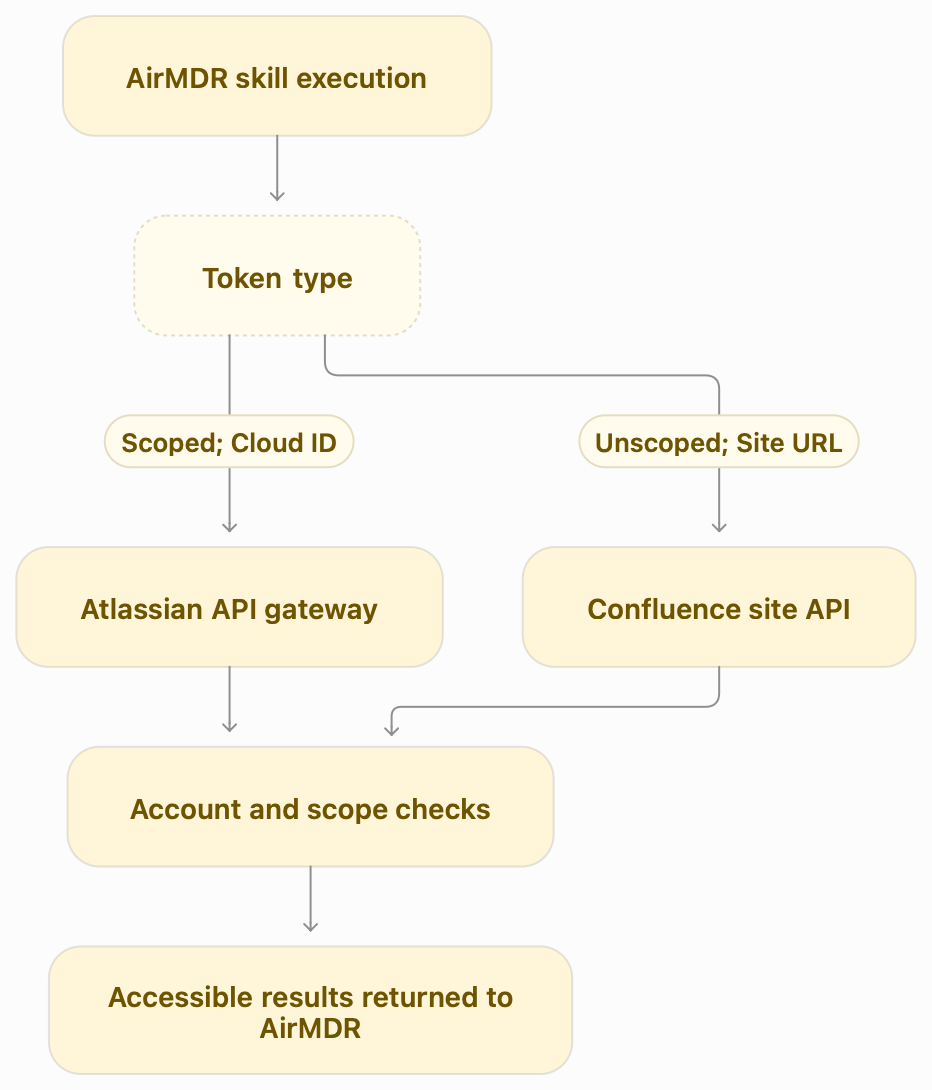
The returned information depends on the selected skill and the connected account’s access.Authentication and request flow
When an approved Remote Agent route is used, the selected agent provides the execution path to the appropriate API destination.
Common API paths include:
These are Atlassian reference paths. An AirMDR skill may call multiple endpoints depending on its inputs.Encryption and credential handling
- Use HTTPS for requests to Atlassian.
- Keep certificate validation enabled.
- Store tokens only in approved credential-management locations.
- Restrict access to connection management and investigation outputs.
- Apply your organization’s retention policy to retrieved content.
read:comment:confluence.read:label:confluencefor site-wide labels;read:page:confluencefor page or blog-post labels;read:space:confluencefor space-related labels.read:task:confluence.