

Overview
AirMDR integrates with Amazon Web Services (AWS) to investigate security findings, query logs and metrics, retrieve cloud resource context, and automate response actions. The permissions required depend on the skills and workflows your organization uses.- Investigation access: Read security findings, audit events, logs, metrics, and resource information to investigate threats and enrich alerts.
- Query access: Execute Athena queries for historical analysis. This requires access to source data, catalog metadata, and an S3 location where query results are written.
- Write access: Perform response actions, such as archiving GuardDuty findings, updating Security Hub finding status, and uploading or deleting S3 objects.
- Permissions-management access: Revoke IAM role sessions by attaching or updating an inline policy on the specified target role.
- Enable AWS GuardDuty
- Create IAM policy
- Choose one of the three integration methods based on your organization’s requirements:
- Configure AWS in the AirMDR Integrations Dashboard
AWS Setup Prerequisites
AWS Setup Prerequisites
AirMDR – AWS Integration Guide
Enable AWS GuardDuty
AWS GuardDuty is mandatory for integration with AirMDR because it serves as the primary threat detection engine in your AWS environment and AirMDR relies on GuardDuty findings to perform its core security use cases.
Create IAM policy
To allow AirMDR to fetch telemetry data and perform read-only queries on your AWS environment, create a custom IAM policy with the following managed policies:Understand the Purpose of AWS Permissions Used by AirMDR
Understand the Purpose of AWS Permissions Used by AirMDR
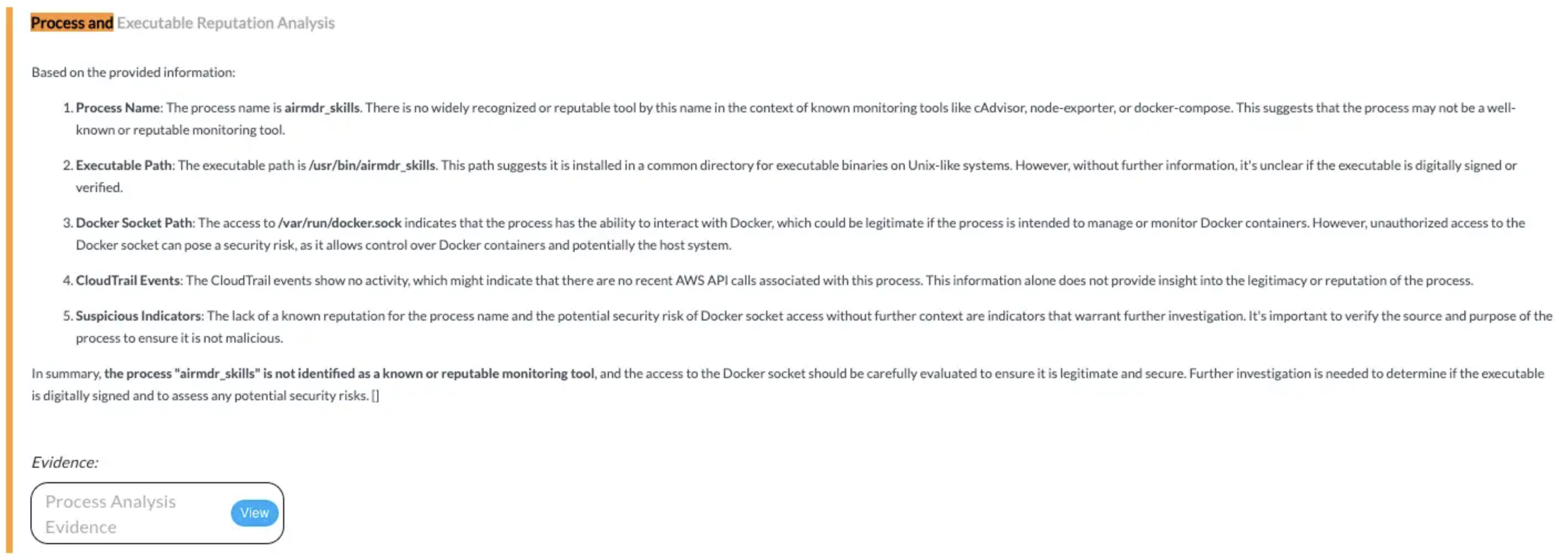
✅ AmazonEC2ReadOnlyAccess
✅ AmazonEC2ReadOnlyAccess
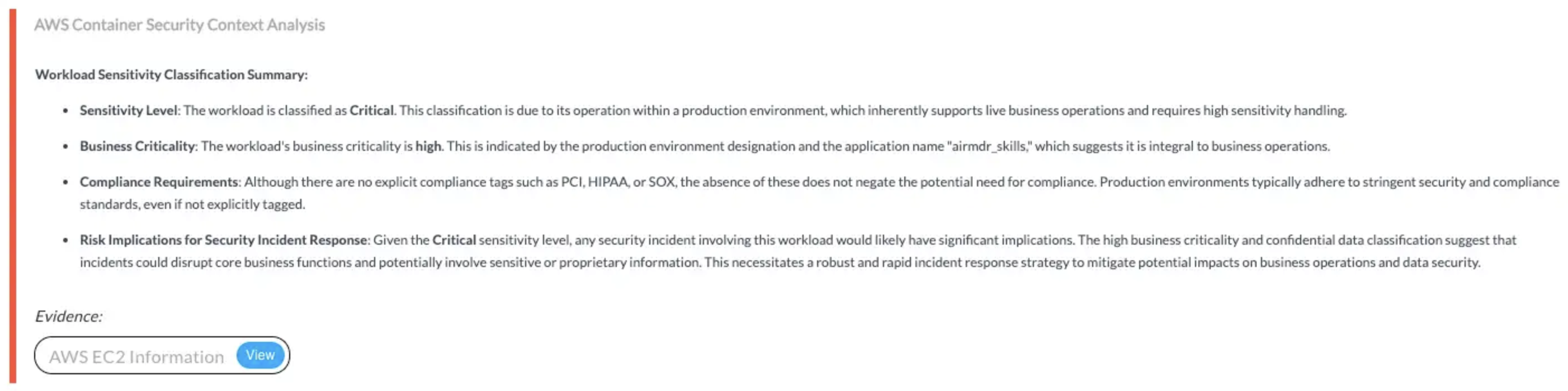
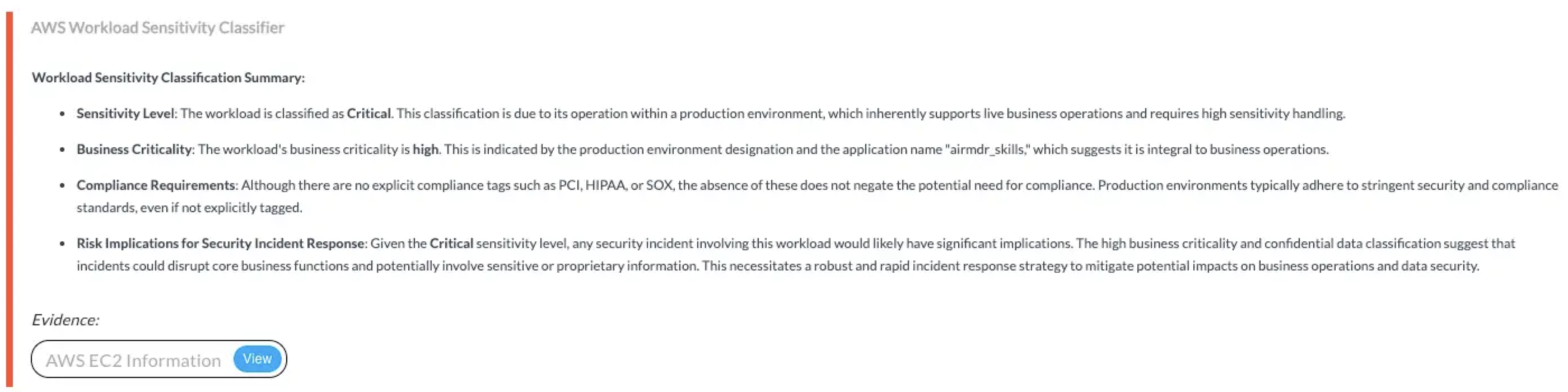
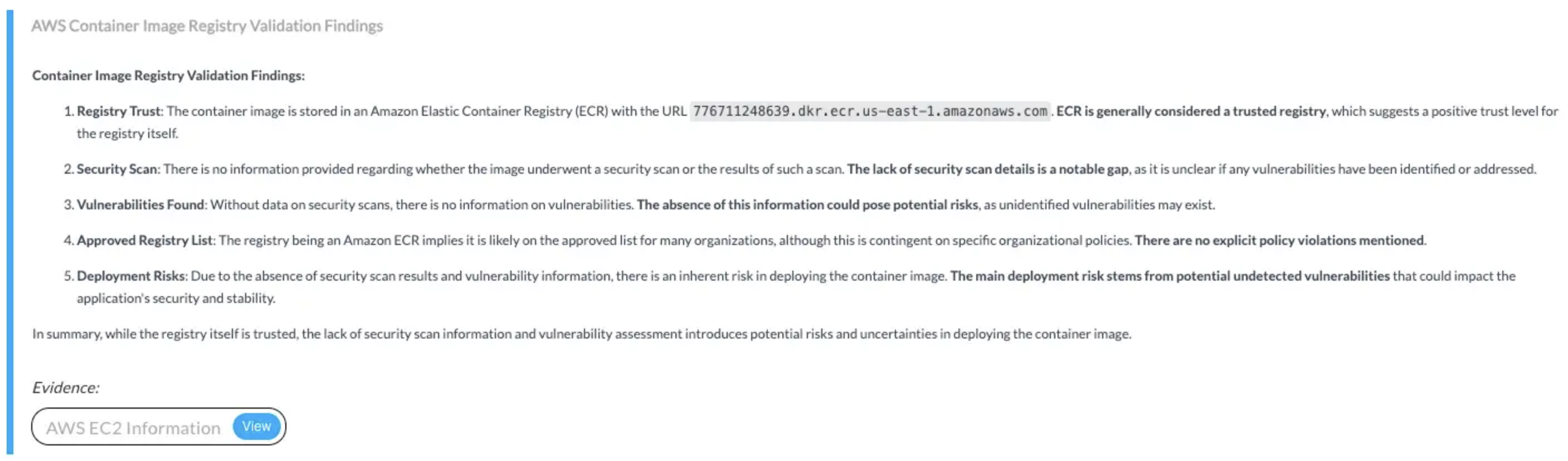
Provides read-only access to EC2 and container metadata, enabling AirMDR to enrich alerts, assess security configurations, classify workloads by risk, and validate container deployment standards.🔸 Input Params Used:
service_name: ec2, method_name: describe_instances🔸 AWS Actions:ec2:DescribeInstances🔸 Skills Used:general_aws_query📎 Findings:
✅ AmazonGuardDutyReadOnlyAccess
✅ AmazonGuardDutyReadOnlyAccess
Enables AirMDR to retrieve and analyze GuardDuty findings for suspicious activity related to S3 buckets and remote IPs, supporting threat pattern detection, anomaly analysis, and automated case enrichment.🔸 AWS Actions:
guardduty:ListFindings, guardduty:ListDetectors, guardduty:GetFindings🔸 Skills Used:Get AWS Guardduty Findings✅ AmazonS3ReadOnlyAccess
✅ AmazonS3ReadOnlyAccess
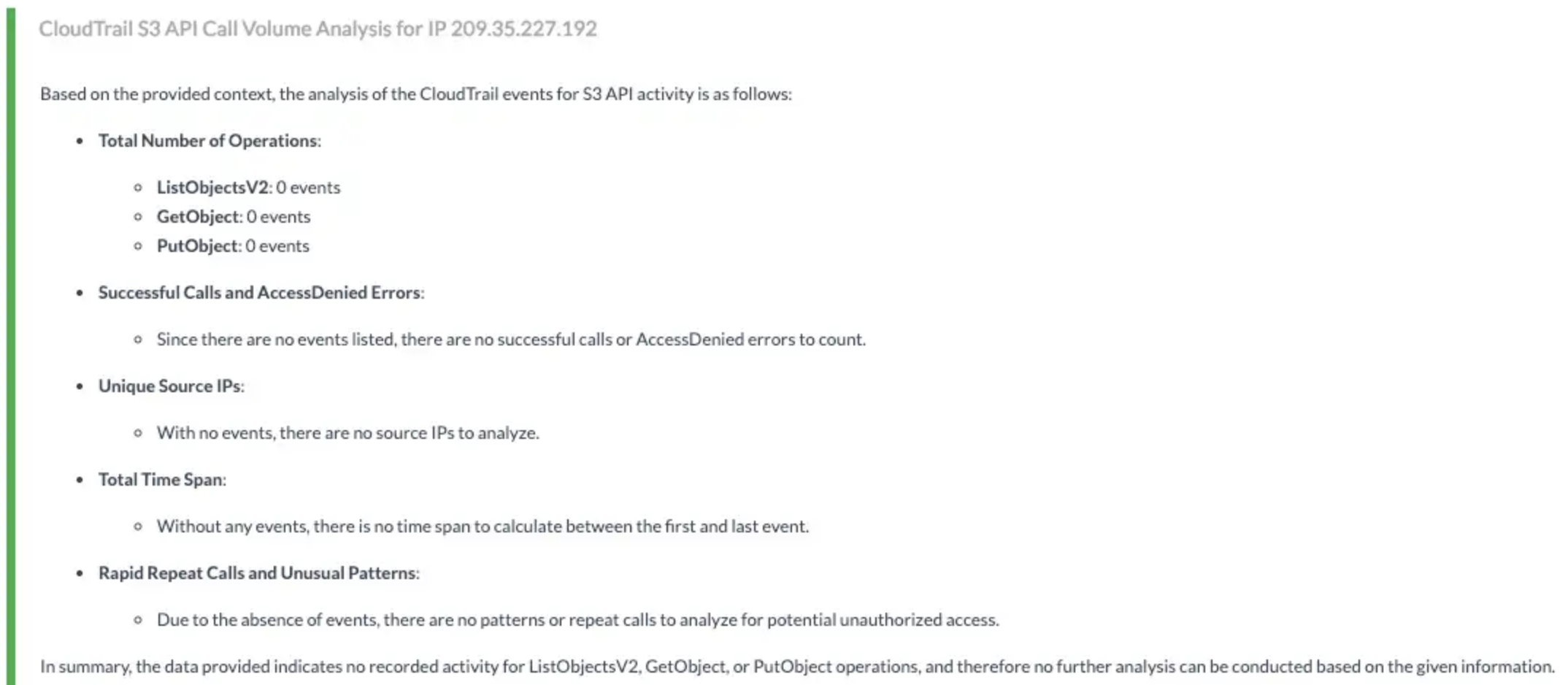
Provides read-only access to evaluate S3 bucket security by checking configurations, classifying data sensitivity, and validating real-world exposure risks.🔸 Input Params Used:
service_name: s3, method_name: [get_bucket_acl, get_public_access_block, get_bucket_policy, get_bucket_tagging, list_objects_v2]🔸 AWS Actions:s3:GetBucketAcl, s3:GetBucketPublicAccessBlock, s3:GetBucketPolicy, s3:GetBucketTagging, s3:ListBucket🔸 Skills Used:general_aws_query📎 Findings: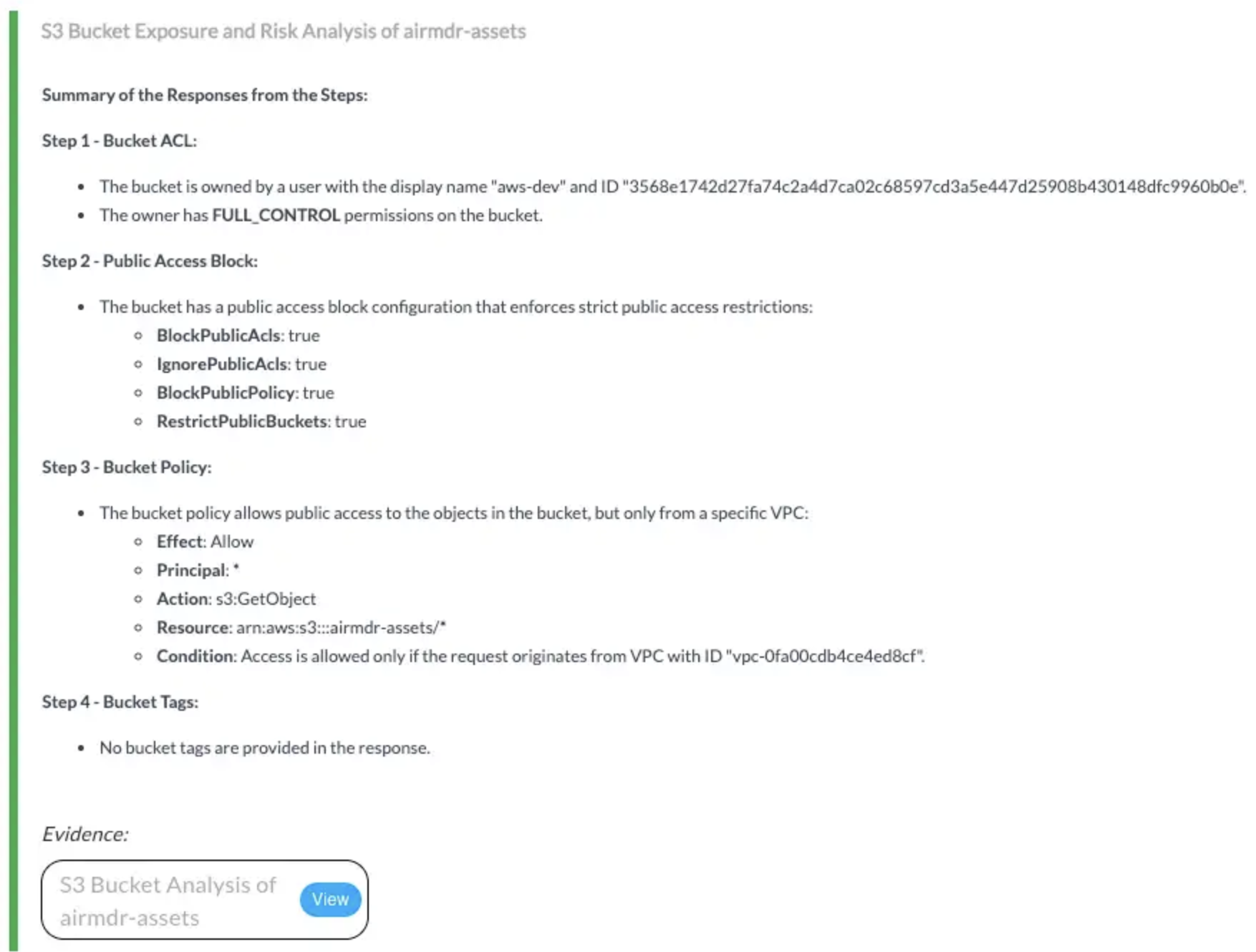
✅ AWSCloudTrail_ReadOnlyAccess
✅ AWSCloudTrail_ReadOnlyAccess
Grants read-only access to CloudTrail logs for reconstructing activity timelines, detecting suspicious patterns, and enriching alerts with user and process-level context.🔸 Input Params Used:
Attribute Key: ResourceName, Attribute Value: ec2 instance id, filter_key: sourceIPAddress🔸 AWS Actions:cloudtrail:DescribeTrails, cloudtrail:GetTrailStatus, cloudtrail:LookupEvents🔸 Skills Used:Lookup AWS Cloudtrail Events📎 Findings: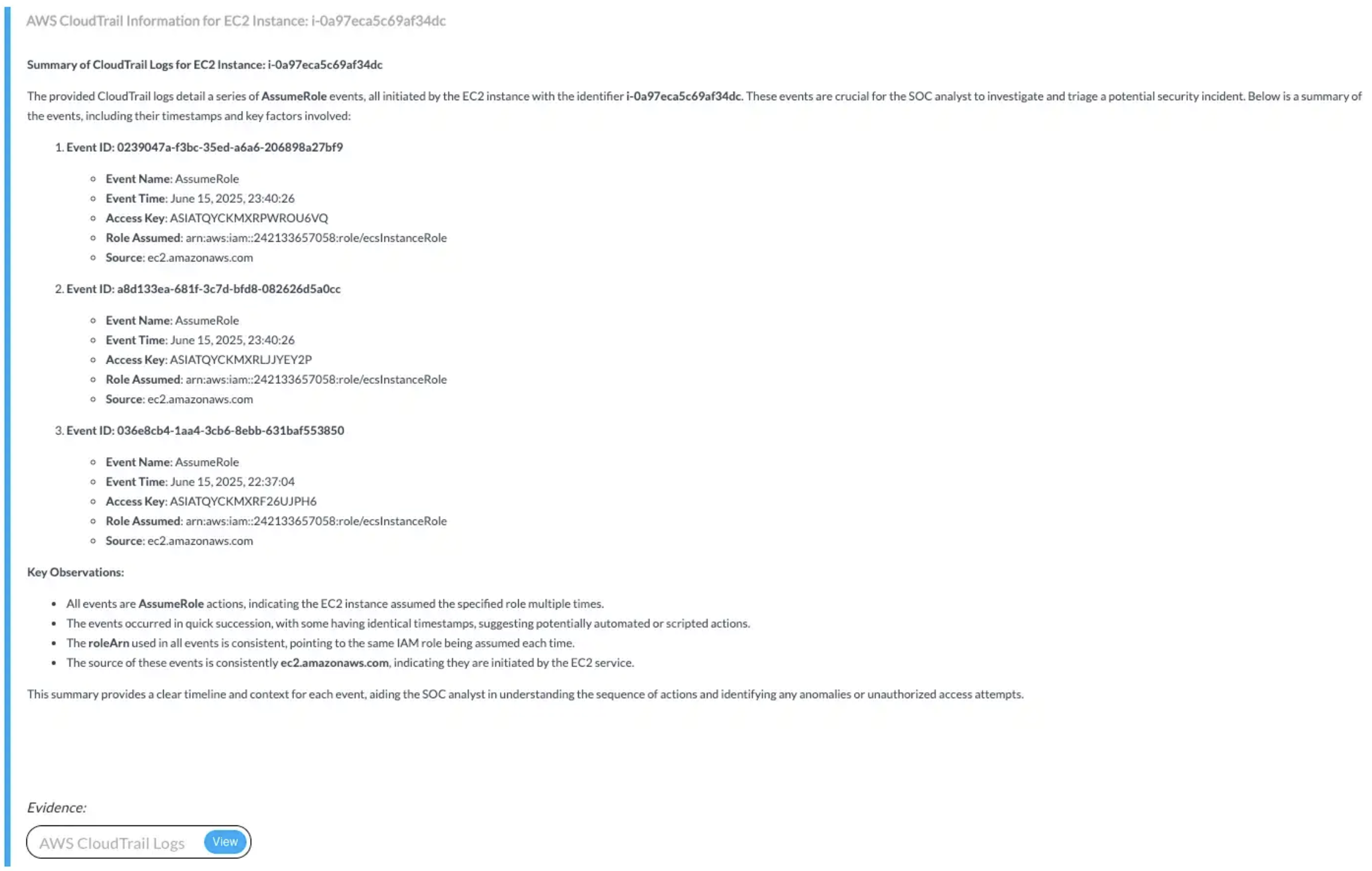

✅ CloudWatchReadOnlyAccess
✅ CloudWatchReadOnlyAccess
Allows read-only access to CloudWatch logs for analyzing VPC activity, extracting alert context, and enriching investigations with time-bound log insights.🔸 Input Params Used:
Log Group Name, Log Stream Name Prefix🔸 AWS Actions:logs:DescribeLogGroups, logs:DescribeLogStreams, logs:GetLogEvents, logs:FilterLogEvents🔸 Skills Used:Filter AWS CloudWatch Log Events📎 Findings: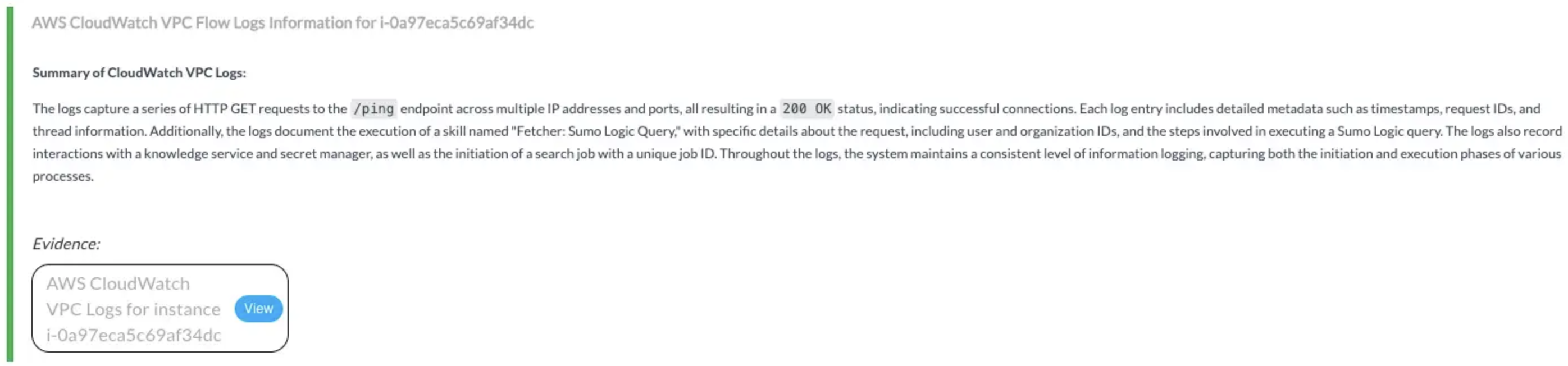
✅ IAMReadOnlyAccess
✅ IAMReadOnlyAccess
Enables validation of IAM permissions and detection of unusual user behavior, such as bulk S3 modifications, to support access risk analysis.🔸 Input Params Used:
service_name: iam, method_name: [get_user, list_attached_user_policies, simulate_principal_policy]🔸 AWS Actions:iam:GetUser, iam:ListAttachedUserPolicies, iam:SimulatePrincipalPolicy, cloudtrail:LookupEvents🔸 Skills Used:Lookup AWS Cloudtrail Events, general_aws_query📎 Findings: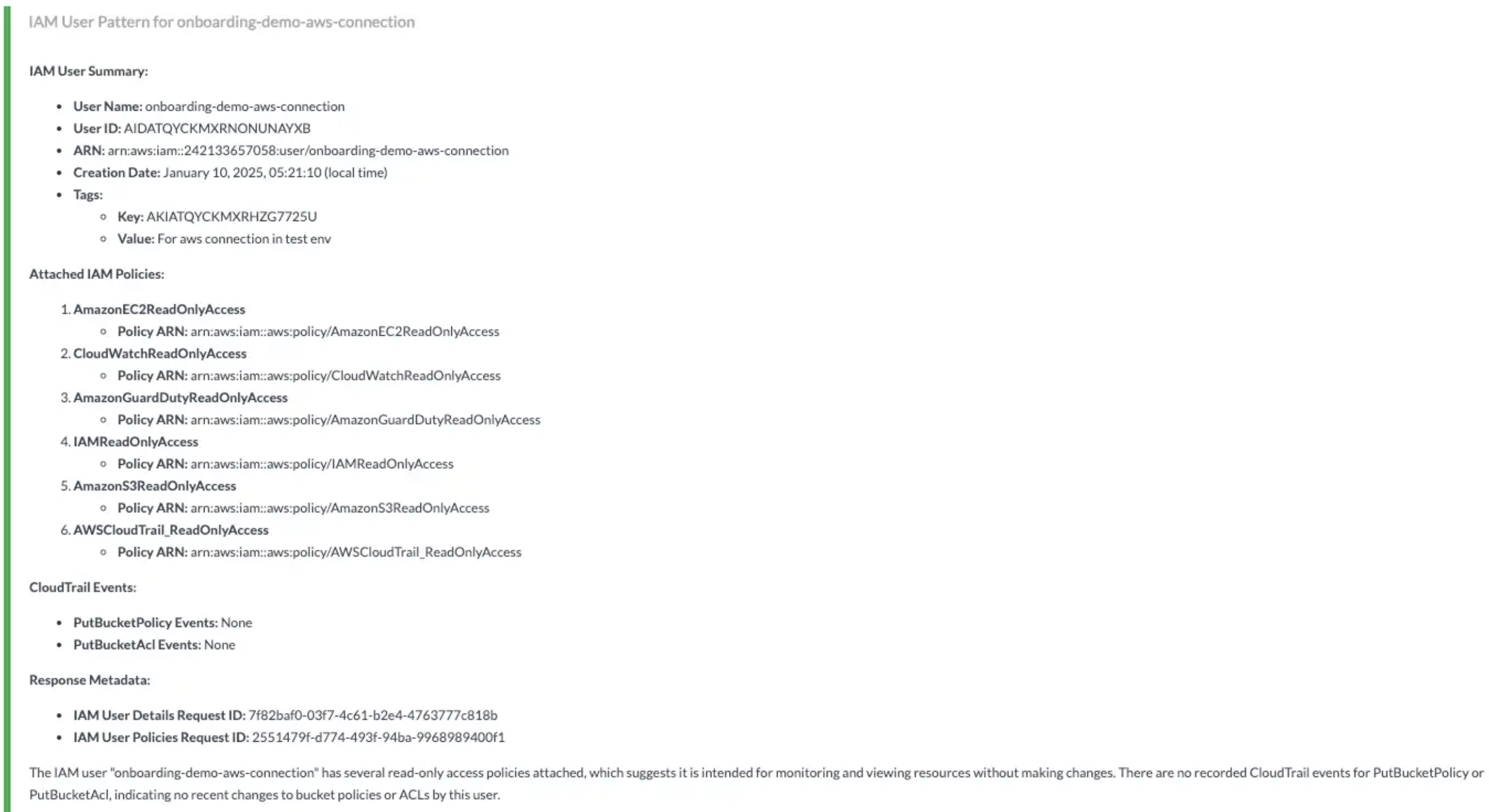
- Sign in to the same AWS IAM Console created for AWS GuardDuty.
- Search for IAM in the top menu bar.
-
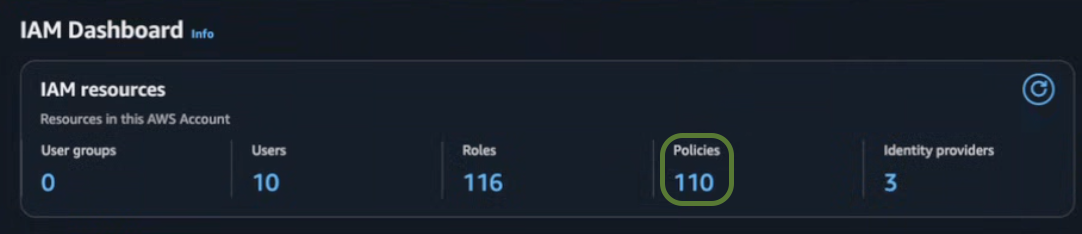
In the IAM dashboard, click on IAM resources → Policies.
-
Click Create policy in the top right corner.

-
Select JSON tab in the toggle tabs and paste the following:
 User can update the Policy Permissions mentioned in the JSON as per requirement.
 - Click Next.
-
In the Review and create section, provide the required information for the Policy details.
- Policy name – Provide a meaningful name like
AirMDR-ReadOnlyPolicy. - Description (Optional) – Add a short description for this policy.
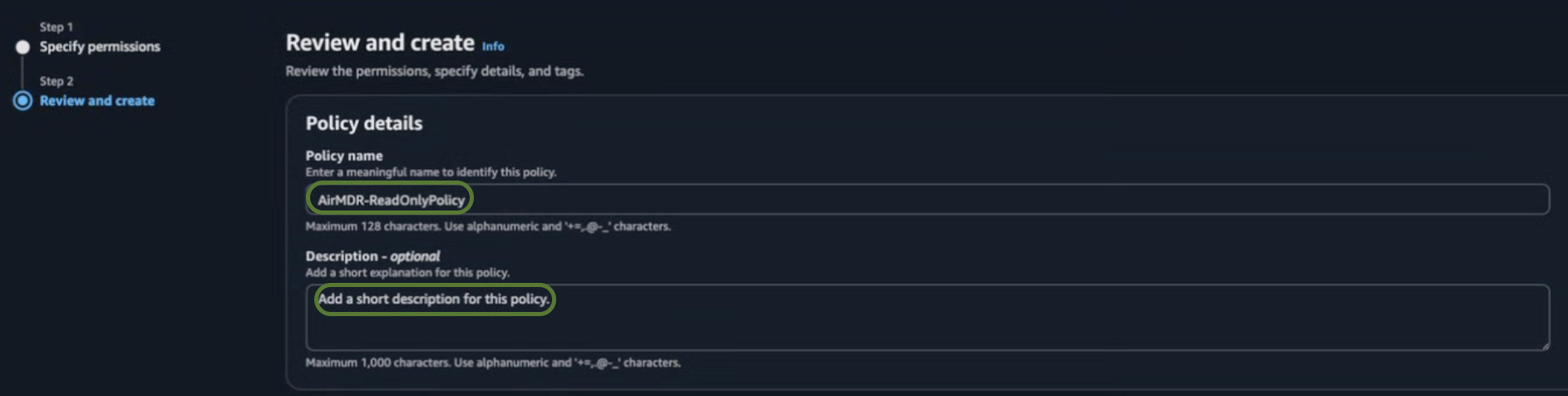
- Policy name – Provide a meaningful name like
-
Review your selections (Permissions defined in this policy), and if everything is correct.
- Review Permissions – Ensure the attached policies meet your security needs.
- Review Trust Policy – Verify the trust policy when you use cross-account access or service.
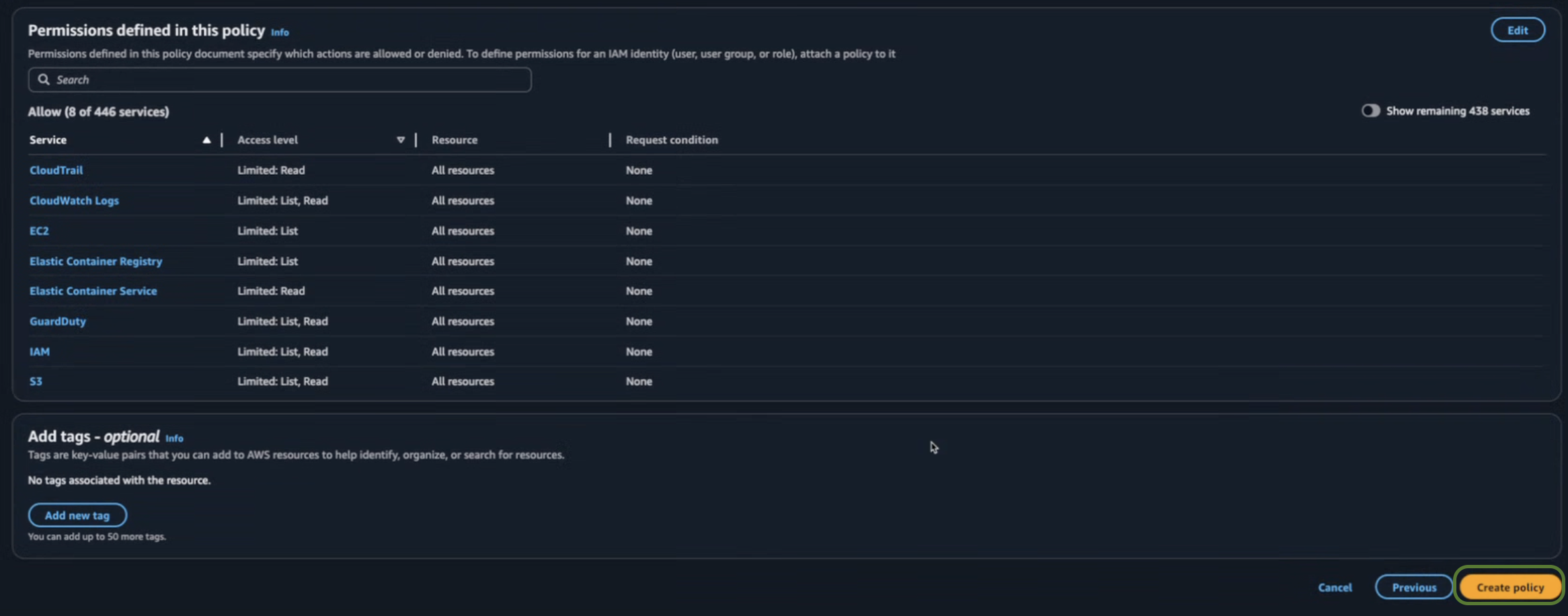
- Click Create policy.
Option 1: IAM User (Access Key Method)
Use this method if you prefer to authenticate via programmatic access credentials (Access Key ID and Secret Key).
Use this method if you prefer to authenticate via programmatic access credentials (Access Key ID and Secret Key).
Use this method if you prefer to authenticate via programmatic access credentials (Access Key ID and Secret Key).
Use this method if you prefer to authenticate via programmatic access credentials (Access Key ID and Secret Key).
- Navigate to IAM → IAM Dashboard.
- Click on IAM resources → User.
-
Click Create user in the top right corner.

-
Enter a User name (e.g.,
airmdr-integrator). -
Click Next.
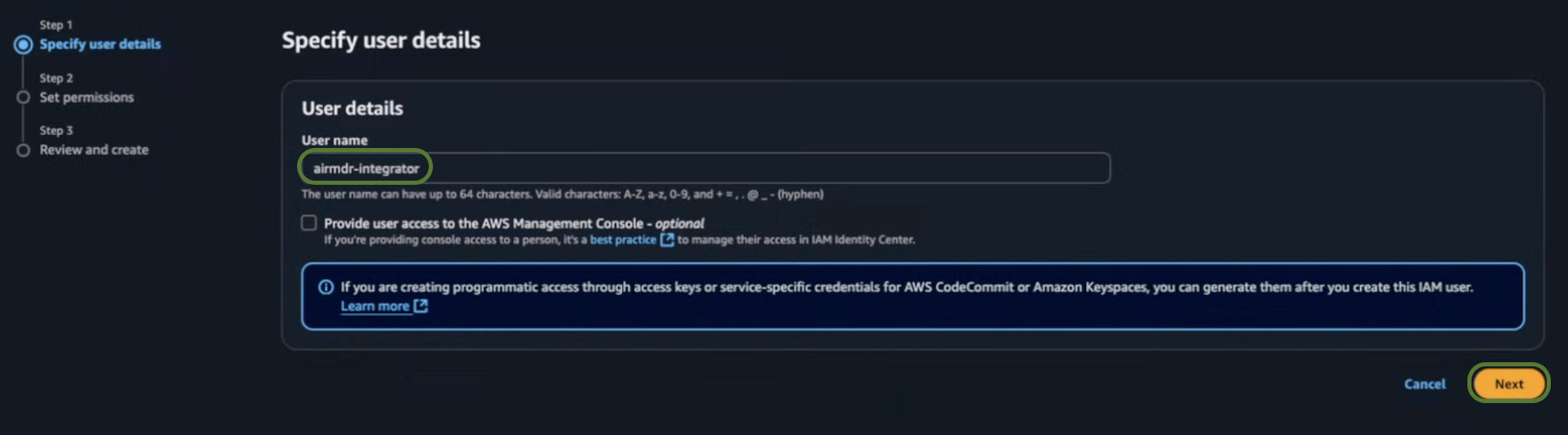
- In the Set permissions section, select Attach policies directly.
-
Search and select
AirMDR-ReadOnlyPolicy.Click here for detailed steps to define theAirMDR-ReadOnlyPolicyin IAM. -
Click Next.
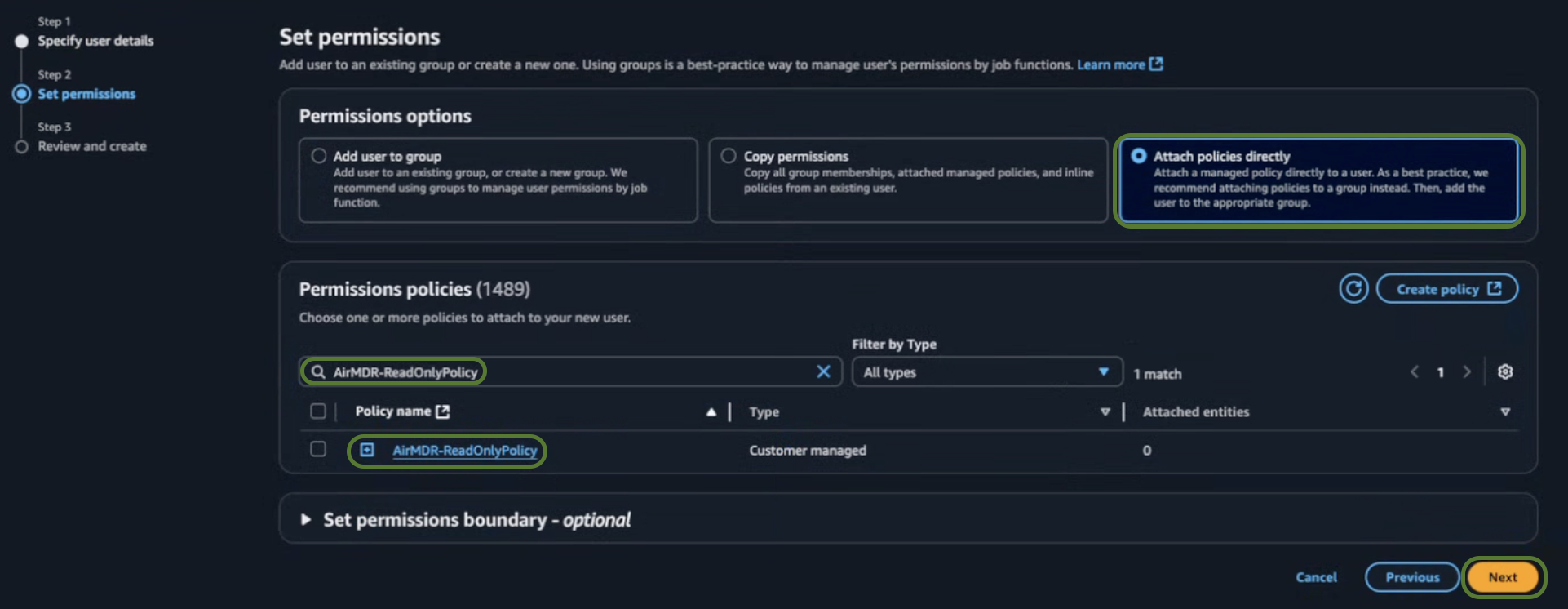
-
In the Review and create section, click Create user.
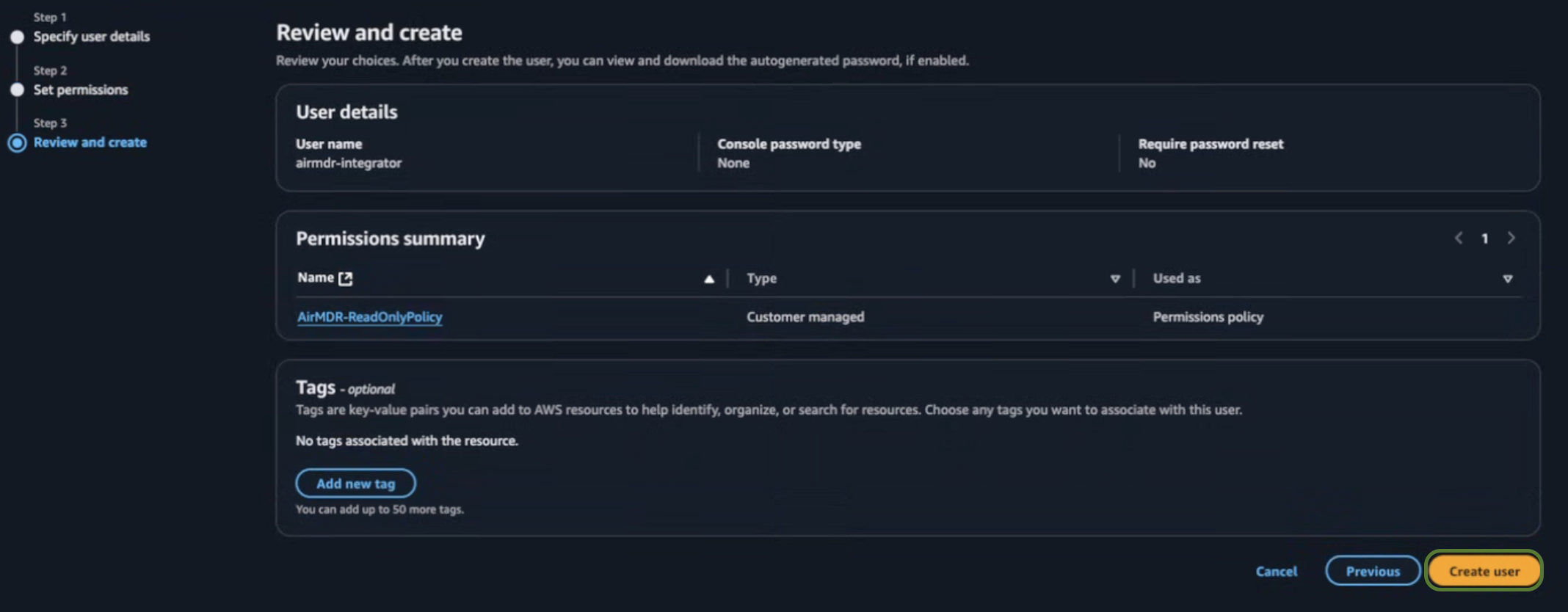
-
Search and select the User name (e.g.,
airmdr-integrator) created earlier. - Click on Create access key.
- Select the Command Line Interface (CLI) Use case, and the confirmation checkbox.
-
Click Next.
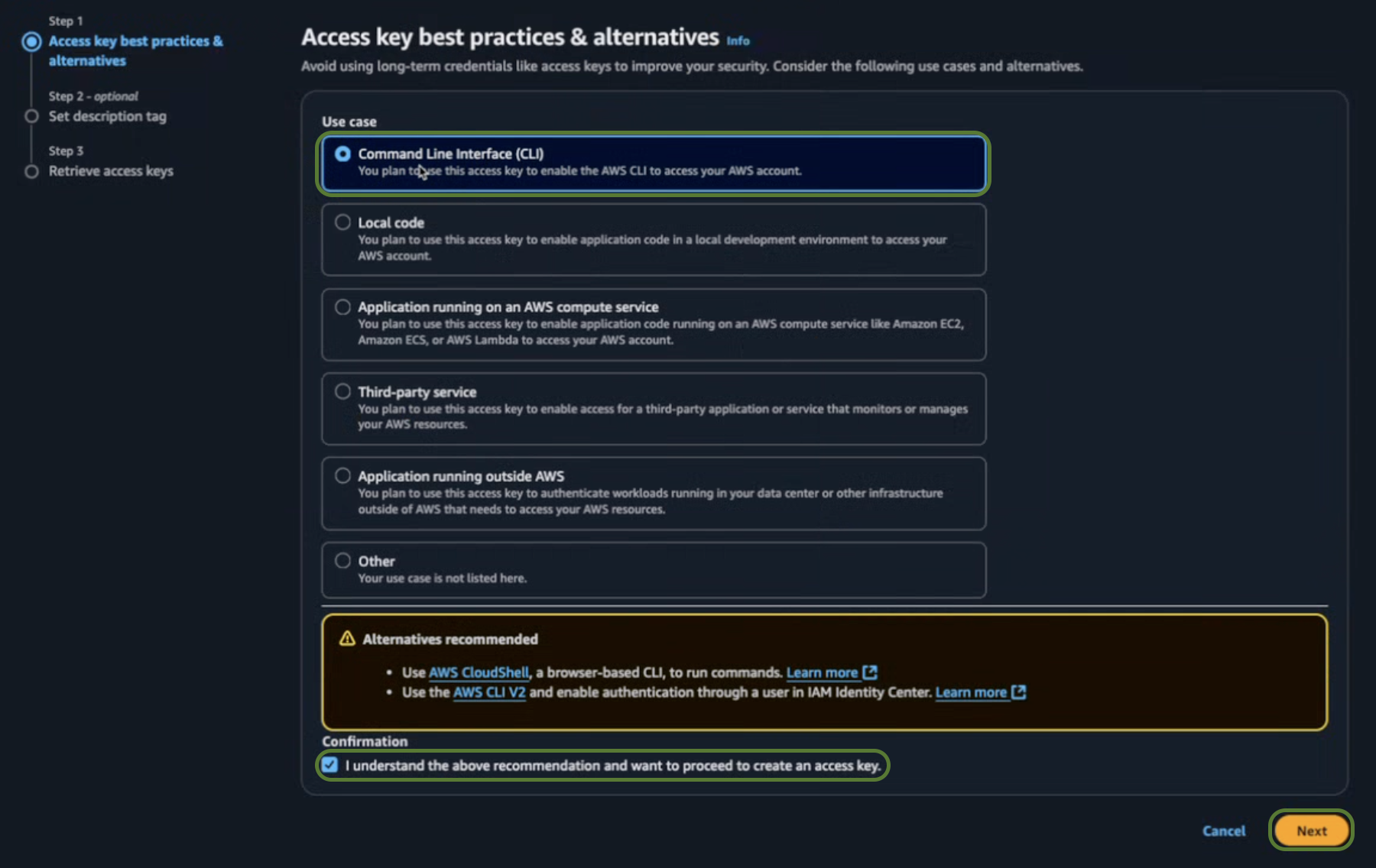
-
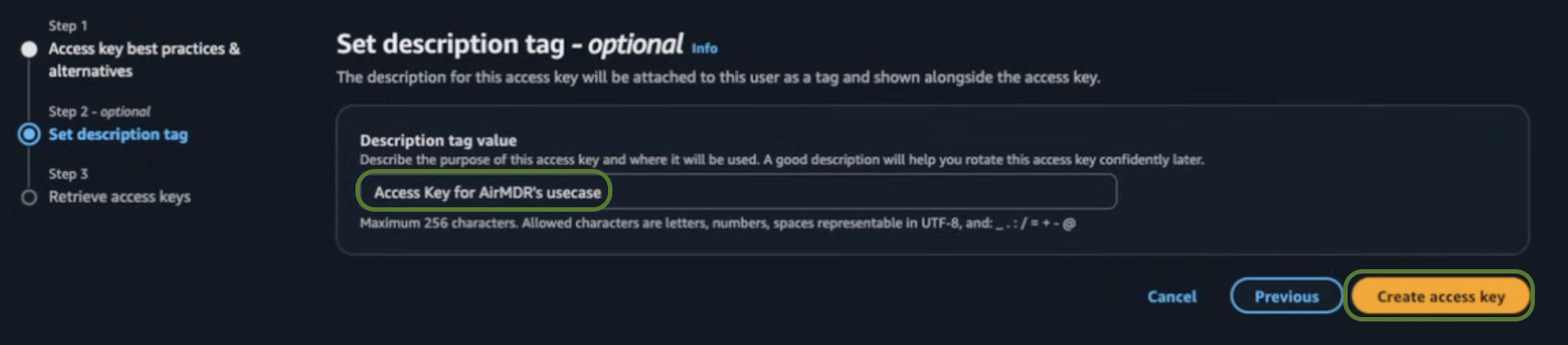
In the set description tag - optional section, provide the required information for the Description tag value.
- Description tag value (Optional) – Access key for AirMDR’s Use case.
-
Click Create access key.
-
On the Retrieve access keys screen, copy the:
- ✅ Access Key ID
- ✅ Secret Access Key
- Click Done.
Option 2: IAM Role (Assume Role via STS)
Use this method if you prefer to delegate access securely using AWS Security Token Service (STS). Recommended for production and enterprise environments.
Use this method if you prefer to delegate access securely using AWS Security Token Service (STS). Recommended for production and enterprise environments.
Use this method if you prefer to delegate access securely using AWS Security Token Service (STS). Recommended for production and enterprise environments.
Use this method if you prefer to delegate access securely using AWS Security Token Service (STS). Recommended for production and enterprise environments.
- Navigate to IAM → IAM Dashboard.
-
Click on IAM resources → Roles.

-
Click on Create role in the top right corner.

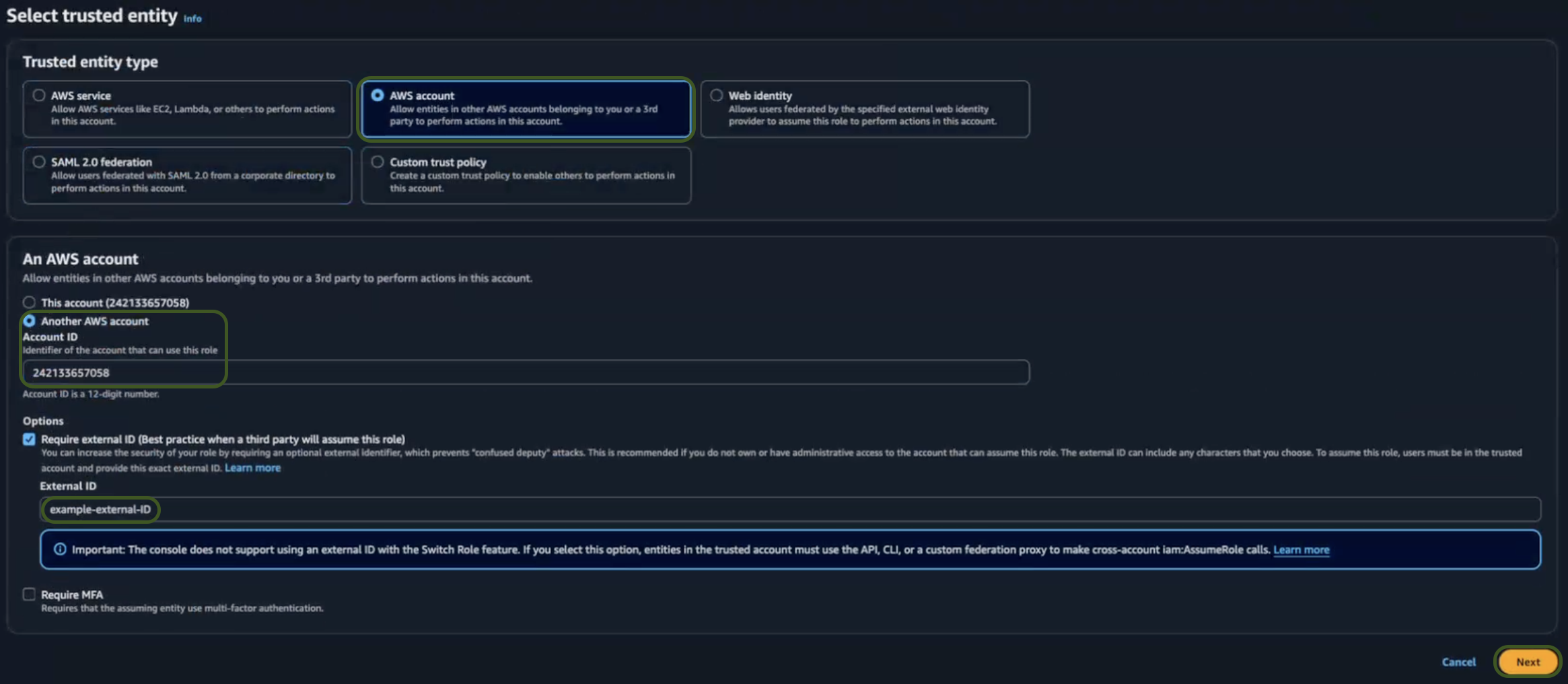
- In the Select a trusted entity → Trusted entity type section, chooseAWS Account .
- In the An AWS account section, choose Another AWS Account.
-
Enter the AirMDR AWS Account ID: 242133657058 only as an identifier of the account that can use this role.
Generally, the Account ID is a 12-digit Number, use only the Account ID mentioned above.
- Select the Required external ID Options checkbox (Best practice when a third party will assume this role).
-
Provide a meaningful name for the External ID like
example-external-ID. -
Click Next.
-
In the Add permissions section, search and select
AirMDR-ReadOnlyPolicy.Click here for detailed steps to define theAirMDR-ReadOnlyPolicyin IAM. -
Click Next.

-
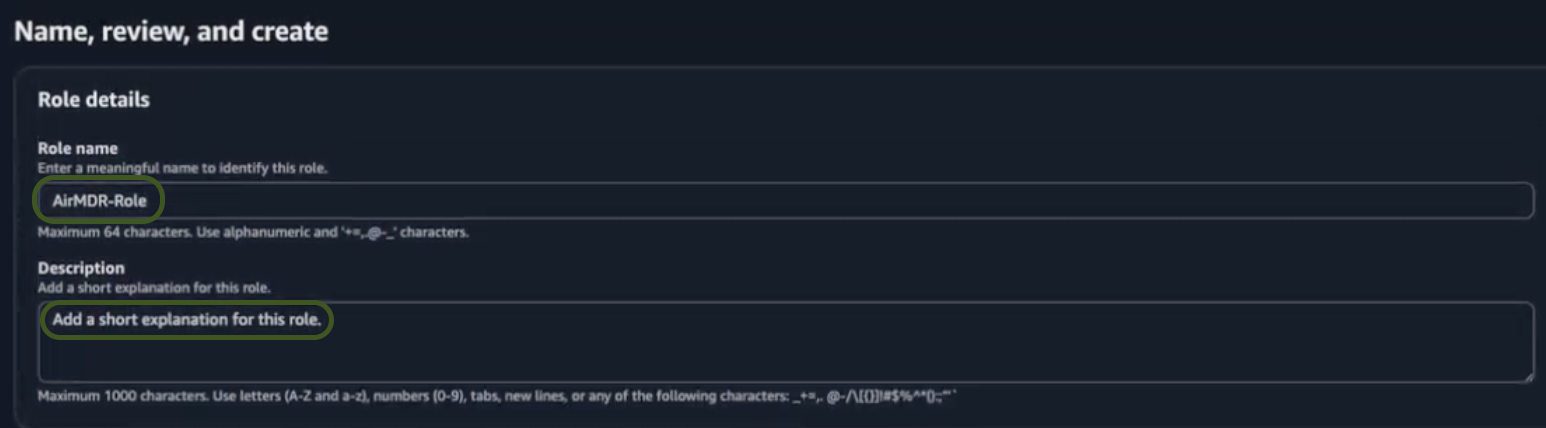
In the Name, review and create section.
-
Provide the required information in the Role details section for the role.
- Role Name – Provide a meaningful name like
AirMDR-Role. - Description (Optional) – Add a short description for this role.
- Role Name – Provide a meaningful name like
-
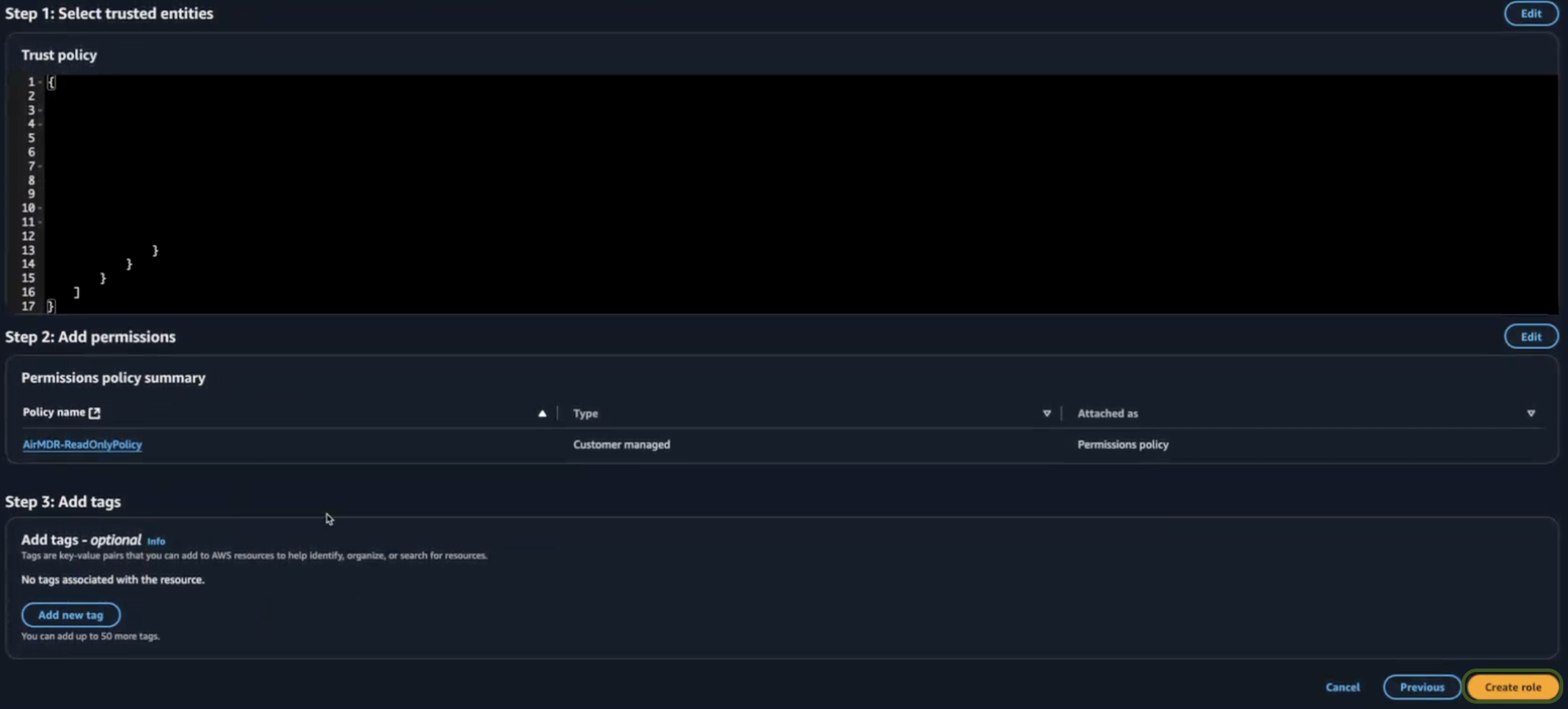
Review your selections (Permissions and Policies), and if everything is correct.
- Review Permissions – Ensure the attached policies meet your security needs.
- Review Trust Policy – Verify the trust policy when you use cross-account access or service.
- Click Create role.
-
Provide the required information in the Role details section for the role.
-
Search and select the role (e.g.,
AirMDR-Role) created earlier. - Once the role is created, click on the role name
-
Copy and securely save the Role ARN (Amazon Resource Name):
- ✅ Role ARN
- ✅ External ID (entered earlier)
- Click Done.
Option 3: Multi-Account Integration using AWS StackSet Method
For organizations managing multiple accounts under an AWS Organization, AirMDR supports Stackset-style delegated access via a root account.
For organizations managing multiple accounts under an AWS Organization, AirMDR supports Stackset-style delegated access via a root account.
For organizations managing multiple accounts under an AWS Organization, AirMDR supports Stackset-style delegated access via a root account.
For organizations managing multiple accounts under an AWS Organization, AirMDR supports Stackset-style delegated access via a root account.
How the access chain works
Read this before you start — it is the part the previous version of this guide got wrong, and it determines what you put in each trust policy.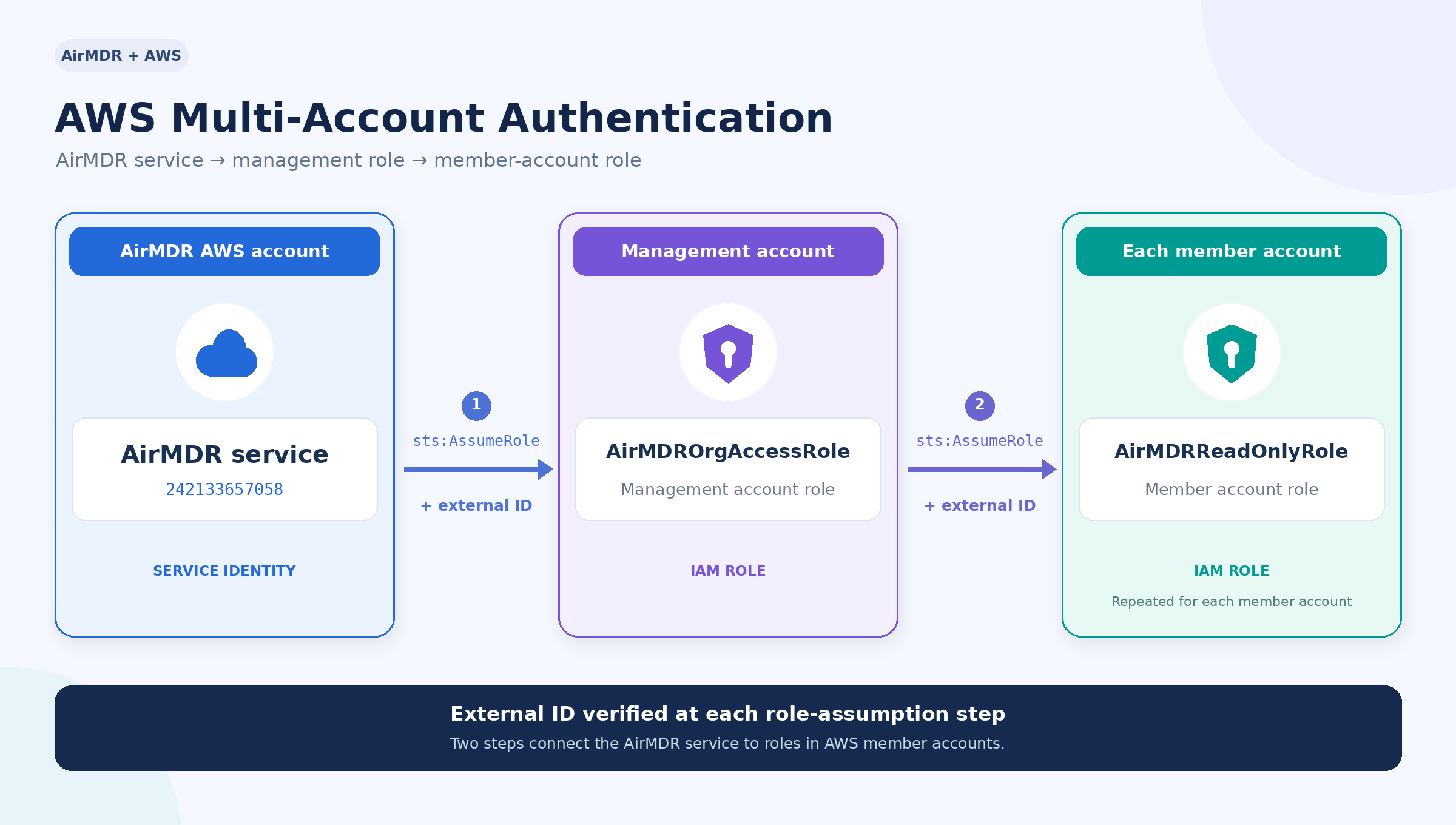
242133657058 — as the earlier template did — the second hop is denied, because the principal making that call is AirMDROrgAccessRole, not AirMDR’s account.
Already deployed the old template, where the member role trusts 242133657058 directly? It keeps working — AirMDR detects that topology and assumes accordingly. See Migrating an existing deployment for why you may still want to redeploy.
Step 1 — Create the management account role
Sign in to the management (root) account of your organization.- Go to IAM → Roles → Create role.
- Trusted entity type: AWS account.
- Select Another AWS account and enter account ID
242133657058. - Tick Require external ID and enter a unique string. Save it — this is your
root_account_external_id. - Attach the managed policy
AWSOrganizationsReadOnlyAccess. - Name the role
AirMDROrgAccessRoleand create it.
+ = , . @ : / -. Use something unguessable, for example airmdr-orgaccess-2026-a7f3c9e21b8d4f60.Step 1b — Add the two inline policies
AWSOrganizationsReadOnlyAccess alone is not enough. It grants only organizations:Describe* and organizations:List*, with no sts:AssumeRole, so the role cannot reach a single member account. It also grants no read access, so any skill that runs against the management account fails.Open the role → Add permissions → Create inline policy → JSON, and add both.Policy 1 — AirMDRAssumeMemberRoles. Lets the role make the second hop:RoleName in Step 2, match it here.Policy 2 — AirMDRManagementAccountRead. The StackSet does not deploy into the management account, so that account is read through this role directly. Use the same JSON as the member permission set below.Step 1c — Record three values
From the role’s summary page:root_account_id also tells AirMDR which account is the management account, so it can route reads there correctly instead of looking for a member role that does not exist.Step 2 — Deploy the member role by StackSet
Still in the management account.- CloudFormation → StackSets → Create StackSet.
- Permissions model: Service-managed permissions.
- Prerequisite: Template is ready. Specify template: Upload a template file.
- Upload the YAML below.
ChildAccountExternalId’s default to your own unique string. This is a different secret from the one in Step 1 — do not reuse it. It becomes your cross_account_external_id.- StackSet name: e.g.
AirMDR-StackSet. - Parameters: set
ManagementAccountIdto your own management account ID andChildAccountExternalIdto your chosen secret. LeaveRoleNameandOrgAccessRoleNameat their defaults unless you renamed the Step 1 role. - Configure options: Managed execution → Inactive. Tick the IAM capabilities acknowledgement.
- Deployment options:
- Add stacks to stack set → Deploy new stacks
- Deployment targets → Deploy to organization
- Automatic deployment → Activated (new accounts are covered automatically)
- Account removal behaviour → Delete stacks
- Specify regions → the region your security data is in. This becomes
region_name. IAM roles are global, but the region you pick here is where AirMDR will query. - Region concurrency → Sequential; Concurrency mode → Strict failure tolerance
- Review → Submit, then wait for every stack instance to reach
CURRENT.
Write actions. This policy is read-only. Skills that change state in your account — archiving GuardDuty findings, updating Security Hub workflow status, writing or deleting S3 objects, revoking IAM role sessions — needguardduty:ArchiveFindings,securityhub:BatchUpdateFindings,s3:PutObject,s3:DeleteObject,iam:PutRolePolicyandiam:GetRole. Add them as a second, clearly-labelled statement only if you want AirMDR to take those actions.
The permission set
The actions above are the complete set AirMDR calls. Use the same list for the management account’s inline policy in Step 1b — minus thests:AssumeRole that is already in AirMDRAssumeMemberRoles.Step 3 — Create the connection in AirMDR
Integrations → Amazon Web Services → Add connection → Multi-account.assume_role_in_root_account unset. AirMDR works out which trust topology your member roles use on the first assume and reuses that answer for the rest of the query. Pin it only if you want to skip that one-off detection — true for the template in this guide, false for the older one. A pinned value is obeyed exactly, so an incorrect pin produces AccessDenied rather than silently falling back.Step 4 — Verify
Run Verify authentication. A green result confirmsAirMDROrgAccessRole is assumable — and nothing more. It only calls sts:GetCallerIdentity, which needs no permission at all, so it cannot tell you whether the member roles work.Prove the second hop with a real query. Run Get GuardDuty findings with no account_id, then read AccountResults[] in the response:- Every account
status: "success"— setup is complete. AccessDeniedonsts:AssumeRolefor every member — the trust policy, the external ID, or thests:AssumeRolegrant from Step 1b is wrong.AccessDeniedon aguardduty:action — the chain works; that account is missing a permission, or GuardDuty is not enabled in that region.- An entry for the management account only — the StackSet has not finished.
Findings list on its own does not mean “no findings”. Always read AccountResults[].Account coverage
Not every skill reaches every account, so set expectations accordingly.Query all member accounts automatically, and accept an optionalaccount_id input to target one: Get GuardDuty findings, Look up CloudTrail events, Filter CloudWatch log events, Get CloudWatch metrics, General AWS query.Run against the management account only: everything else — listing GuardDuty detectors, listing CloudTrail trails, CloudWatch log groups and events, all S3 skills, all Security Hub skills, Athena queries, and the IAM skills. These need the Step 1b inline read policy on AirMDROrgAccessRole; without it they return AccessDenied. Broader fan-out for these is on the roadmap.Migrating an existing deployment
Earlier versions of this guide shipped a template whose member role trustedarn:aws:iam::242133657058:root — AirMDR’s account — rather than your management account role.Nothing breaks and there is nothing to change. AirMDR detects which principal your member roles trust and assumes accordingly. An existing deployment keeps working untouched, on the original template, with no connection edit and no redeployment.You would still want to move to the template above for its permission scope, not its trust policy: the older AirMDRReadOnlyPolicy granted only CloudTrail and GuardDuty reads, so CloudWatch, Security Hub, S3 and Athena skills return AccessDenied until it is widened. When you do redeploy, the trust policy changes with it and AirMDR follows automatically.Two notes for the old topology:AirMDROrgAccessRoledoes not need thests:AssumeRolepolicy from Step 1b, because nothing chains through it. Add the Step 1b read policy only if you want management-account data.- Detection costs one denied
sts:AssumeRoleper client, which appears in your CloudTrail. If that noise matters to your own detections, pinassume_role_in_root_accounttofalseand it stops.
Troubleshooting
Either accesskey and secretkey or role_arn or ... is required — the connection is missing root_account_role_arn, or it was saved before the fix that added root-account support. Re-save the connection.sts:AssumeRole denied on every member account — AirMDR tries both trust topologies before reporting this, so the role is genuinely unreachable. Check, in order: cross_account_external_id matches ChildAccountExternalId exactly; the StackSet reached CURRENT in that account; the sts:AssumeRole grant from Step 1b exists on AirMDROrgAccessRole; the member trust policy names either your management account role or 242133657058. If assume_role_in_root_account is pinned, detection is off — clear it, or confirm the pin matches your template. The error text tells the first apart from the rest: because no identity-based policy allows the sts:AssumeRole action means the Step 1b grant is missing.A skill returns zero rows with no error — read AccountResults[] before concluding the data is not there. A fan-out where every account failed still returns an empty top-level list.NoSuchBucket from an S3 skill — bucket names are not discoverable; AirMDR has no s3:ListAllMyBuckets. Supply the exact bucket name, and make sure it is in the Resource list of the S3 statement.Only one region is queried — region is fixed per connection. Add a second connection, with the StackSet extended to that region, to cover another one.Where to find the generated AWS Authentication Parameters in the Console (UI Steps)
Skills Provided by this Integration
The AWS integration provides skills to investigate security findings, query logs and metrics, access S3 objects, analyze historical data, and automate response actions.Permissions depend on the skills used and the resources accessed. Grant the required IAM actions to the IAM user or role configured for the AirMDR connection.
CloudTrail — Audit and Investigation
CloudTrail — Audit and Investigation
LookupEvents retrieves management and supported Insights events within the last 90 days in a region. It does not retrieve data events. Query older events or data events from a configured logging destination, such as CloudTrail logs stored in S3 through Athena.CloudWatch — Logs and Metrics
CloudWatch — Logs and Metrics
logs:Unmask only when access to unmasked sensitive fields is required. Add logs:DescribeLogStreams if the implementation or playbook also discovers log streams before retrieving events.GuardDuty — Threat Investigation and Response
GuardDuty — Threat Investigation and Response
guardduty:GetDetector when the integration retrieves detector configuration or performs detector-detail checks.Security Hub — Findings and Compliance
Security Hub — Findings and Compliance
GetFindings and GetFindingsV2 APIs require securityhub:GetFindings. Do not add securityhub:GetFindingsV2 as an IAM action.Amazon S3 — Object Management
Amazon S3 — Object Management
Athena — Historical Data Analysis
Athena — Historical Data Analysis
SELECT query writes query results.IAM — Permission Checks and Session Response
IAM — Permission Checks and Session Response
iam:PutRolePolicy to the intended target roles because it permits inline policy changes.General AWS Operations
General AWS Operations
Permissions Required
Configure AWS access according to the skills your organization uses. Investigation skills require read or query permissions. Response skills require additional permissions to update findings, manage S3 objects, or revoke IAM role sessions.AWS IAM Permissions
AirMDR requires specific AWS IAM actions according to the skills and workflows your organization uses. Grant these actions to the IAM user or role configured for the AirMDR connection.Investigation and Query Permissions
Investigation and Query Permissions
securityhub:GetFindings for both Security Hub finding retrieval skills. Do not use securityhub:GetFindingsV2 or securityhub:ListFindings in the IAM policy.Response and Permissions-Management Permissions
Response and Permissions-Management Permissions
Conditional Permissions and Dependencies
Conditional Permissions and Dependencies
Athena Data-Access Dependencies
Athena Data-Access Dependencies
SELECT query writes results. Other SQL operations, federated queries, and different catalog configurations can require additional permissions.Configure AWS in the AirMDR Integrations Dashboard
- Navigate to AirMDR, provide the credentials, and click Login.
- Navigate to the AirMDR Integrations Dashboard in the left navigation pane and select Integrations.
- Use the search option, enter the keyword “Amazon Web Services”, select the Connections tab, and click the + Create icon.
- Enter an unique name to the Instance (e.g.,
your org name-AWS) to easily identify the user connection by AirMDR. - AirMDR supports multiple authentication methods for integrating with your AWS environment:
-
IAM User (Access Key Method)
To Integrate and authenticate the credentials generated through IAM User (Access Key Method)
- In the Authentication Details → DO IT YOURSELF
- Go to Step. 2 and provide the values: Required Fields in the Authentication Details field params:
-
access_key: Access Key ID of the IAM user -
secret_key: Secret Access Key associated with the IAM userThis key is generated when creating the Access Key for the user.
-
- In the Step. 5 enter the region name.
region_name: AWS region to be used for integration (e.g.,us-east-1)
- Click the “Create” button to save the integration configuration.
- Click the “Authenticate” button to validate the credentials and authorize the connection.
-
IAM Role (Assume Role Method)
To Integrate and authenticate the credentials generated through IAM Role (Assume Role Method)
- In the Authentication Details → DO IT YOURSELF
- In the Step. 3 provide the values: Required Fields in the Authentication Details field params:
role_arn: ARN of the IAM role to assumeexternal_id: External ID configured in the IAM role’s trust policy
- In the Step. 5 enter the region name.
region_name: AWS region to be used for integration (e.g.,us-east-1)
- Click the “Create” button to save the integration configuration.
- Click the “Authenticate” button to validate the credentials and authorize the connection.
-
Multi-Account Integration using AWS Stackset Method
To Integrate and authenticate the credentials using AWS Stackset Method
To Integrate and authenticate the credentials generated through AWS Stackset Method
- In the Authentication Details → DO IT YOURSELF
- In the Step. 4 provide the values: Required Fields in the Authentication Details field params:
root_account_role_arn: ARN of the IAM role in the root account used to list accountsroot_account_external_id: External ID in the root account role’s trust policyroot_account_id: Account ID of the root/management accountcross_account_role_name: Name of the IAM role created in all member accountscross_account_external_id: External ID configured in member accounts’ trust policies
- In the Step. 5 enter the region name.
region_name: AWS region to be used for integration (e.g.,us-east-1)
- Click the “Create” button to save the integration configuration.
- Click the “Authenticate” button to validate the credentials and authorize the connection.
-
IAM User (Access Key Method)