> ## Documentation Index
> Fetch the complete documentation index at: https://docs.airmdr.com/llms.txt
> Use this file to discover all available pages before exploring further.
# SentinelOne
> SentinelOne is a cloud-based cybersecurity platform that helps protect against cyber threats such as malware, ransomware, and advanced persistent threats (APTs).
### Pre-requisites
A user account with the privileges to generate an API token.
### Generate SentinelOne API
1. Log in to your **SentinelOne Management Console** as an **Admin**.
2. Provide the necessary credentials (**email** and **password**), and click **Sign In**.
**Viewer** role in SentinelOne provides **read-only access**, allowing users to view threats, devices, and reports. See below for additional permissions to perform actions that require modifications.
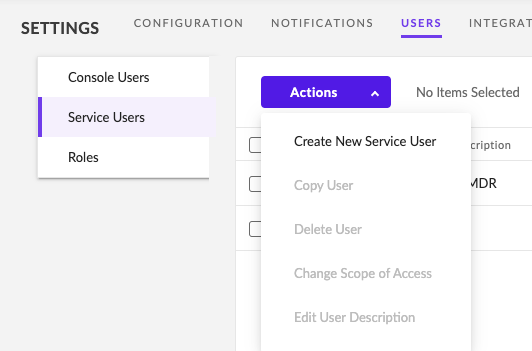
1. Navigate to **Settings** and select the **Users** tab.
2. In the left navigation pane, select **Service Users**.
 3. In the **Actions** drop-down list, click on **Create New Service User**.
 4. Provide the mandatory fields and click **Next**
* Name: (Preferably **AirMDR**)
* Expiration Date
5. Click **Next**.
4. Provide the mandatory fields and click **Next**
* Name: (Preferably **AirMDR**)
* Expiration Date
5. Click **Next**.
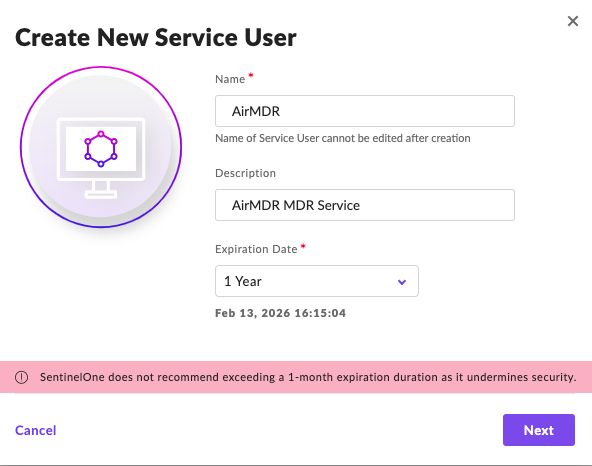 **It is recommended that the duration be equal to the contract, but it depends on how often you wish to re-issue the token.**
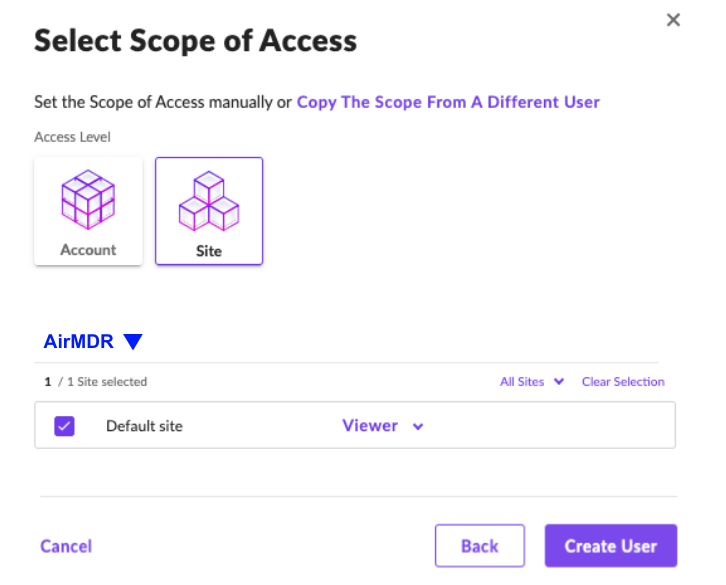
6. Allow access to your site under "**Select Scope of Access**".
7. Set access to "**Viewer**" (that's the default).
8. Click **Create User**.
**It is recommended that the duration be equal to the contract, but it depends on how often you wish to re-issue the token.**
6. Allow access to your site under "**Select Scope of Access**".
7. Set access to "**Viewer**" (that's the default).
8. Click **Create User**.
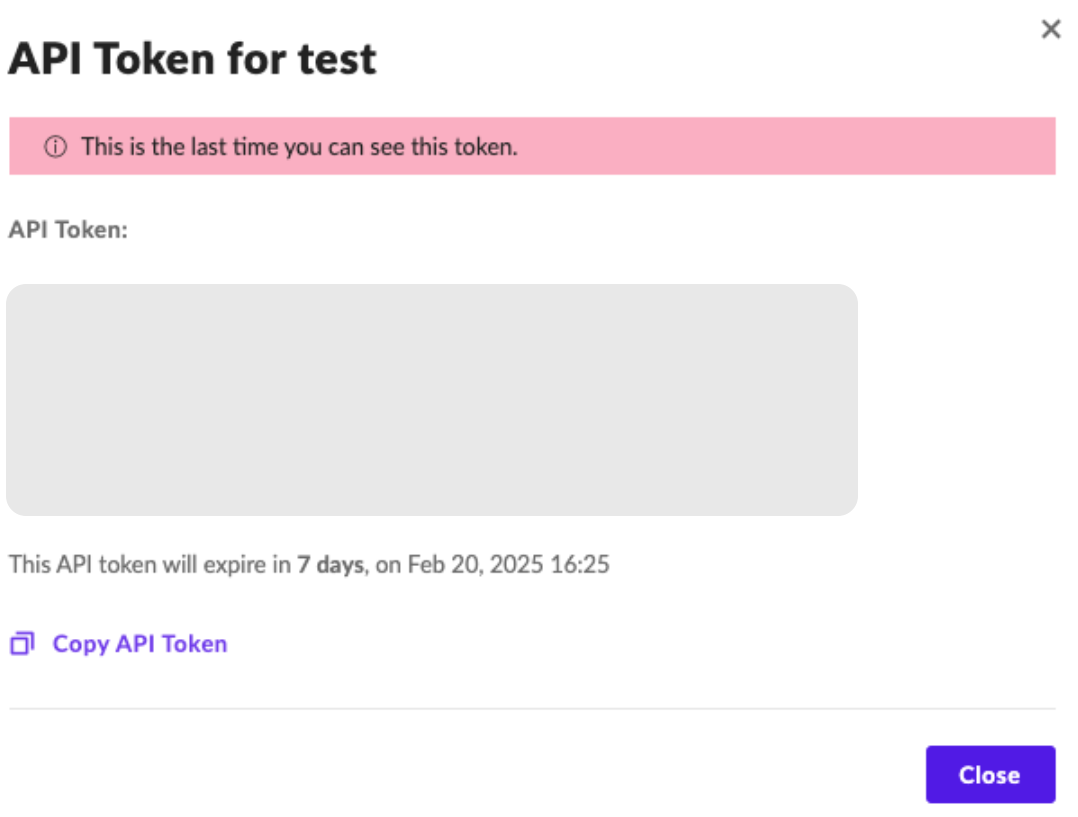
 9. Use the **Copy API Token** option at the bottom to copy the API Token.
**Copy** and securely store the API token (you won’t be able to see it again).
9. Use the **Copy API Token** option at the bottom to copy the API Token.
**Copy** and securely store the API token (you won’t be able to see it again).
 ### Creation of Custom Role
To get defined alerts from SentinelOne, the admin must create a **Custom Role** for your **account** or **scope**.
Actions like Network Quarantine, Updating Threat Status requires additional permissions. Should follow below instructions to create a new role, assign required permissions to this new role and assign this role to the user created above instead of Viewer role.
1. Log in to your **SentinelOne Management Console** as an **Admin**.
2. Go to **Settings** → **USERS** in the top menu.
### Creation of Custom Role
To get defined alerts from SentinelOne, the admin must create a **Custom Role** for your **account** or **scope**.
Actions like Network Quarantine, Updating Threat Status requires additional permissions. Should follow below instructions to create a new role, assign required permissions to this new role and assign this role to the user created above instead of Viewer role.
1. Log in to your **SentinelOne Management Console** as an **Admin**.
2. Go to **Settings** → **USERS** in the top menu.
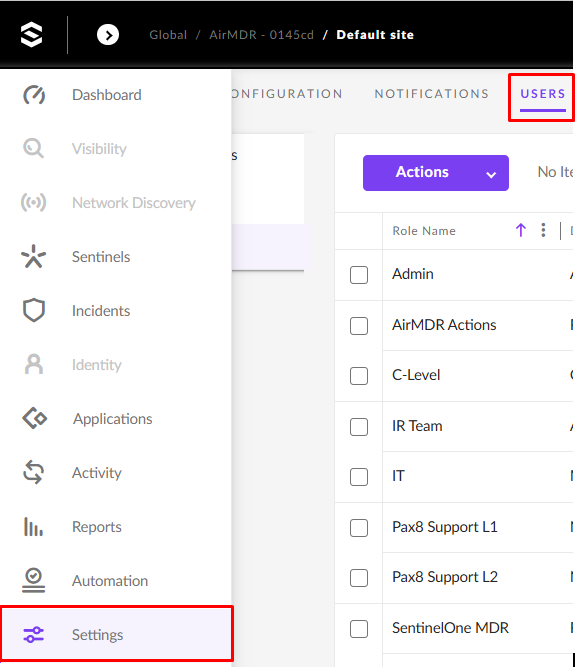 3. Select the **Roles** tab on the left.
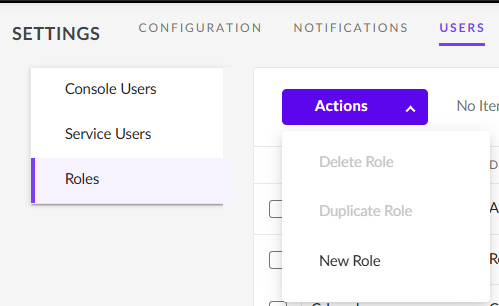
4. Click on the **Actions** drop-down menu and select **New Role**.
3. Select the **Roles** tab on the left.
4. Click on the **Actions** drop-down menu and select **New Role**.
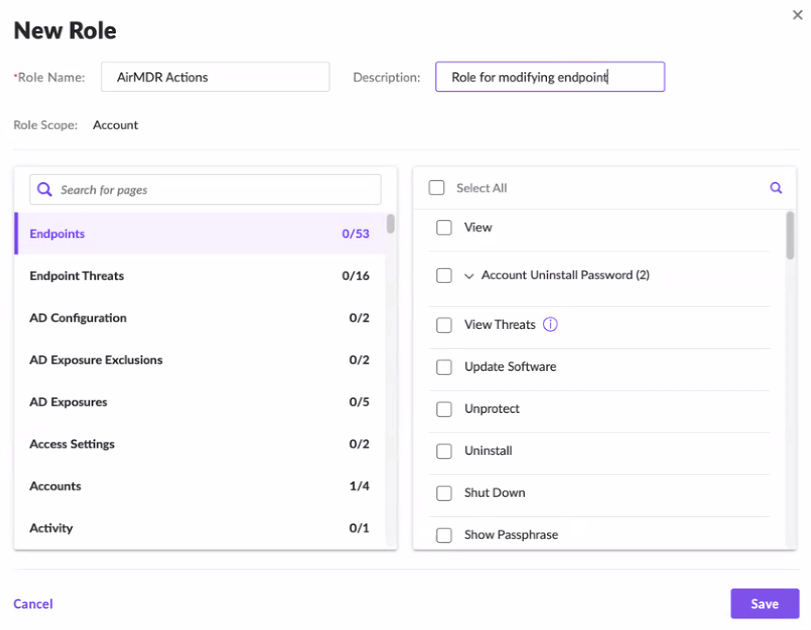
 5. Enter the required details to create a Role:
* Role Name: Unique role name for your organization
* Description: Describe the role of your endpoint configuration.
6. In the left pane, select the required pages (e.g., Endpoints, Endpoint Threats, Access Settings, Accounts, Activity) and the required permissions (e.g., View, Initiate Scan, Disconnect From Network) for the respective page in the right pane to create a custom role.\
Permission requirements for different skills are listed below\
For Example:
To create a SentinelOne API to scan and manage SentinelOne Network connection:
1. Select **Endpoints** in the left pane.
2. Select **View**, **Initiate Scan,** and **Disconnect From Network** from the right pane.
**Endpoints.InitiateScan**: This permission is required for “Initiate SentinelOne Scan Skill”
\
**Endpoints.DisconnectFromNetwork**: This permission is required for “Manage SentinelOne Network Connection”
To create a SentinelOne API to view threats:
1. Select **Endpoints** in the left pane and **View Threats** in the right pane.
2. Select **Threat Detection** in the left pane and **View** in the right pane.
7. Click **Save**.
5. Enter the required details to create a Role:
* Role Name: Unique role name for your organization
* Description: Describe the role of your endpoint configuration.
6. In the left pane, select the required pages (e.g., Endpoints, Endpoint Threats, Access Settings, Accounts, Activity) and the required permissions (e.g., View, Initiate Scan, Disconnect From Network) for the respective page in the right pane to create a custom role.\
Permission requirements for different skills are listed below\
For Example:
To create a SentinelOne API to scan and manage SentinelOne Network connection:
1. Select **Endpoints** in the left pane.
2. Select **View**, **Initiate Scan,** and **Disconnect From Network** from the right pane.
**Endpoints.InitiateScan**: This permission is required for “Initiate SentinelOne Scan Skill”
\
**Endpoints.DisconnectFromNetwork**: This permission is required for “Manage SentinelOne Network Connection”
To create a SentinelOne API to view threats:
1. Select **Endpoints** in the left pane and **View Threats** in the right pane.
2. Select **Threat Detection** in the left pane and **View** in the right pane.
7. Click **Save**.
 8. In the left navigation pane, select **Service Users**.
9. In the **Actions** drop-down list, click on **Create New Service User**.
10. Provide the mandatory fields and click **Next**
* Name: Provide a unique name for the Service User (e.g., AirMDR Actions)
* Expiration Date
8. In the left navigation pane, select **Service Users**.
9. In the **Actions** drop-down list, click on **Create New Service User**.
10. Provide the mandatory fields and click **Next**
* Name: Provide a unique name for the Service User (e.g., AirMDR Actions)
* Expiration Date
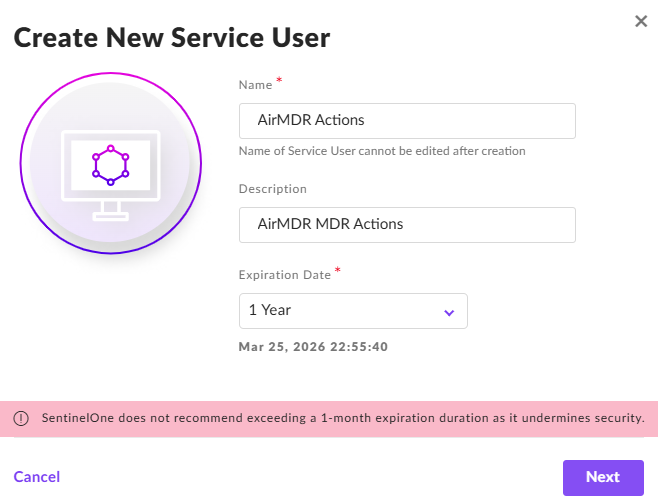 11. Click **Next**.
**It is recommended that the duration be equal to the contract, but it depends on how often you wish to re-issue the token.**
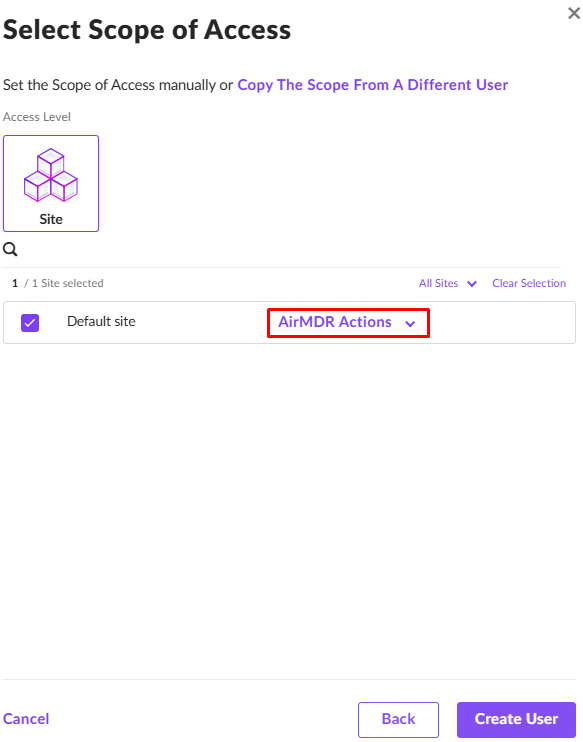
12. Allow access to your site under "**Select Scope of Access**".
13. Set access to "**AirMDR Actions**" (select the custom role defined with pages and permissions).
14. Click **Create User**.
In the Authentication Required pop-up, enter the Two-Factor Authentication Code and click **Confirm Action**.
11. Click **Next**.
**It is recommended that the duration be equal to the contract, but it depends on how often you wish to re-issue the token.**
12. Allow access to your site under "**Select Scope of Access**".
13. Set access to "**AirMDR Actions**" (select the custom role defined with pages and permissions).
14. Click **Create User**.
In the Authentication Required pop-up, enter the Two-Factor Authentication Code and click **Confirm Action**.
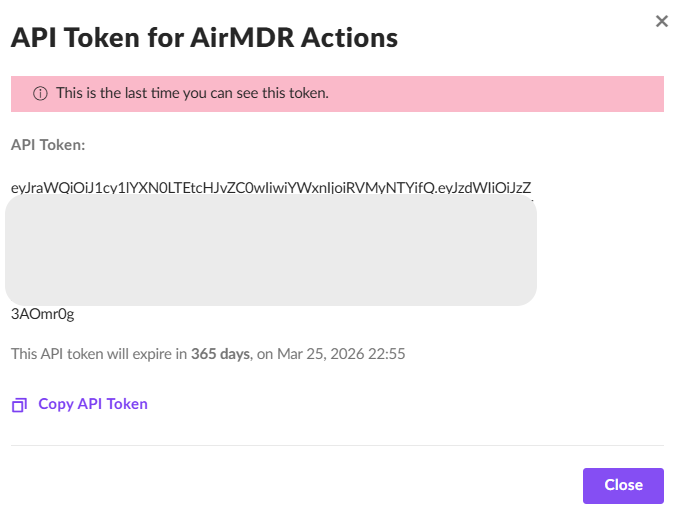
 15. Use the **Copy API Token** option at the bottom to copy the API Token.
**Copy** and securely store the API token (you won’t be able to see it again).
15. Use the **Copy API Token** option at the bottom to copy the API Token.
**Copy** and securely store the API token (you won’t be able to see it again).
 Share the **API Token** and the **SentinelOne URL** securely with the AirMDR team or self-configure them in the AirMDR Integrations Dashboard.
## Skills Provided by This Integration
AirMDR provides the following SentinelOne skills for endpoint discovery, threat investigation, Deep Visibility hunting, threat intelligence management, and incident-response actions.
**Endpoint, Asset, and Configuration Discovery**
| Skill ID | Purpose |
| :- | :- |
| **Get SentinelOne Agents** | Retrieves SentinelOne-managed endpoints and associated inventory information such as hostname, operating system, IP addresses, agent version, connectivity state, scan status, and last active time. |
| **Enrich SentinelOne Endpoint** | Retrieves detailed SentinelOne endpoint information using an IP address or hostname to support alert enrichment, investigation, and follow-up response actions. |
| **Get SentinelOne Agent Applications** | Retrieves applications installed on SentinelOne-managed endpoints, including application name, version, publisher, installation path, and installation details. |
| **List SentinelOne Sites** | Lists SentinelOne sites and organizational scopes, including site identifiers, state, agent counts, and licensing information. |
| **List SentinelOne Groups** | Lists endpoint groups configured within SentinelOne sites and provides group IDs that can be used to scope endpoint and Deep Visibility operations. |
| **List SentinelOne Users** | Retrieves SentinelOne console users and service accounts, including roles, account scope, and login information for access reviews and auditing. |
| **List SentinelOne Exclusions** | Retrieves configured detection exclusions such as paths, hashes, certificates, processes, and other allow-list entries. |
| **Get SentinelOne System Status** | Retrieves the current health and operational status of the SentinelOne management environment. |
**Threat, Alert, and Activity Investigation**
| Skill ID | Purpose |
| :- | :- |
| **Get SentinelOne Threats** | Retrieves SentinelOne threat detections including threat classification, file information, affected endpoint, mitigation state, incident status, analyst verdict, and timestamps. |
| **Get SentinelOne Alerts** | Retrieves SentinelOne cloud detection alerts for investigation and correlation with other security events. |
| **Get SentinelOne Activities** | Retrieves SentinelOne management-console activity records for auditing, investigation timelines, user activity reviews, and change tracking. |
| **List SentinelOne Activity Types** | Retrieves SentinelOne activity-type definitions and identifiers that can be used when filtering or interpreting activity records. |
**Deep Visibility and Threat Hunting**
| Skill ID | Purpose |
| :- | :- |
| **Build SentinelOne DV Query** | Constructs a valid SentinelOne Deep Visibility query from structured fields, operators, and values without requiring analysts to manually write Deep Visibility query syntax. |
| **Create SentinelOne DV Query** | Starts an asynchronous Deep Visibility telemetry query against SentinelOne endpoint data and returns a query identifier used to retrieve the results. |
| **Get SentinelOne DV Events** | Retrieves the telemetry events generated by a previously initiated SentinelOne Deep Visibility query. |
**Threat Intelligence, IOC, and Blocklist Management**
| Skill ID | Purpose |
| :- | :- |
| **List SentinelOne IOCs** | Retrieves Indicators of Compromise stored in SentinelOne, including indicator type, value, severity, source, description, expiration, and associated metadata. |
| **Create SentinelOne IOC** | Creates an Indicator of Compromise in SentinelOne for IP addresses, domains, URLs, or file hashes so SentinelOne can identify matching activity across managed endpoints. |
| **Add SentinelOne Blocklist Hash** | Adds a file hash to the SentinelOne blocklist so managed agents can identify and quarantine matching files. |
| **Remove SentinelOne Blocklist Hash** | Removes an existing file-hash restriction from the SentinelOne blocklist, typically when reversing a block or resolving a false-positive condition. |
**Threat Response, Remediation, and Containment**
| Skill ID | Purpose |
| :- | :- |
| **Update SentinelOne Threat Status** | Updates the incident status or analyst verdict associated with a SentinelOne threat during the investigation lifecycle. |
| **Add SentinelOne Threat Note** | Adds an analyst note to a SentinelOne threat to record investigation findings, remediation activity, evidence, or closure justification. |
| **Mitigate SentinelOne Threat** | Performs threat-level response actions such as kill, quarantine, remediate, rollback remediation, unquarantine, or network quarantine. |
| **Initiate SentinelOne Scan** | Starts an on-demand filesystem scan on a SentinelOne-managed endpoint to detect threats or validate remediation. |
| **Manage SentinelOne Network Connection** | Disconnects an endpoint from the network for containment or reconnects it after remediation while maintaining SentinelOne management connectivity. |
### Evaluate SentinelOne API Test Scope Restrictions
Open **cURL** and run the following command to check if your API Access is working:
**Test Threat Retrieval**
```
curl -X GET "https:///web/api/v2.1/threats" \
-H "Authorization: ApiToken " \
-H "Content-Type: application/json"
```
* If the user has **site-specific access**, it should return threats only for that site.
* If restricted, it should return an **empty list or 403 error**.
**Test Device Access**
```
curl -X GET "https:///web/api/v2.1/agents" \
-H "Authorization: ApiToken " \
-H "Content-Type: application/json"
```
* This verifies if the user can retrieve **device information** based on the assigned scope.
**Troubleshooting API Access Issues**
| Error Code | Possible Issue | Solution |
| - | - | - |
| `401 Unauthorized` | Invalid API token | Regenerate the API token, \ check permissions |
| `403 Forbidden` | Insufficient permissions | Adjust user role or scope |
| `404 Not Found` | Incorrect API endpoint | Verify API version and endpoint, \ check API documentation |
| `500 Internal Server Error` | Rate limit exceeded | Wait and retry or contact support |
### Configure SentinelOne API in the AirMDR Integrations Dashboard
1. Navigate to [AirMDR](https://app.airmdr.com/auth/login), provide the credentials, and click **Login.**
2. Navigate to the AirMDR Integrations Dashboard in the left navigation pane and select **Integrations.**
3. Use the search option, enter the keyword "**SentinelOne**", select the **Connections** tab, and click **Create**.
4. Enter the generated **API token** and **SentinelOne URL** in the Authentication Details field params, and click **Create.**
This documentation is built and hosted on [Mintlify](https://mintlify.com), a developer documentation platform.
Share the **API Token** and the **SentinelOne URL** securely with the AirMDR team or self-configure them in the AirMDR Integrations Dashboard.
## Skills Provided by This Integration
AirMDR provides the following SentinelOne skills for endpoint discovery, threat investigation, Deep Visibility hunting, threat intelligence management, and incident-response actions.
**Endpoint, Asset, and Configuration Discovery**
| Skill ID | Purpose |
| :- | :- |
| **Get SentinelOne Agents** | Retrieves SentinelOne-managed endpoints and associated inventory information such as hostname, operating system, IP addresses, agent version, connectivity state, scan status, and last active time. |
| **Enrich SentinelOne Endpoint** | Retrieves detailed SentinelOne endpoint information using an IP address or hostname to support alert enrichment, investigation, and follow-up response actions. |
| **Get SentinelOne Agent Applications** | Retrieves applications installed on SentinelOne-managed endpoints, including application name, version, publisher, installation path, and installation details. |
| **List SentinelOne Sites** | Lists SentinelOne sites and organizational scopes, including site identifiers, state, agent counts, and licensing information. |
| **List SentinelOne Groups** | Lists endpoint groups configured within SentinelOne sites and provides group IDs that can be used to scope endpoint and Deep Visibility operations. |
| **List SentinelOne Users** | Retrieves SentinelOne console users and service accounts, including roles, account scope, and login information for access reviews and auditing. |
| **List SentinelOne Exclusions** | Retrieves configured detection exclusions such as paths, hashes, certificates, processes, and other allow-list entries. |
| **Get SentinelOne System Status** | Retrieves the current health and operational status of the SentinelOne management environment. |
**Threat, Alert, and Activity Investigation**
| Skill ID | Purpose |
| :- | :- |
| **Get SentinelOne Threats** | Retrieves SentinelOne threat detections including threat classification, file information, affected endpoint, mitigation state, incident status, analyst verdict, and timestamps. |
| **Get SentinelOne Alerts** | Retrieves SentinelOne cloud detection alerts for investigation and correlation with other security events. |
| **Get SentinelOne Activities** | Retrieves SentinelOne management-console activity records for auditing, investigation timelines, user activity reviews, and change tracking. |
| **List SentinelOne Activity Types** | Retrieves SentinelOne activity-type definitions and identifiers that can be used when filtering or interpreting activity records. |
**Deep Visibility and Threat Hunting**
| Skill ID | Purpose |
| :- | :- |
| **Build SentinelOne DV Query** | Constructs a valid SentinelOne Deep Visibility query from structured fields, operators, and values without requiring analysts to manually write Deep Visibility query syntax. |
| **Create SentinelOne DV Query** | Starts an asynchronous Deep Visibility telemetry query against SentinelOne endpoint data and returns a query identifier used to retrieve the results. |
| **Get SentinelOne DV Events** | Retrieves the telemetry events generated by a previously initiated SentinelOne Deep Visibility query. |
**Threat Intelligence, IOC, and Blocklist Management**
| Skill ID | Purpose |
| :- | :- |
| **List SentinelOne IOCs** | Retrieves Indicators of Compromise stored in SentinelOne, including indicator type, value, severity, source, description, expiration, and associated metadata. |
| **Create SentinelOne IOC** | Creates an Indicator of Compromise in SentinelOne for IP addresses, domains, URLs, or file hashes so SentinelOne can identify matching activity across managed endpoints. |
| **Add SentinelOne Blocklist Hash** | Adds a file hash to the SentinelOne blocklist so managed agents can identify and quarantine matching files. |
| **Remove SentinelOne Blocklist Hash** | Removes an existing file-hash restriction from the SentinelOne blocklist, typically when reversing a block or resolving a false-positive condition. |
**Threat Response, Remediation, and Containment**
| Skill ID | Purpose |
| :- | :- |
| **Update SentinelOne Threat Status** | Updates the incident status or analyst verdict associated with a SentinelOne threat during the investigation lifecycle. |
| **Add SentinelOne Threat Note** | Adds an analyst note to a SentinelOne threat to record investigation findings, remediation activity, evidence, or closure justification. |
| **Mitigate SentinelOne Threat** | Performs threat-level response actions such as kill, quarantine, remediate, rollback remediation, unquarantine, or network quarantine. |
| **Initiate SentinelOne Scan** | Starts an on-demand filesystem scan on a SentinelOne-managed endpoint to detect threats or validate remediation. |
| **Manage SentinelOne Network Connection** | Disconnects an endpoint from the network for containment or reconnects it after remediation while maintaining SentinelOne management connectivity. |
### Evaluate SentinelOne API Test Scope Restrictions
Open **cURL** and run the following command to check if your API Access is working:
**Test Threat Retrieval**
```
curl -X GET "https:///web/api/v2.1/threats" \
-H "Authorization: ApiToken " \
-H "Content-Type: application/json"
```
* If the user has **site-specific access**, it should return threats only for that site.
* If restricted, it should return an **empty list or 403 error**.
**Test Device Access**
```
curl -X GET "https:///web/api/v2.1/agents" \
-H "Authorization: ApiToken " \
-H "Content-Type: application/json"
```
* This verifies if the user can retrieve **device information** based on the assigned scope.
**Troubleshooting API Access Issues**
| Error Code | Possible Issue | Solution |
| - | - | - |
| `401 Unauthorized` | Invalid API token | Regenerate the API token, \ check permissions |
| `403 Forbidden` | Insufficient permissions | Adjust user role or scope |
| `404 Not Found` | Incorrect API endpoint | Verify API version and endpoint, \ check API documentation |
| `500 Internal Server Error` | Rate limit exceeded | Wait and retry or contact support |
### Configure SentinelOne API in the AirMDR Integrations Dashboard
1. Navigate to [AirMDR](https://app.airmdr.com/auth/login), provide the credentials, and click **Login.**
2. Navigate to the AirMDR Integrations Dashboard in the left navigation pane and select **Integrations.**
3. Use the search option, enter the keyword "**SentinelOne**", select the **Connections** tab, and click **Create**.
4. Enter the generated **API token** and **SentinelOne URL** in the Authentication Details field params, and click **Create.**
This documentation is built and hosted on [Mintlify](https://mintlify.com), a developer documentation platform.