> ## Documentation Index
> Fetch the complete documentation index at: https://docs.airmdr.com/llms.txt
> Use this file to discover all available pages before exploring further.
# Incident.io
> Incident.io is a incident management platform designed to help teams respond to, manage, and learn from incidents more effectively. Connect Incident.io with AirMDR to retrieve incidents and alerts, identify on-call responders, and support automated incident-management workflows.
### ✅ **Prerequisites**
Ensure you meet these prerequisites before starting:
* **Active [incident.io](http://incident.io) Account** (Administrator privileges recommended)
* **Verified Email Address** linked to your [incident.io](http://incident.io) account
* **Permission** to generate API keys (Usually Admin or Developer role)
### 🔑 Generate an API Key in incident.io for API Authentication
To generate an API key in the incident.io UI for integrating with AirMDR, follow these steps:
1. Navigate to [incident.io](https://app.incident.io/login) and sign in with your credentials.
1. Click on your profile avatar or initials in the top-right corner.
2. From the dropdown menu, select **Settings**.
3. In the Settings sidebar, click on **API Keys**.
User must have account-level or team-scoped **Manage API keys** permission to complete this procedure.
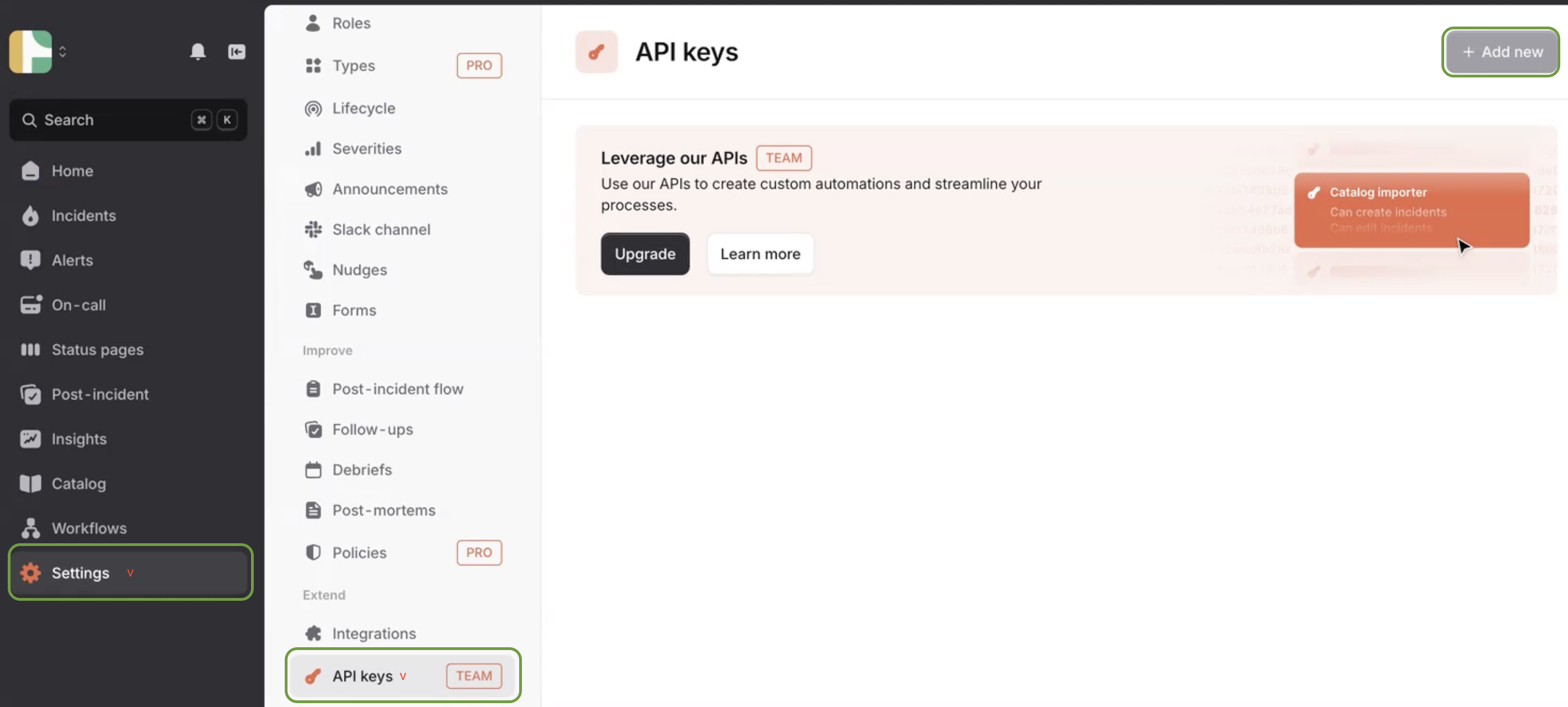 1. Click the **+ Add new** button in the top-right corner.
2. Provide a descriptive name for the API key (e.g., `AirMDRIntegration`).
3. Select the appropriate permissions scope for the API key.
* Select account-level access for organization-wide visibility.
* Select the required teams if access should be team-scoped.
4. Click **Create**.
This is the only time the **API Key** will be displayed.
1. Click the **+ Add new** button in the top-right corner.
2. Provide a descriptive name for the API key (e.g., `AirMDRIntegration`).
3. Select the appropriate permissions scope for the API key.
* Select account-level access for organization-wide visibility.
* Select the required teams if access should be team-scoped.
4. Click **Create**.
This is the only time the **API Key** will be displayed.
Copy and securely store the value in your preferred password manager or approved secure credential-management system.
Share the **API key** to AirMDR for setup
or
Self [configure](https://app.airmdr.com/integrations?search=incident.io) incident.io in the AirMDR Integrations Dashboard.
### AirMDR authentication field
| AirMDR field | What to enter | Where to obtain it |
| - | - | - |
| `Api_key` | The Incident.io API key token | Incident.io **Settings → API keys** |
### Skills Provided by this Integration
| Skill ID | Purpose | API Endpoint |
| :- | :- | - |
| **Create Incident.io Incident** | Create a new incident in Incident.io with specified parameters. | GET /v2/incidents |
| **Fetch Incident.io Alerts** | Fetch alerts from Incident.io, including detailed summaries for analysis or monitoring. | GET /v2/alerts |
| **Fetch Incident.io Incidents** | Fetch incidents from Incident.io, including detailed summaries for analysis or monitoring. | POST /v2/alert\_events/http/\{alert\_source\_id} |
| **Fetch Incident.io On-Call** | Fetch who is currently on call for an [Incident.io](http://Incident.io) team, including the schedule, the shift window, and whether an override such as a cover or shift swap is in effect. Use this to find who to escalate to. | GET /v2/schedules then GET /v2/schedule\_entries |
To view the details of Input Parameters and Output for the respective skills
* Go to [AirMDR → Incident.io](https://app.airmdr.com/integrations?search=incident.io) Integration page.
* Select the **Skills** tab and click on the required listed skills.
### Incident.io API Testing
Open **cURL** and run the following command to check if your API Key is working:
Request
```text theme={null}
curl --request GET \
--url https://api.incident.io/v1/incidents \
--header "Authorization: Bearer YOUR_API_KEY"
```
Response
```text theme={null}
{
"incidents": [
{
"id": "01FDAG4SAP5TYPT98WGR2N7W91",
"name": "Database latency spike",
"reference": "INC-123",
"incident_status": {
"name": "Closed"
},
"severity": {
"name": "Major"
},
"visibility": "public"
}
]
}
```
### Configure Incident.io in the AirMDR Integrations Dashboard
1. Navigate to [AirMDR](https://app.airmdr.com/auth/login), provide the credentials, and click **Login**
2. Navigate to the AirMDR Integrations Dashboard in the left navigation pane and select **ADMIN → Integrations**
3. Use the search option, enter the keyword "**Incident.io**", select the **Connections** tab, and click **+ Add New Connection**.
4. Enter an unique name to the **Instance** (e.g., `your org name-Incident.io`) to easily identify the user connection by AirMDR and brief **Description**.
5. Enter the generated **API Key** in the Authentication Details field params, and click **Save.**
## Additional Information
| Error or symptom | Probable cause | Recovery action |
| - | - | - |
| `401 Unauthorized` | Invalid, revoked, expired or incorrectly copied API key | Generate or rotate the API key, update the AirMDR connection and test again. |
| `403 Forbidden` during connection creation | The API key does not have `incidents.view` | Edit the key and add `incidents.view`. |
| Fetch Incidents fails | Missing `incidents.view` or insufficient team access | Add the required permission or expand the key’s team scope. |
| Fetch Alerts fails | Missing `alerts.view` | Add `alerts.view` and retry the skill. |
| Get On-Call fails | Missing `schedules.view` or inaccessible schedules | Add `schedules.view` and verify team-level access. |
| Create Incident skill does not create an incident | HTTP alert source or alert route is missing, disabled or incorrectly configured | Review the Incident.io HTTP alert source and alert-route configuration. |
| `404 Not Found` | Incorrect endpoint or API version | Confirm that the request uses `/v2/...`, not `/v1/incidents`. |
| `422 Unprocessable Entity` | Required request data is absent or invalid | Review the response `errors` array and correct the affected field. |
| `429 Too Many Requests` | Incident.io API rate limit exceeded | Respect the `Retry-After` header and retry using exponential backoff. |
| `5xx` response | Temporary Incident.io service or upstream failure | Retry after a short delay; escalate if the failure continues. |
| Connection expires in AirMDR | The configured AirMDR expiry date has passed | Review the connection, validate the API key and configure a new approved expiry date. |
| Empty response | No records are visible within the key’s team scope | Confirm that the team-scoped key can access the required resources. |
### Monitor the connection in AirMDR
Use the following locations to monitor the integration:
1. Open **AirMDR → Integrations → [Incident.io](http://Incident.io)**.
2. Select the **Connections** tab.
3. Review the connection status.
4. Open the relevant AirMDR case or playbook execution.
5. Review the [Incident.io](http://Incident.io) skill execution status, request outcome and error details.
### Monitor the API key in [Incident.io](http://Incident.io)
1. Open **[Incident.io](http://Incident.io) → Settings → API keys**.
2. Locate the API key created for AirMDR.
3. Review its permissions and recent usage information.
4. Confirm that the key has not been revoked or rotated without updating AirMDR.
### Example successful log entry
```text theme={null}
2026-08-11T10:30:45Z INFO integration=incident_io
operation=fetch_incidents endpoint=/v2/incidents
status=success http_status=200
```
### Example permission-error log entry
```text theme={null}
2026-08-11T10:31:20Z ERROR integration=incident_io
operation=verify_authentication endpoint=/v2/incidents
status=failed http_status=403
message="API key does not have the required incidents.view permission"
```
### Example rate-limit log entry
```text theme={null}
2026-08-11T10:32:05Z WARN integration=incident_io
operation=fetch_alerts endpoint=/v2/alerts
status=retrying http_status=429
message="Incident.io API rate limit exceeded"
```
### Recommended logging levels
| Level | Recommended usage |
| :- | :- |
| `INFO` | Connection validation, successful skill execution and normal API operations |
| `WARN` | Rate limiting, temporary unavailability and retryable conditions |
| `ERROR` | Authentication failures, permission errors and unrecoverable API failures |
| `DEBUG` | Temporary troubleshooting under controlled conditions |
> **Security requirement:** Never record the API key or full `Authorization` header in logs. Mask secrets before collecting or sharing troubleshooting information.
### Do
* Create a dedicated API key for the AirMDR integration.
* Use a descriptive name such as `AirMDR Integration`.
* Use team-scoped access when organization-wide access is unnecessary.
* Copy the token directly into the AirMDR connection form.
* Rotate the API key according to your organization’s credential-rotation policy.
* Review the API key’s permissions periodically.
* Remove or revoke unused API keys.
#### Do not
* Reuse a personal or unrelated integration API key.
* Grant create, edit, or schedule-management permissions unless Engineering confirms they are required.
* Send the API key through email, chat, or support tickets.
* Store the API key in source code or documentation.
* Include the API key in screenshots, logs, or troubleshooting evidence.
* Paste the actual API key into example commands retained in shell history.
* 📧 Contact [**AirMDR Support**](mailto:support@airmdr.com) through your designated support channel.
* 🔁 Rotate credentials regularly. Recommended cadence: Every 90 days or as per internal security policy
**Recommended maintenance schedule**
| Activity | Recommended frequency |
| - | - |
| Review API key permissions | Quarterly |
| Review account-level versus team-scoped access | Quarterly |
| Rotate the API key | According to organizational policy |
| Review connection status | Monthly or after a reported failure |
| Test supported skills | After permission, key or endpoint changes |
| Remove unused connections and keys | During each access review |
| Review Incident.io API deprecations | Quarterly |
### Data exchanged
Depending on the skill, AirMDR can exchange the following information with [Incident.io](http://Incident.io):
| Data category | Direction | Examples |
| - | - | - |
| Authentication data | AirMDR → Incident.io | Bearer API key |
| Incident data | Incident.io → AirMDR | Incident ID, name, summary, status, severity, timestamps, visibility and associated metadata |
| Alert data | Incident.io → AirMDR | Alert ID, title, status, source, deduplication information and associated incident details |
| Schedule data | Incident.io → AirMDR | Schedule ID, schedule name, timezone and rotation configuration |
| On-call data | Incident.io → AirMDR | Schedule entries, assigned responder information and coverage times |
| Alert-event data | AirMDR → Incident.io | Title, status, description, deduplication key, source URL and configured metadata |
**Network requirements**
| Requirement | Value |
| - | - |
| Protocol | HTTPS |
| Transport | TCP |
| Destination port | `443` |
| Destination host | `api.incident.io` |
| API base URL | `https://api.incident.io` |
| Authentication header | `Authorization: Bearer ` |
The integration uses outbound HTTPS requests. No inbound connection from [Incident.io](http://Incident.io) is required for the API-key-based read operations described in this guide.
### Encryption
* API traffic is transmitted over HTTPS using TLS.
* [Incident.io](http://Incident.io) states that its platform encrypts data at rest using AES-256 and encrypts data in transit using TLS. [Incident.io](http://Incident.io)[ security architecture](https://incident.io/blog/incident-io-security-whitepaper?utm_source=chatgpt.com).
* Do not record a specific AirMDR credential-storage algorithm in this guide unless it has been verified by the AirMDR Security or Engineering team.
This documentation is built and hosted on [Mintlify](https://mintlify.com), a developer documentation platform.