> ## Documentation Index
> Fetch the complete documentation index at: https://docs.airmdr.com/llms.txt
> Use this file to discover all available pages before exploring further.
# Google Workspace
> Google Workspace (formerly G Suite) is a cloud-based productivity and collaboration suite developed by Google. It includes a set of business applications designed to help teams work efficiently, communicate, and manage workflows.
### Pre-requisites
Users with an existing GCP environment, it is recommended to have a new project that links to your Google Workspace via the registered domain
Google Workspace Super Administrator access to authorize domain-wide delegation and Admin Access to the Domain DNS Settings
Identify the AirMDR skills you intend to use. The service account’s domain-wide delegation must include their required OAuth scopes, and the Google Workspace user entered as `admin_email_id` must have the corresponding administrator privileges.
If you intend to use **Revoke Google Workspace User Sessions**, ensure that the impersonated user has **Security → User Security Management → Reset sign-in cookies** for the target users.
Decide whether AirMDR must revoke sessions for administrator accounts. Google requires a **Super Administrator** for security actions against another administrator; a delegated administrator can manage only users without administrator privileges.
### **Setup Google Workspace**
Setting up **Google Workspace** involves several steps, depending on whether you create a new account or manage an existing domain.
GCP is hierarchical, so we must first create a project. If you already have a GCP environment set up, we recommend following similar steps below to create a new project that links to your Google Workspace via the registered domain.
1. Go to [Google Cloud Console](https://console.cloud.google.com/welcome).
Sign in with your Google account used to set up Google Workspace.
2. Click on the **project selector** (top-left dropdown near “Google Cloud”).
3. Click **"New Project"** to configure the project with all the necessary details:
* **Project Name**: Enter a unique name for your project (For example: **AirMDR**).
* **Organization & Location**: Enter [airmdr.com](http://airmdr.com) as organization and location or your organization and your location.
4. Click **Create**.
Now you have Successfully created a New Organization and Project in GCP
Only the creator of the project has the right to manage the project.
Our virtual agent will eventually use a GCP service account, which uses the Workspace Admin SDK to interact with the GW admin console REST API, therefore it needs to be enabled in GCP.
AirMDR uses the Admin SDK Reports and Directory APIs. Depending on the enabled AirMDR skills, the integration may also use the Alert Center, Google Drive, and Gmail APIs.
1. Go to [Google Cloud Console](https://console.cloud.google.com/welcome) → APIs & Services → Library.
2. Click **Enable APIs and services** in the top menu.
3. Search for Each API:
* Search **"Admin SDK API"**, click it, and click **“Enable”**.
* Search **"Google Workspace Alert Center API"**, click it, and click **“Enable”**.
* Search **"Google Drive API"**, click it, and click **"Enable"**.
* Search **"Gmail API"**, click it, and click **“Enable”**.
When finished, you will have enabled the Admin SDK API within your project, where your service account will have access to pull data from Google Workspace.
Navigate to **APIs & Services → Enabled APIs & services** and confirm that every required API appears in the enabled list.
1. Go to the [Google Cloud Console](https://console.cloud.google.com/welcome).
2. Select your project.
3. Navigate to **"APIs & Services" → "OAuth consent screen"** in the left-navigation pane.
4. Click **Get started**.
5. Configure App Information with the required details:
* **App Name**: airmdr-agent
* **User Support Email**: Provide an email for users to contact (For Example: your email address), and Click **Next**.
6. Choose **Audience** as **Internal**.
7. Provide the **Developer Contact Information**: (For Example: your email address), and click **Next**.
8. In **Finish**, mark the checkbox to acknowledge and accept the terms of Google User Data Policy.
9. Click **"Create"**.
After successful configuration, we will now have a registered application using OAuth 2.0 for authorization and the consent screen information set
The default token request limit for this app daily is 10,000 and can be increased on request.
A service account is required for the AirMDR agent to ingest data from Google Workspace
This account is meant for non-human applications, allowing it to access resources in GW via the Admin SDK API we enabled earlier.
This is required to access Google Workspace APIs like **Admin SDK API** and **Google Workspace Alert Center API**.
1. Go to [Google Cloud Console](https://console.cloud.google.com/welcome) → APIs & Services → Credentials → + Create credentials → Service account. 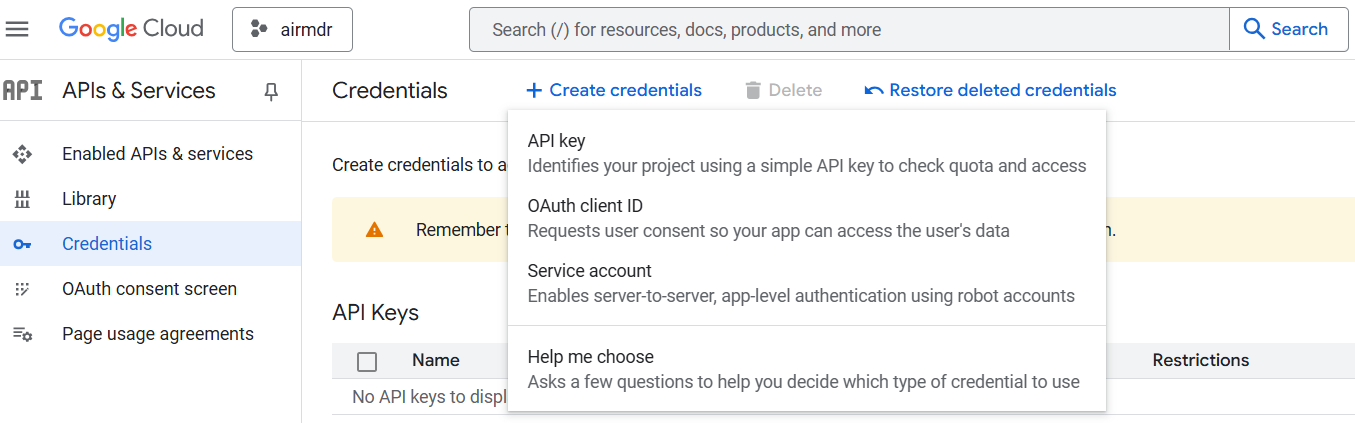 2. On the **"Create Service Account"** page provide the required details:
* **Service account name**: `airmdr-agent`
* **Service account ID**: `airmdr-agent`
* **Service account Description**: Describe what this service account will do
3. Click **"Create and Continue"**.
4. Assign necessary roles to grant permissions:
* **"Service Account Token Creator"**
* **"Viewer"** or **"Editor"** *(if needed for managing resources)*
5. Click **"Done"**.
2. On the **"Create Service Account"** page provide the required details:
* **Service account name**: `airmdr-agent`
* **Service account ID**: `airmdr-agent`
* **Service account Description**: Describe what this service account will do
3. Click **"Create and Continue"**.
4. Assign necessary roles to grant permissions:
* **"Service Account Token Creator"**
* **"Viewer"** or **"Editor"** *(if needed for managing resources)*
5. Click **"Done"**. 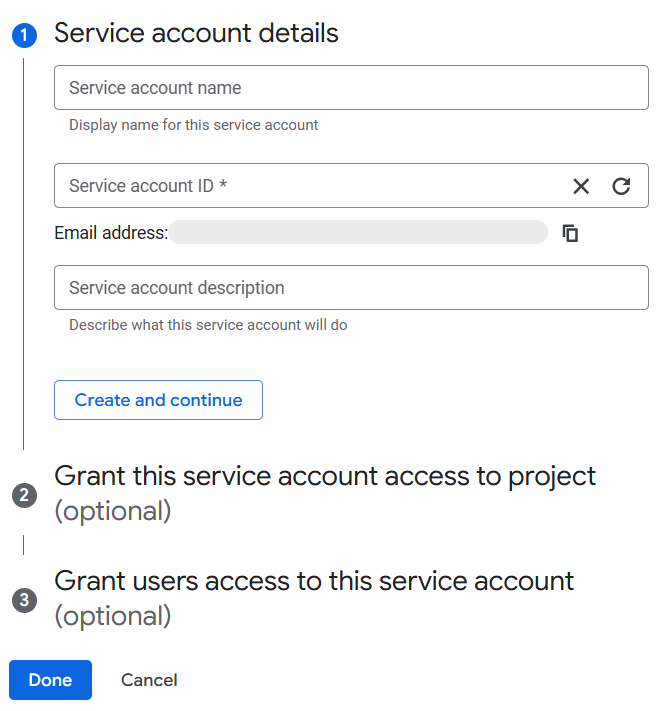 6. Click on the newly created service account.
7. Go to the **"Keys"** tab.
8. Click **"Add Key" → "Create New Key"**.
Choose **JSON** format and click **"Create"**.
**After successful configuration, we will now have a service account named airmdr-agent, a Service Account JSON file with the necessary credentials for this service account saved to your host.**
**Securely save and share the downloaded Service Account JSON file to AirMDR.**
```text theme={null}
{
"type": "service_account",
"project_id": "your-project-id",
"private_key_id": "your-private-key-id",
"private_key": "-----BEGIN PRIVATE KEY-----YOUR-PRIVATE-KEY\n-----END PRIVATE KEY-----\n",
"client_email": "your-client-email",
"client_id": "your-client-id",
"auth_uri": "https://accounts.google.com/o/oauth2/auth",
"token_uri": "https://oauth2.googleapis.com/token",
"auth_provider_x509_cert_url": "https://www.googleapis.com/oauth2/v1/certs",
"client_x509_cert_url": "your-client-x509-cert-url",
"universe_domain": "googleapis.com"
}
```
**By default, the Owner role will be applied to this service account based on inheritance from the project**
**Only admins can perform this action.**
Our service account will need domain-wide delegation of permissions to access APIs that reach outside of GCP and into Google Workspace. The important data necessary for this has already been established in earlier steps where we need an API key, service account, and OAuth client ID.
A Google Workspace Super Administrator must complete this configuration.
1. Go to [Google Workspace Admin Console](https://admin.google.com/).
2. Navigate to **Security → Access and data control → API controls**.
3. Under Domain Wide Delegation, select Manage Domain Wide Delegation → Add a new client ID and enter the required credentials:
* OAuth 2.0 Client ID
To retrieve Client ID:
6. Click on the newly created service account.
7. Go to the **"Keys"** tab.
8. Click **"Add Key" → "Create New Key"**.
Choose **JSON** format and click **"Create"**.
**After successful configuration, we will now have a service account named airmdr-agent, a Service Account JSON file with the necessary credentials for this service account saved to your host.**
**Securely save and share the downloaded Service Account JSON file to AirMDR.**
```text theme={null}
{
"type": "service_account",
"project_id": "your-project-id",
"private_key_id": "your-private-key-id",
"private_key": "-----BEGIN PRIVATE KEY-----YOUR-PRIVATE-KEY\n-----END PRIVATE KEY-----\n",
"client_email": "your-client-email",
"client_id": "your-client-id",
"auth_uri": "https://accounts.google.com/o/oauth2/auth",
"token_uri": "https://oauth2.googleapis.com/token",
"auth_provider_x509_cert_url": "https://www.googleapis.com/oauth2/v1/certs",
"client_x509_cert_url": "your-client-x509-cert-url",
"universe_domain": "googleapis.com"
}
```
**By default, the Owner role will be applied to this service account based on inheritance from the project**
**Only admins can perform this action.**
Our service account will need domain-wide delegation of permissions to access APIs that reach outside of GCP and into Google Workspace. The important data necessary for this has already been established in earlier steps where we need an API key, service account, and OAuth client ID.
A Google Workspace Super Administrator must complete this configuration.
1. Go to [Google Workspace Admin Console](https://admin.google.com/).
2. Navigate to **Security → Access and data control → API controls**.
3. Under Domain Wide Delegation, select Manage Domain Wide Delegation → Add a new client ID and enter the required credentials:
* OAuth 2.0 Client ID
To retrieve Client ID:
Navigate to Service Account in [GCP](https://console.cloud.google.com/welcome) and copy OAuthID
or
Copy from the JSON file generated while configuring the Service Account.
* OAuth Scopes
To retrieve OAuth Scopes:
Navigate to [Google Cloud Console](https://console.cloud.google.com/welcome) → IAM & Admin → Service accounts OAuth2 Client ID (Visible in the header section of the service account)
OAuth Scopes:
[https://www.googleapis.com/auth/admin.reports.audit.readonly](https://www.googleapis.com/auth/admin.reports.audit.readonly), [https://www.googleapis.com/auth/apps.alerts](https://www.googleapis.com/auth/apps.alerts)
[https://www.googleapis.com/auth/admin.directory.user.readonly](https://www.googleapis.com/auth/admin.reports.audit.readonly,https://www.googleapis.com/auth/apps.alerts,https://www.googleapis.com/auth/admin.directory.user.readonly,https://www.googleapis.com/auth/admin.directory.group.readonly,https://www.googleapis.com/auth/admin.directory.user,https://www.googleapis.com/auth/drive.readonly,https://www.googleapis.com/auth/gmail.readonly)
[https://www.googleapis.com/auth/admin.directory.group.readonly](https://www.googleapis.com/auth/admin.reports.audit.readonly,https://www.googleapis.com/auth/apps.alerts,https://www.googleapis.com/auth/admin.directory.user.readonly,https://www.googleapis.com/auth/admin.directory.group.readonly,https://www.googleapis.com/auth/admin.directory.user,https://www.googleapis.com/auth/drive.readonly,https://www.googleapis.com/auth/gmail.readonly)
[https://www.googleapis.com/auth/admin.directory.user](https://www.googleapis.com/auth/admin.reports.audit.readonly,https://www.googleapis.com/auth/apps.alerts,https://www.googleapis.com/auth/admin.directory.user.readonly,https://www.googleapis.com/auth/admin.directory.group.readonly,https://www.googleapis.com/auth/admin.directory.user,https://www.googleapis.com/auth/drive.readonly,https://www.googleapis.com/auth/gmail.readonly)
[https://www.googleapis.com/auth/drive.readonly](https://www.googleapis.com/auth/admin.reports.audit.readonly,https://www.googleapis.com/auth/apps.alerts,https://www.googleapis.com/auth/admin.directory.user.readonly,https://www.googleapis.com/auth/admin.directory.group.readonly,https://www.googleapis.com/auth/admin.directory.user,https://www.googleapis.com/auth/drive.readonly,https://www.googleapis.com/auth/gmail.readonly)
[https://www.googleapis.com/auth/gmail.readonly](https://www.googleapis.com/auth/admin.reports.audit.readonly,https://www.googleapis.com/auth/apps.alerts,https://www.googleapis.com/auth/admin.directory.user.readonly,https://www.googleapis.com/auth/admin.directory.group.readonly,https://www.googleapis.com/auth/admin.directory.user,https://www.googleapis.com/auth/drive.readonly,https://www.googleapis.com/auth/gmail.readonly)
[https://www.googleapis.com/auth/admin.directory.user.security](https://www.googleapis.com/auth/admin.directory.user.security)
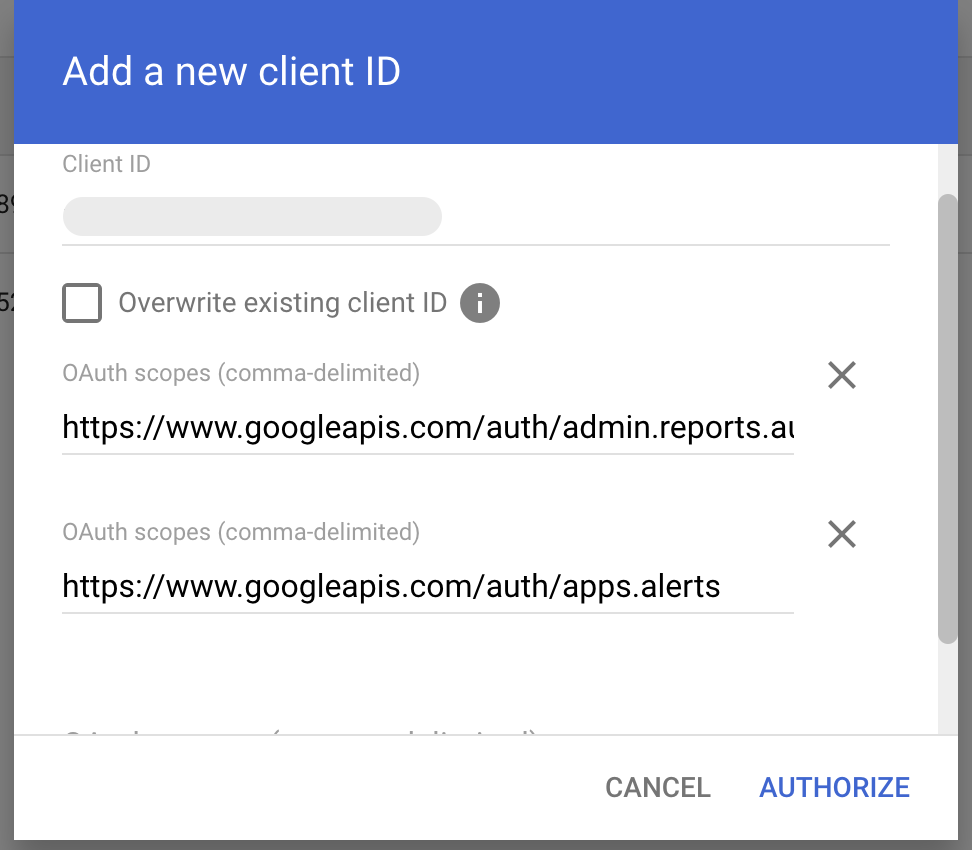 4. Click **"AUTHORIZE"**.
5. Open the newly added client and select **View details**.
6. Confirm that all required scopes are displayed.
Now you have Successfully enabled Domain-wide Delegation in Google Workspace
AirMDR requires both the Service Account JSON and an `admin_email_id`. The Service Account JSON authenticates the AirMDR service account, while `admin_email_id` identifies the active Google Workspace user that AirMDR impersonates when executing Google Workspace API requests.
4. Click **"AUTHORIZE"**.
5. Open the newly added client and select **View details**.
6. Confirm that all required scopes are displayed.
Now you have Successfully enabled Domain-wide Delegation in Google Workspace
AirMDR requires both the Service Account JSON and an `admin_email_id`. The Service Account JSON authenticates the AirMDR service account, while `admin_email_id` identifies the active Google Workspace user that AirMDR impersonates when executing Google Workspace API requests.
The impersonated user must have the privileges required by the enabled AirMDR skills.
Google Workspace OAuth Scope and AirMDR Capability Mapping:
* admin.reports.audit.readonly: To access Google Workspace Audit Reports
* apps.alerts: To read alerts
* admin.directory.user.readonly: To list users and get user details
* admin.directory.group.readonly: To list groups and retrieve group details
* admin.directory.user: To suspend or reactivate a Google Workspace user
* drive.readonly: To view and download Drive files
* gmail.readonly: To view Gmail messages and settings
The `admin_email_id` field identifies the Google Workspace user that the AirMDR service account impersonates when making Google API requests.
A dedicated Google Workspace user provisioned specifically for the AirMDR integration is recommended.
This avoids dependency on an individual employee’s account and prevents the integration from failing if that employee leaves the organization.
**Required account characteristics**
The account entered as `admin_email_id` must:
* Be an active Google Workspace user in the customer’s Workspace domain.
* Have **Admin API → Users → Read** permission.
* Have **Admin API → Groups → Read** permission.
* Have access to the Gmail and Google Drive resources that AirMDR must retrieve.
* Have the required Admin API privileges for the AirMDR skills being used.
* Have access to the required Alert Center, Reports, Gmail, and Drive resources.
* Remain active while the AirMDR connection is in use.
> A dedicated Workspace account such as [svc-airmdr-google@example.com](mailto:svc-airmdr-google@example.com) is valid and preferred, provided it has the required Google Workspace privileges.
Example: `admin_email_id: svc-airmdr-google@example.com`
Google confirms that administrative console privileges provide corresponding Admin API rights. It specifically supports **Users → Read** and **Groups → Read API** for delegated administrators.
### ✅ Summary of Retrieved Credentials
| Credential | Description | Where to Get it |
| :- | :- | - |
| **admin\_email\_id** | The active Google Workspace user that AirMDR impersonates when executing API requests. A dedicated integration account is recommended. The account must have **Users → Read**, **Groups → Read**, and any additional privileges required by the enabled AirMDR skills. | Google Admin console → Directory → Users |
| **Service Account JSON file** | **Service Account JSON file** generated for the Google Cloud Service account in [step. 4](https://docs.airmdr.com/Integrations/Google-Workspace#after-successful-configuration%2C-we-will-now-have-a-service-account-named-airmdr-agent%2C-a-json-file-with-the-necessary-credentials-for-this-service-account-saved-to-your-host) | Google Cloud Console → IAM & Admin → Service Accounts → Keys |
Securely save and share the `admin_email_id`, and **Service Account JSON file** with the AirMDR team to configure
or
Self [configure](https://app.airmdr.com/integrationsv2/8d96680e-7222-454f-a16f-4512a1d326ca/connections?search=google+works) Google Workspace in the AirMDR Integrations Dashboard.
### Skills Provided by this Integration
| **Skill ID** | **Purpose** |
| :- | :- |
| **List Google Workspace Users** | Retrieve a paginated list of user accounts in the Google Workspace organization. |
| **Get Google Workspace User** | Retrieve the complete profile of a single Google Workspace user. |
| **List Google Workspace User Groups** | Retrieve all Google Groups that a specific user belongs to. |
| **Suspend Google Workspace User** | Suspend a Google Workspace user account. |
| **Revoke Google Workspace User Sessions** | Revoke all active web and mobile sessions for a Google Workspace user. |
| **Reset Google Workspace User Password** | Replace a Google Workspace user’s existing password with a securely generated random password and require the user to change it at the next applicable sign-in. |
The **Reset Google Workspace User Password** skill generates the replacement password internally using a cryptographically secure random source. AirMDR does not return or log the generated password. Use this skill during a confirmed account-compromise or credential-theft incident to invalidate the potentially exposed password. For complete account containment, use it with **Suspend Google Workspace User** and **Revoke Google Workspace User Sessions**.
| **Skill ID** | **Purpose** |
| :- | :- |
| **Search Gmail** | Search a specific user mailbox using structured field-based criteria. |
| **Build Gmail Search Query** | Construct a syntactically correct Gmail search query string, without calling the Gmail API. |
| **Get Gmail Details** | Retrieve the complete details of a specific Gmail message. |
| **Retrieve Full Gmail MIME** | Retrieve full Gmail messages including complete raw MIME content, for header and attachment analysis. |
| **Skill ID** | **Purpose** |
| :- | :- |
| **Get Google Drive File Info** | Retrieve the metadata for a Google Drive file by its file ID. |
| **Export Google Drive File** | Export a native Google Workspace document (Docs, Sheets, Slides, Drawings) to a chosen MIME type. |
| **Skill ID** | **Purpose** |
| :- | :- |
| **Get Google Alerts from Alertcenter** | Retrieve security alerts from the Google Workspace Alert Center. |
| **Get Google Workspace Activities** | Retrieve audit activity logs from the Google Admin SDK Reports API. |
| **Skill ID** | **Purpose** |
| :- | :- |
| **Google WebRisk URL Lookup** | Check a URL against Google threat databases via Web Risk. |
### Configure Google Workspace in AirMDR Integrations Dashboard
1. Navigate to [AirMDR](https://app.airmdr.com/auth/login), provide the credentials, and click **Login.**
2. Navigate to the AirMDR Integrations Dashboard in the left navigation pane and select **ADMIN** → **Integrations.**
3. Use the search option, enter the keyword "**Google Workspace**", select the **Connections** tab, and click the **Add New Connection** icon.
4. Enter the generated **admin\_email\_id,** provide the contents of the generated [**JSON file with Service Account credentials**](https://docs.airmdr.com/Integrations/Google-Workspace#after-successful-configuration%2C-we-will-now-have-a-service-account-named-airmdr-agent%2C-a-json-file-with-the-necessary-credentials-for-this-service-account-saved-to-your-host) in the Authentication Details field params, and click **Create.**
This documentation is built and hosted on [Mintlify](https://mintlify.com), a developer documentation platform.