> ## Documentation Index
> Fetch the complete documentation index at: https://docs.airmdr.com/llms.txt
> Use this file to discover all available pages before exploring further.
# GitHub App
> The GitHub App integration enables AirMDR to securely connect with GitHub using app-based authentication, allowing it to access repository and organization data. This helps enrich alerts with code and activity context, and automate investigation and response workflows within AirMDR playbooks.
The **GitHub App integration** enables AirMDR to authenticate securely with GitHub using an app-based trust model. This allows AirMDR to access approved repository and organization data, enrich alerts with GitHub context, and automate workflows using GitHub events and metadata within AirMDR playbooks. GitHub recommends \*\*GitHub Apps \*\*for long-lived integrations instead of personal access tokens.
| Component | Supported Version |
| :- | :- |
| [GitHub.com](http://GitHub.com) | Supported |
| GitHub Enterprise Cloud | Supported |
| AirMDR Platform | Current supported cloud deployments |
This setup flow is based on GitHub’s current GitHub App registration and installation model.
AirMDR uses **GitHub App authentication**.
### Required Credentials
| Credential | Description |
| :- | :- |
| **App ID** | Unique numeric identifier of the GitHub App |
| **Installation ID** | Unique identifier of the installed GitHub App instance |
| **PEM Private Key** | Private key downloaded from the GitHub App settings page |
### How GitHub App Authentication Works
GitHub App authentication works in the following sequence:
1. AirMDR uses the **App ID** and **PEM private key** to generate a **JWT**
2. GitHub uses that JWT to issue an **installation access token**
3. AirMDR uses the installation access token to call GitHub APIs for the installed app scope
### Role-Based Access Considerations
To create or install a GitHub App, the user must have sufficient administrative access to the target account, organization, or repository. GitHub notes that installing a GitHub App generally requires organization ownership, repository admin rights, or equivalent authority depending on the target scope.
This step requires admin privileges.
### Pre-requisites
Before configuring the GitHub App integration, ensure the following:
* A valid **GitHub account** or **GitHub organization**
* Permission to create a **GitHub App**
* Permission to **install the app** on the required account, organization, or repositories
* Administrative access to **AirMDR Integrations**
* A secure location to store the downloaded **PEM private key**
### Setup Steps
1. Sign in to GitHub.
2. In the upper-right corner, click your **profile picture**.
3. Navigate to the correct settings page:
* For a **personal account app**: click **Settings**
* For an **organization-owned app**: click **Your organizations** → select the organization → **Settings**
4. In the left sidebar, click Developer settings → GitHub Apps
5. Click on **New GitHub App**.
GitHub documents this as the standard path for registering a GitHub App.
### Configure the App
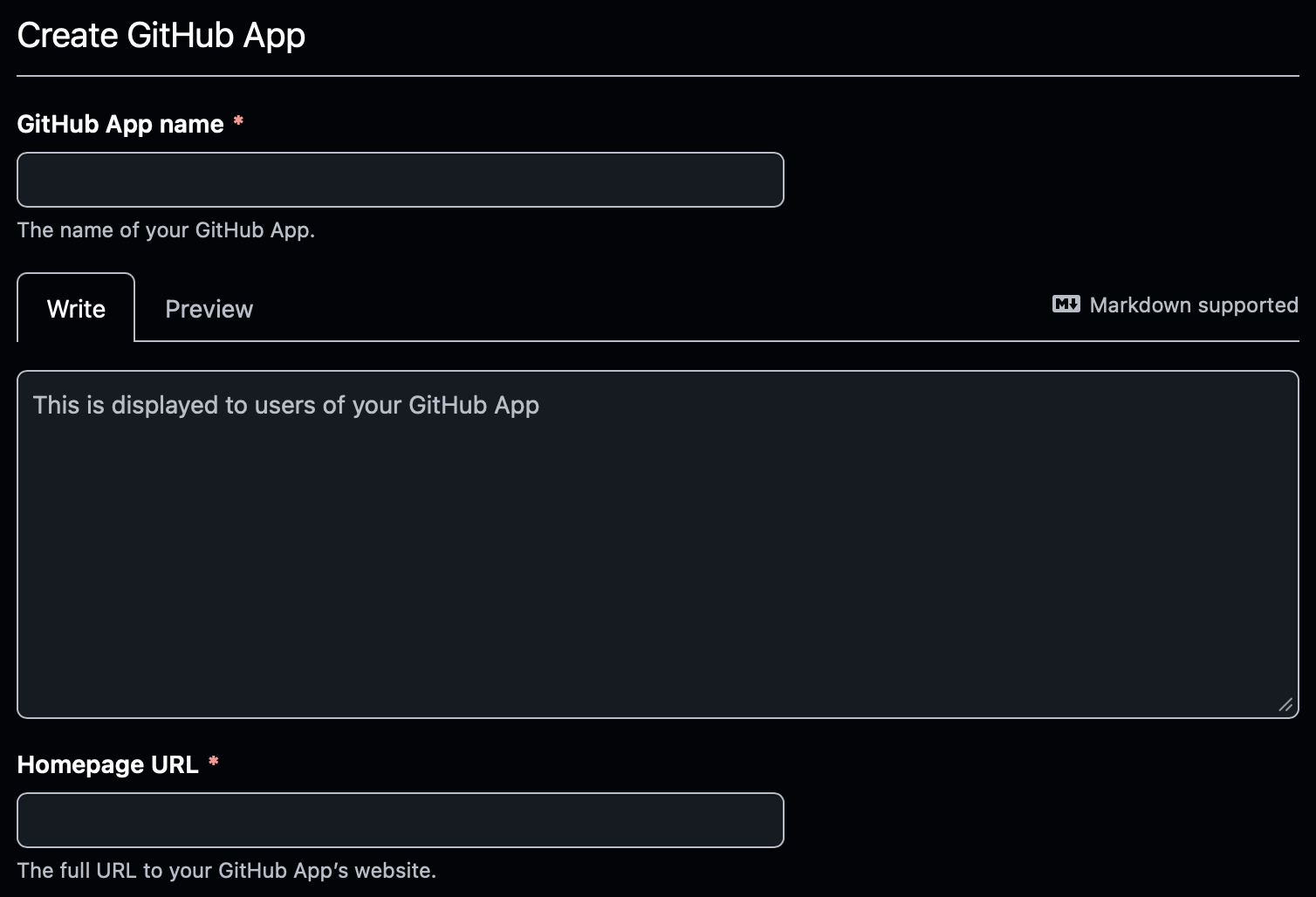
Enter the required app information, such as:
* **GitHub App name**
* **Homepage URL**
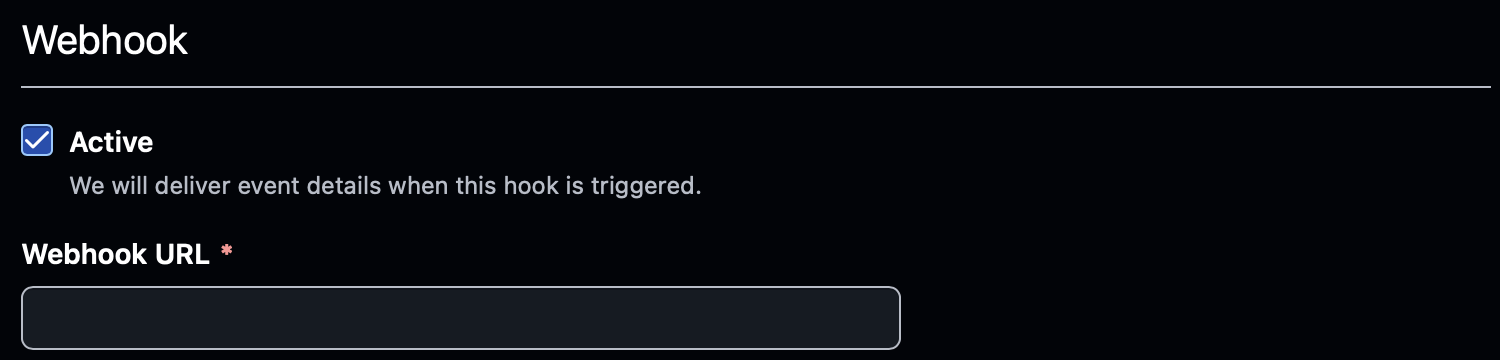
 * **Webhook URL** (if your use case requires webhooks)
 * **Permissions**
* **Repository Permissions**
* **Permissions**
* **Repository Permissions**
| Repository permission | Access to document | Skills that need it | Purpose |
| :- | :- | :- | :- |
| **Metadata** | **Read-only** | Repository events; repository events for detections; repository identification | Retrieve events and basic details for repositories the app can access. GitHub specifies Metadata read access for the repository events endpoint. ([GitHub Docs](https://docs.github.com/en/rest/activity/events?utm_source=chatgpt.com "REST API endpoints for events")) |
| **Contents** | **Read and write** | GitHub App Analyze and Raise PR | Read source files, create a branch, and commit the proposed changes. **Change your existing Contents setting from Read-only.** ([docs.github.com](http://docs.github.com)) |
| **Pull requests** | **Read and write** | GitHub App Analyze and Raise PR | Open the pull request with the proposed changes. ([docs.github.com](http://docs.github.com)) |
After the app is created:
1. Remain on the GitHub App settings page.
2. Locate the **App ID** shown in the app details.
GitHub states that the **App ID** is available on the GitHub App settings page and is required for app authentication.
### Example
```text theme={null}
App ID: 123456
```
Use this value in AirMDR as the **App ID**.
1. On the GitHub App settings page, scroll to the **Private keys** section.
2. Click on **"Generate a private key"**.
3. A **PEM file** is downloaded to your local machine.
GitHub documents private key generation and management for GitHub Apps and notes that private keys are used to authenticate the app and obtain installation tokens.
Store the PEM file securely. You will need to upload or paste its contents into AirMDR.
GitHub allows multiple private keys, which supports safe key rotation.
After creating the GitHub App, it must be installed on the target account or organization.
1. In the GitHub App settings page, click **Install App**.
2. Select the target:
* Personal account
* Organization
3. Choose one of the following:
* **All repositories**
* **Only selected repositories**
4. Complete the installation.
GitHub documents app installation as a required step before authenticating as an app installation.
After installation, GitHub creates an **Installation ID** for that installed app instance.
### UI Method
1. Open the GitHub App installation page.
2. Look at the browser URL.
Example:
```text theme={null}
https://github.com/settings/installations/12345678
```
In this example:
```text theme={null}
Installation ID = 12345678
```
GitHub also documents that installation authentication requires the **installation ID**, and that installation IDs can be obtained through installation context or API responses.
The installation ID is often easiest to identify directly from the installation page URL.
Done! now you have the required credentials
| Field | Value |
| :- | :- |
| **App ID** | GitHub App ID |
| **Installation ID** | GitHub App Installation ID |
| **PEM Key** | Full contents of the downloaded PEM file |
Share the **App ID, Installation ID** and **PEM Key** securely to AirMDR.
(or)
Self [**Configure**](https://app.airmdr.com/integrationsv2/dce6d003-ccc3-4f0a-9c7c-f78d7313dc7b/skills?search=GitHub) GitHub App in the AirMDR Integrations Dashboard.
### UI Path Reference
| Credential | How to Get It (UI Path) |
| :- | :- |
| **App ID** | Profile → Settings / Organization Settings → Developer settings → GitHub Apps → Select App |
| **PEM Key** | GitHub App settings page → Private keys → Generate a private key |
| **Installation ID** | GitHub App settings page → Install App → Open installation page → copy ID from URL |
### Skills Provided by this Integration
| Skill ID | Purpose |
| - | - |
| Get repository events from github (GitHub App) | Retrieves events for repositories in a specified GitHub organization through the GitHub App installation. |
| Get user actions in github (GitHub App) | Retrieves actions performed by a specified GitHub user, such as pushes, pull requests, and commits. |
| Skill ID | Purpose |
| - | - |
| GitHub App Repository Events for Detections | Retrieves repository events, including pushes, pull requests, and commits, for use in AirMDR detections. |
| Skill ID | Purpose |
| - | - |
| GitHub App Analyze and Raise PR | Retrieves source files from a specified repository, sends them to Claude with a custom task prompt, and opens a pull request containing the resulting changes. |
To view the details of Input Parameters and Output for the respective skills
* Go to [AirMDR → GitHub App](https://app.airmdr.com/integrationsv2/dce6d003-ccc3-4f0a-9c7c-f78d7313dc7b/skills?search=GitHub) Integration page.
* Select the **Skills** tab and click on the required listed skills.
### Configure GitHub App in AirMDR Integrations Dashboard
1. Navigate to [AirMDR](https://app.airmdr.com/auth/login), provide the credentials and click **Login**.
2. Navigate to the AirMDR Integrations Dashboard in the left navigation pane and select **Integrations**.
3. Use the search option, enter the keyword "**GitHub App**", select the **Connections** tab, and click **Add New Connection**.
4. In the **Add New Connection** window, enter a name and description for the connection, then provide the following credentials:
| AirMDR field | Description | Example |
| :- | :- | :- |
| **Instance** | Unique name that identifies this GitHub App connection. | `GitHub-App-Production` |
| **Organization** | AirMDR organization that will own the connection, if prompted. | Select your organization |
| **Description** | Brief purpose of the connection. | `GitHub App for repository monitoring and response` |
| **App ID** | Numeric ID displayed on the GitHub App’s settings page. | `123456` |
| **Install ID** | Numeric installation ID displayed in the GitHub App installation page URL. | `12345678` |
| **Pem Key** | Full contents of the private key file generated for the GitHub App. | `-----BEGIN RSA PRIVATE KEY-----` … `-----END RSA PRIVATE KEY-----` |
1. In **Remote Agent**, leave the field unselected. The GitHub App connection uses AirMDR’s cloud connection; Remote Agent routing is not supported for this integration.
2. In **Expiry**, select the date on which AirMDR should treat the stored GitHub App connection credentials as expired, according to your organization’s credential rotation policy.
The AirMDR **Expiry** setting is a connection management control. It does not revoke or rotate the GitHub App’s PEM private key in GitHub. When you rotate the private key, update the **Pem Key** in the AirMDR connection as well.
5. Click **Save.**
### Additional Information
**Do’s**
| Practice | Recommendation |
| :- | :- |
| **Grant only required permissions** | Select the GitHub App repository and organization permissions needed for the AirMDR skills you will use. Review write permissions separately before enabling **GitHub App Analyze and Raise PR**. |
| **Limit repository access** | During installation, choose **Only select repositories** and include the repositories AirMDR needs to access. Review the selection when repositories are added or removed. |
| **Protect the PEM private key** | Store the downloaded key in an approved secrets manager and enter it only in the AirMDR connection form. Restrict access to personnel who manage the integration. |
| **Rotate private keys safely** | Generate a replacement key, update the **Pem Key** in AirMDR, verify the connection, and then delete the old key in GitHub. Revoke a compromised key promptly. |
| **Review permission changes** | When an AirMDR skill requires additional GitHub App permissions, update the app registration and have the installation owner approve the changes. |
| **Secure webhooks if enabled** | Configure a webhook secret, enable SSL verification, and validate incoming webhook signatures when the app is configured to receive webhooks. |
**Don’ts**
| Practice | Recommendation |
| :- | :- |
| **Don’t grant broad access by default** | Avoid **All repositories** or unnecessary **Read & write** permissions solely to simplify setup. |
| **Don’t expose the PEM key** | Never place the private key in a repository, documentation, screenshot, ticket, chat message, or unapproved email. |
| **Don’t rely on read-only permissions for write skills** | **Metadata: Read-only** and **Contents: Read-only** should not be described as sufficient for a skill that changes files and opens a pull request. Confirm that skill’s required permissions with engineering. |
| **Don’t delete the active key before updating AirMDR** | Removing the only working key can prevent AirMDR from generating GitHub App installation tokens. |
| **Don’t assume Expiry rotates credentials** | The optional AirMDR **Expiry** setting does not rotate or revoke the GitHub App private key. Rotate the key in GitHub and update AirMDR separately. |
| **Don’t leave unused installations active** | Remove repository access or uninstall the app when the connection is no longer required. |
* 📧 Contact [**AirMDR Support**](mailto:support@airmdr.com) through your designated support channel.
* 🔁 Rotate credentials regularly in **GitHub App**.
* 🔄 Reconnect in AirMDR when secrets are changed.
### Data Exchanged
Depending on the permissions granted to the GitHub App, AirMDR may access:
* Repository metadata
* Organization metadata
* Security findings
* Pull request context
* Workflow and commit information
* Other GitHub resources within the approved installation scope
### Security Controls
| Layer | Method |
| :- | :- |
| In transit | HTTPS / TLS |
| At rest | Encrypted credential storage in AirMDR |
### GitHub Endpoints
Typical GitHub endpoints include:
```text theme={null}
https://github.com
https://api.github.com
```
### **Authentication Security Model**
* AirMDR does **not** authenticate with a personal access token
* Authentication is scoped to the **installed GitHub App**
* Effective permissions depend on:
* App permissions
* Installation scope
* Repository selection
Integration activity can be monitored from the AirMDR integration logs.
#### Sample Log Entry
```text theme={null}
{
"integration": "github_app",
"operation": "generate_installation_token",
"status": "success",
"app_id": "123456",
"installation_id": "12345678",
"timestamp": "2026-03-18T10:20:00Z"
}
```
### Recommended Log Levels
| Scenario | Log Level |
| :- | :- |
| Normal operations | INFO |
| Troubleshooting | DEBUG |
| Error | Cause | Resolution |
| :- | :- | :- |
| Invalid App ID | Incorrect App ID entered | Verify the App ID from the GitHub App settings page |
| Invalid Installation ID | Incorrect installation selected or app not installed | Reopen the installation page and confirm the Installation ID |
| PEM key error | Wrong file contents or formatting issue | Re-upload the PEM content including header/footer |
| Permission denied | App lacks required scopes | Update GitHub App permissions and reinstall if necessary |
| Authentication failed | App not installed properly | Confirm the app installation target and repository scope |
This documentation is built and hosted on [Mintlify](https://mintlify.com), a developer documentation platform.