> ## Documentation Index
> Fetch the complete documentation index at: https://docs.airmdr.com/llms.txt
> Use this file to discover all available pages before exploring further.
# Amazon Web Services
> AirMDR integrates with Amazon Web Services (AWS) to ingest security data and automate enrichment using AWS services like GuardDuty, CloudTrail, EC2, and IAM. This guide helps you set up the required AWS integration with appropriate access permissions.
## Overview
AirMDR integrates with Amazon Web Services (AWS) to investigate security findings, query logs and metrics, retrieve cloud resource context, and automate response actions. The permissions required depend on the skills and workflows your organization uses.
* **Investigation access:** Read security findings, audit events, logs, metrics, and resource information to investigate threats and enrich alerts.
* **Query access:** Execute Athena queries for historical analysis. This requires access to source data, catalog metadata, and an S3 location where query results are written.
* **Write access:** Perform response actions, such as archiving GuardDuty findings, updating Security Hub finding status, and uploading or deleting S3 objects.
* **Permissions-management access:** Revoke IAM role sessions by attaching or updating an inline policy on the specified target role.
To support these capabilities, AirMDR requires specific AWS services, which can be granted by following these steps:
1. [Enable AWS GuardDuty](https://docs.airmdr.com/Integrations/AWS-Updated#enable-aws-guardduty)
2. [Create IAM policy](https://docs.airmdr.com/Integrations/AWS-Updated#create-iam-policy)
3. Choose one of the three integration methods based on your organization's requirements:
* [**Option 1: IAM User (Access Key Method)**](https://docs.airmdr.com/Integrations/AWS-Updated#option-1%3A-iam-user-access-key-method)
* [**Option 2: IAM Role (Assume Role via STS)**](https://docs.airmdr.com/Integrations/AWS-Updated#option-2%3A-iam-role-assume-role-via-sts)
* [**Option 3: Multi-Account Integration via AWS StackSet Method**](https://docs.airmdr.com/Integrations/AWS-Updated#option-3%3A-multi-account-integration-using-aws-stacklet-method)
4. [Configure AWS in the AirMDR Integrations Dashboard](https://docs.airmdr.com/Integrations/AWS-Updated#configure-aws-in-the-airmdr-integrations-dashboard)
After completing the above steps, click [here](https://docs.airmdr.com/Integrations/AWS-Updated#where-to-find-the-generated-aws-authentication-parameters-in-the-console-ui-steps) to view or access all the generated AWS authentication parameters in the AWS UI Console.
| What you need | Why it's needed |
| :- | :- |
| **AWS Account** (free) | The root thing to log into the AWS Console |
| **Valid Payment Method** (credit/debit card) | Required even if you stay within Free Tier |
| **Verified Email Address** | AWS will send confirmation and alerts |
| **Enable MFA (Multi-Factor Authentication)** | Secure your root user (HIGHLY recommended) |
| **IAM Users and Roles** | Create users instead of using the root account for everything |
| **Knowledge of Regions** | Decide which AWS region you want to deploy resources in (e.g., `us-east-1`, `eu-west-1`) |
| **AWS CLI (optional)** | Install locally if you want to manage AWS from terminal |
## AirMDR – AWS Integration Guide
### Enable AWS GuardDuty
> AWS **GuardDuty is mandatory** for integration with AirMDR because it serves as the **primary threat detection engine** in your AWS environment and AirMDR relies on GuardDuty findings to perform its core security use cases.
To Enable AWS GuardDuty, refer to [**Getting started with GuardDuty**](https://docs.aws.amazon.com/guardduty/latest/ug/guardduty_settingup.html#guardduty_enable-gd)**.**
### **Create IAM policy**
To allow AirMDR to fetch telemetry data and perform read-only queries on your AWS environment, create a **custom IAM policy** with the following managed policies:
Creating a **custom IAM policy** in AWS is important when integrating with platforms like **AirMDR** because it allows you to define **precise, least-privilege access**
Expand this sections to explore the complete set of AWS IAM permissions used by AirMDR, along with how they are applied across skills, actions, and playbooks. This information is intended for reference purposes, and helpful when reviewing access scope, customizing IAM policies, or conducting security reviews.
**🔹 Description:**\
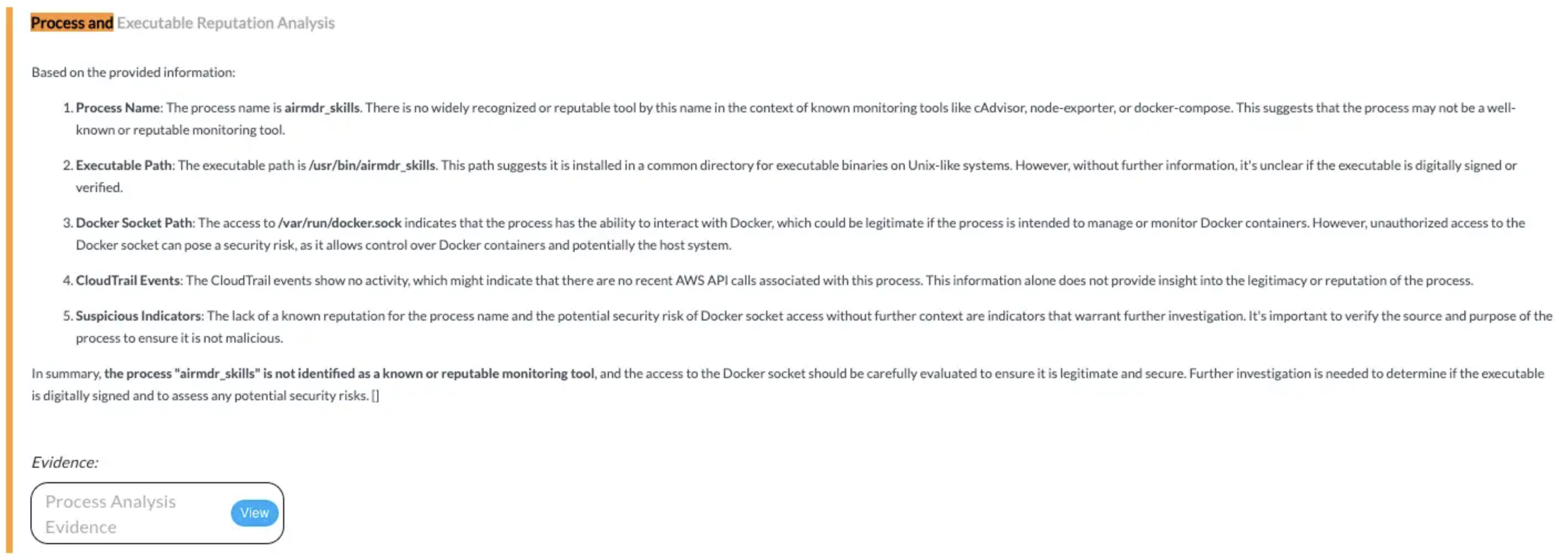
Provides read-only access to EC2 and container metadata, enabling AirMDR to enrich alerts, assess security configurations, classify workloads by risk, and validate container deployment standards.
**🔸 Input Params Used:**\
`service_name: ec2`, `method_name: describe_instances`
**🔸 AWS Actions:**\
`ec2:DescribeInstances`
**🔸 Skills Used:**\
`general_aws_query`
**📎 Findings:**

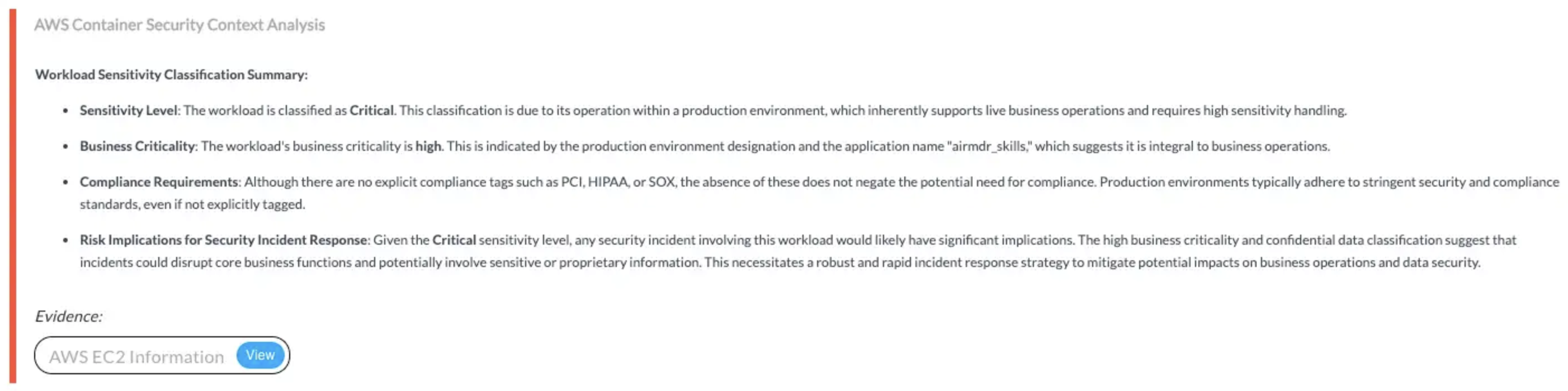
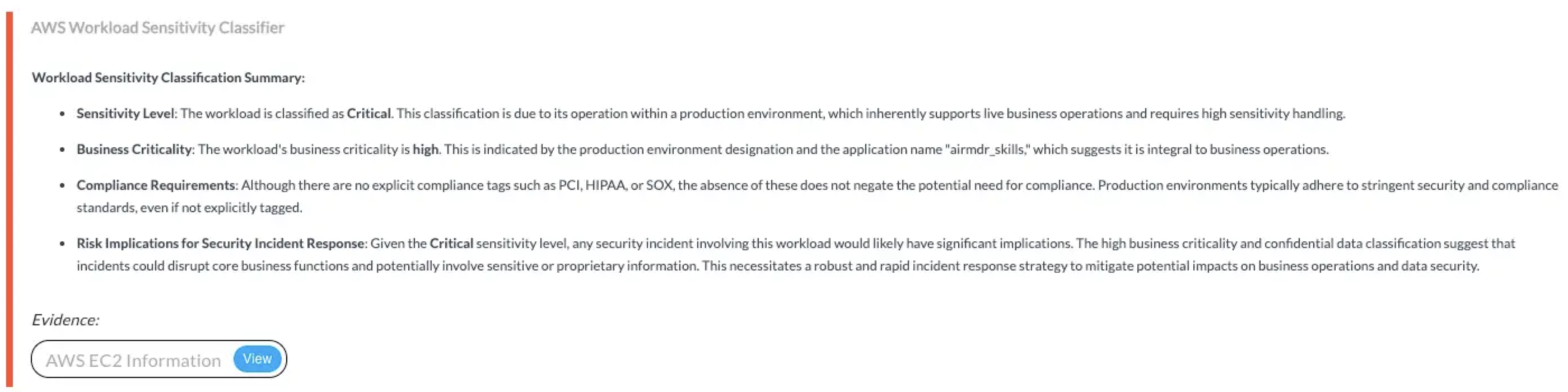
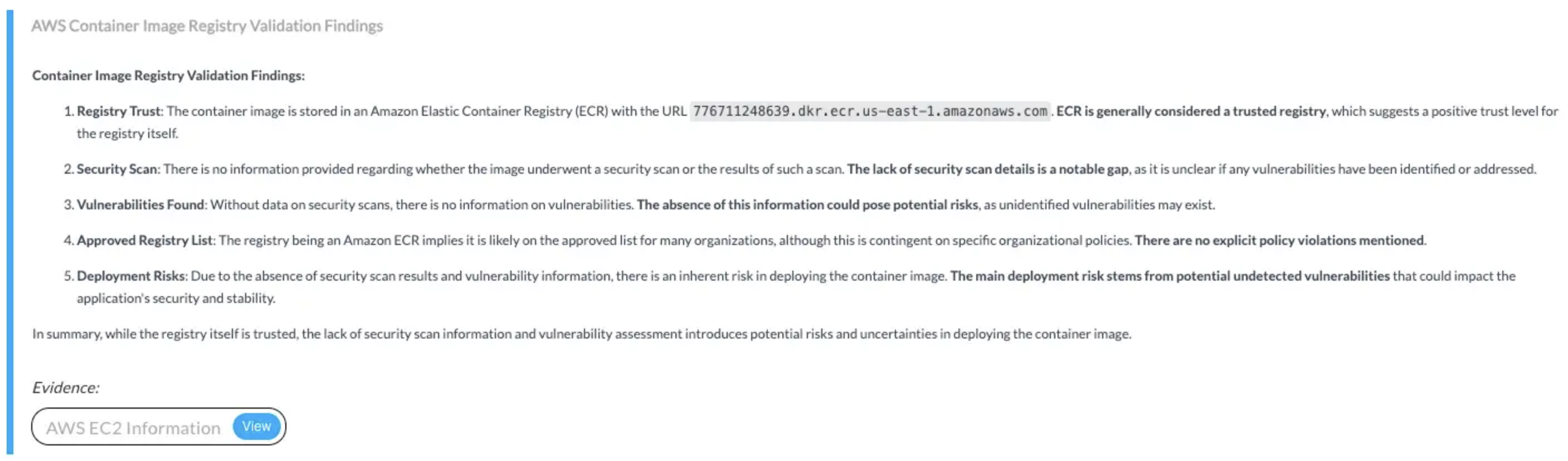 **🔹 Description:**\
Enables AirMDR to retrieve and analyze GuardDuty findings for suspicious activity related to S3 buckets and remote IPs, supporting threat pattern detection, anomaly analysis, and automated case enrichment.
**🔸 AWS Actions:**
**🔹 Description:**\
Enables AirMDR to retrieve and analyze GuardDuty findings for suspicious activity related to S3 buckets and remote IPs, supporting threat pattern detection, anomaly analysis, and automated case enrichment.
**🔸 AWS Actions:**
`guardduty:ListFindings`, `guardduty:ListDetectors`, `guardduty:GetFindings`
**🔸 Skills Used:**\
`Get AWS Guardduty Findings`
**🔹 Description:**\
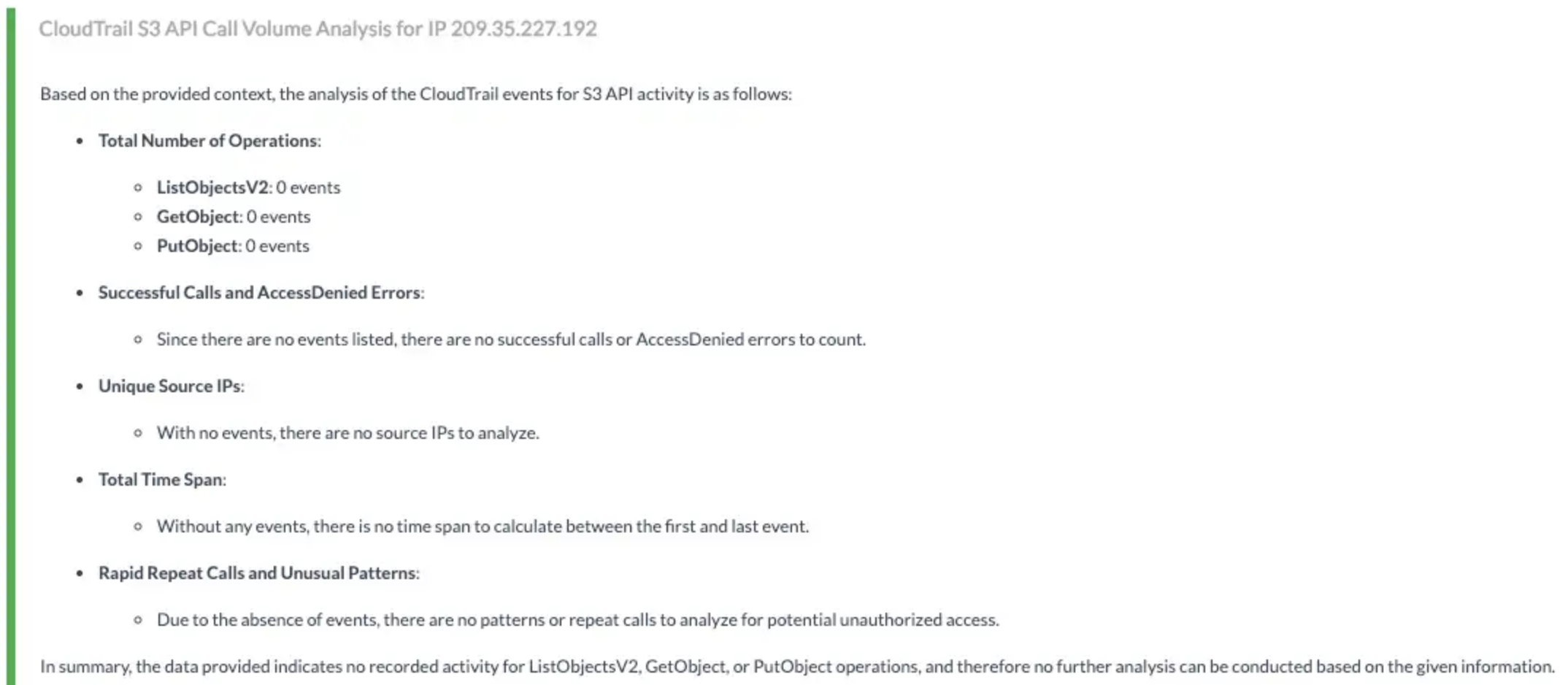
Provides read-only access to evaluate S3 bucket security by checking configurations, classifying data sensitivity, and validating real-world exposure risks.
**🔸 Input Params Used:**\
`service_name: s3`, `method_name: [get_bucket_acl, get_public_access_block, get_bucket_policy, get_bucket_tagging, list_objects_v2]`
**🔸 AWS Actions:**\
`s3:GetBucketAcl`, `s3:GetBucketPublicAccessBlock`, `s3:GetBucketPolicy`, `s3:GetBucketTagging`, `s3:ListBucket`
**🔸 Skills Used:**\
`general_aws_query`
**📎 Findings:**
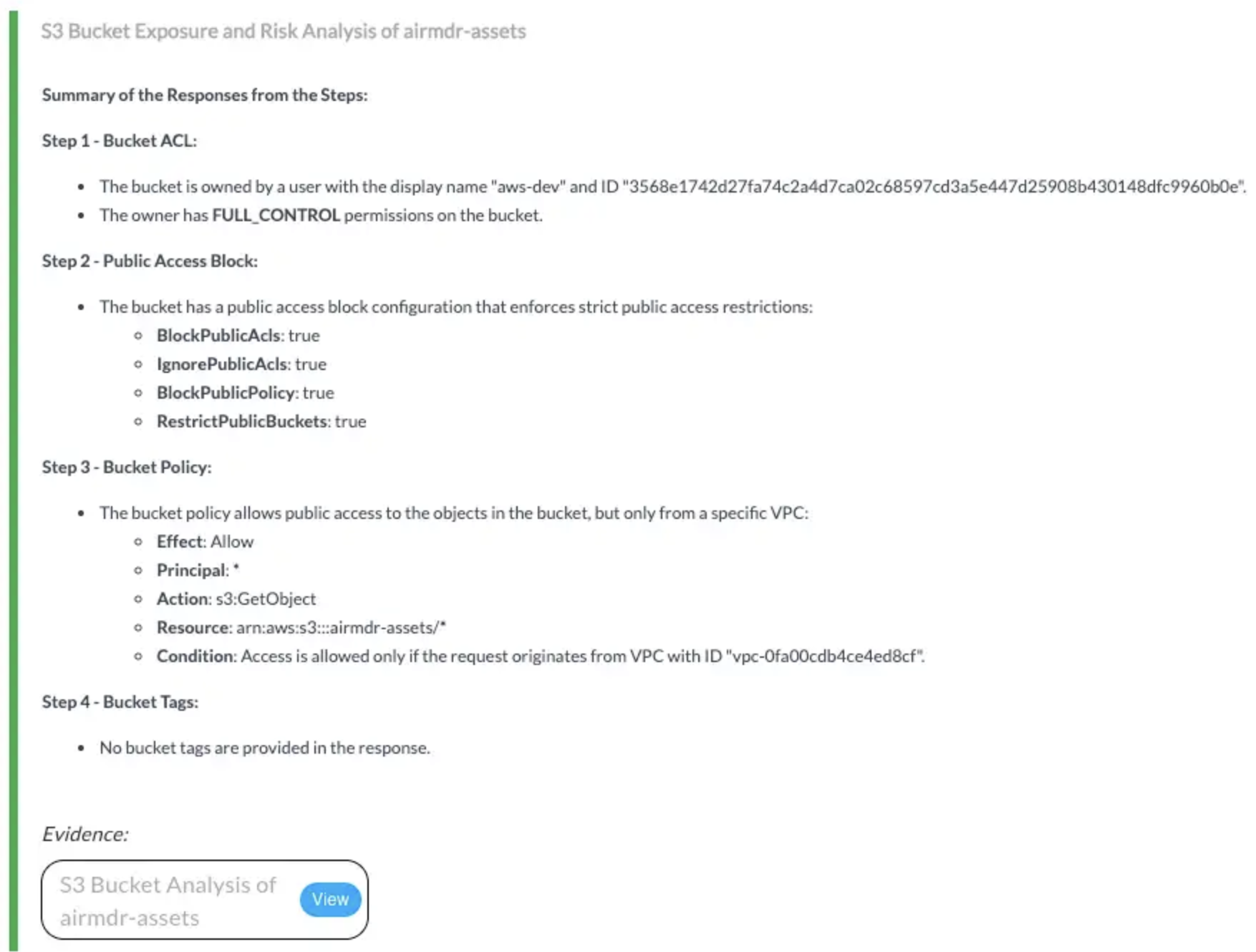 **🔹 Description:**\
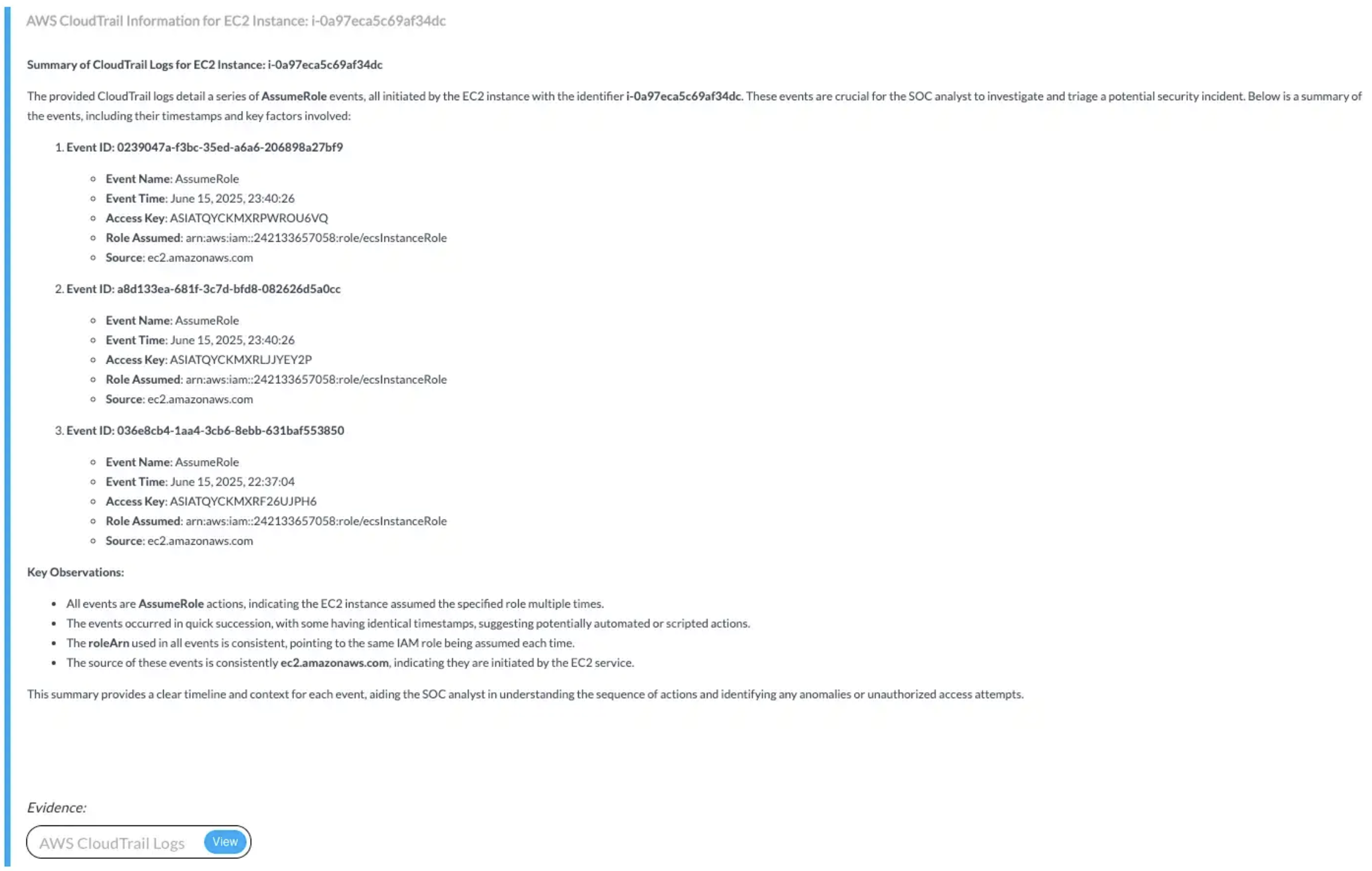
Grants read-only access to CloudTrail logs for reconstructing activity timelines, detecting suspicious patterns, and enriching alerts with user and process-level context.
**🔸 Input Params Used:**\
`Attribute Key: ResourceName`, `Attribute Value: ec2 instance id`, `filter_key: sourceIPAddress`
**🔸 AWS Actions:**\
`cloudtrail:DescribeTrails`, `cloudtrail:GetTrailStatus`, `cloudtrail:LookupEvents`
**🔸 Skills Used:**\
`Lookup AWS Cloudtrail Events`
**📎 Findings:**
**🔹 Description:**\
Grants read-only access to CloudTrail logs for reconstructing activity timelines, detecting suspicious patterns, and enriching alerts with user and process-level context.
**🔸 Input Params Used:**\
`Attribute Key: ResourceName`, `Attribute Value: ec2 instance id`, `filter_key: sourceIPAddress`
**🔸 AWS Actions:**\
`cloudtrail:DescribeTrails`, `cloudtrail:GetTrailStatus`, `cloudtrail:LookupEvents`
**🔸 Skills Used:**\
`Lookup AWS Cloudtrail Events`
**📎 Findings:**

 **🔹 Description:**\
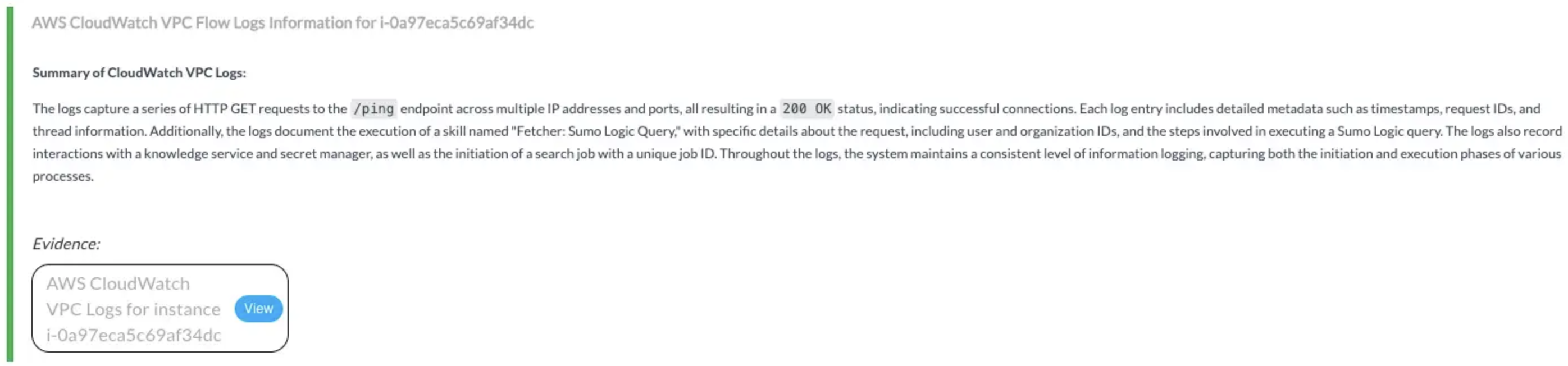
Allows read-only access to CloudWatch logs for analyzing VPC activity, extracting alert context, and enriching investigations with time-bound log insights.
**🔸 Input Params Used:**\
`Log Group Name`, `Log Stream Name Prefix`
**🔸 AWS Actions:**\
`logs:DescribeLogGroups`, `logs:DescribeLogStreams`, `logs:GetLogEvents`, `logs:FilterLogEvents`
**🔸 Skills Used:**\
`Filter AWS CloudWatch Log Events`
**📎 Findings:**
**🔹 Description:**\
Allows read-only access to CloudWatch logs for analyzing VPC activity, extracting alert context, and enriching investigations with time-bound log insights.
**🔸 Input Params Used:**\
`Log Group Name`, `Log Stream Name Prefix`
**🔸 AWS Actions:**\
`logs:DescribeLogGroups`, `logs:DescribeLogStreams`, `logs:GetLogEvents`, `logs:FilterLogEvents`
**🔸 Skills Used:**\
`Filter AWS CloudWatch Log Events`
**📎 Findings:**
 🔹 **Description:**\
Enables validation of IAM permissions and detection of unusual user behavior, such as bulk S3 modifications, to support access risk analysis.
🔸 **Input Params Used:**\
`service_name: iam`, `method_name: [get_user, list_attached_user_policies, simulate_principal_policy]`
🔸 **AWS Actions:**\
`iam:GetUser`, `iam:ListAttachedUserPolicies`, `iam:SimulatePrincipalPolicy`, `cloudtrail:LookupEvents`
🔸 **Skills Used:**\
`Lookup AWS Cloudtrail Events`, `general_aws_query`
**📎 Findings:**
🔹 **Description:**\
Enables validation of IAM permissions and detection of unusual user behavior, such as bulk S3 modifications, to support access risk analysis.
🔸 **Input Params Used:**\
`service_name: iam`, `method_name: [get_user, list_attached_user_policies, simulate_principal_policy]`
🔸 **AWS Actions:**\
`iam:GetUser`, `iam:ListAttachedUserPolicies`, `iam:SimulatePrincipalPolicy`, `cloudtrail:LookupEvents`
🔸 **Skills Used:**\
`Lookup AWS Cloudtrail Events`, `general_aws_query`
**📎 Findings:**
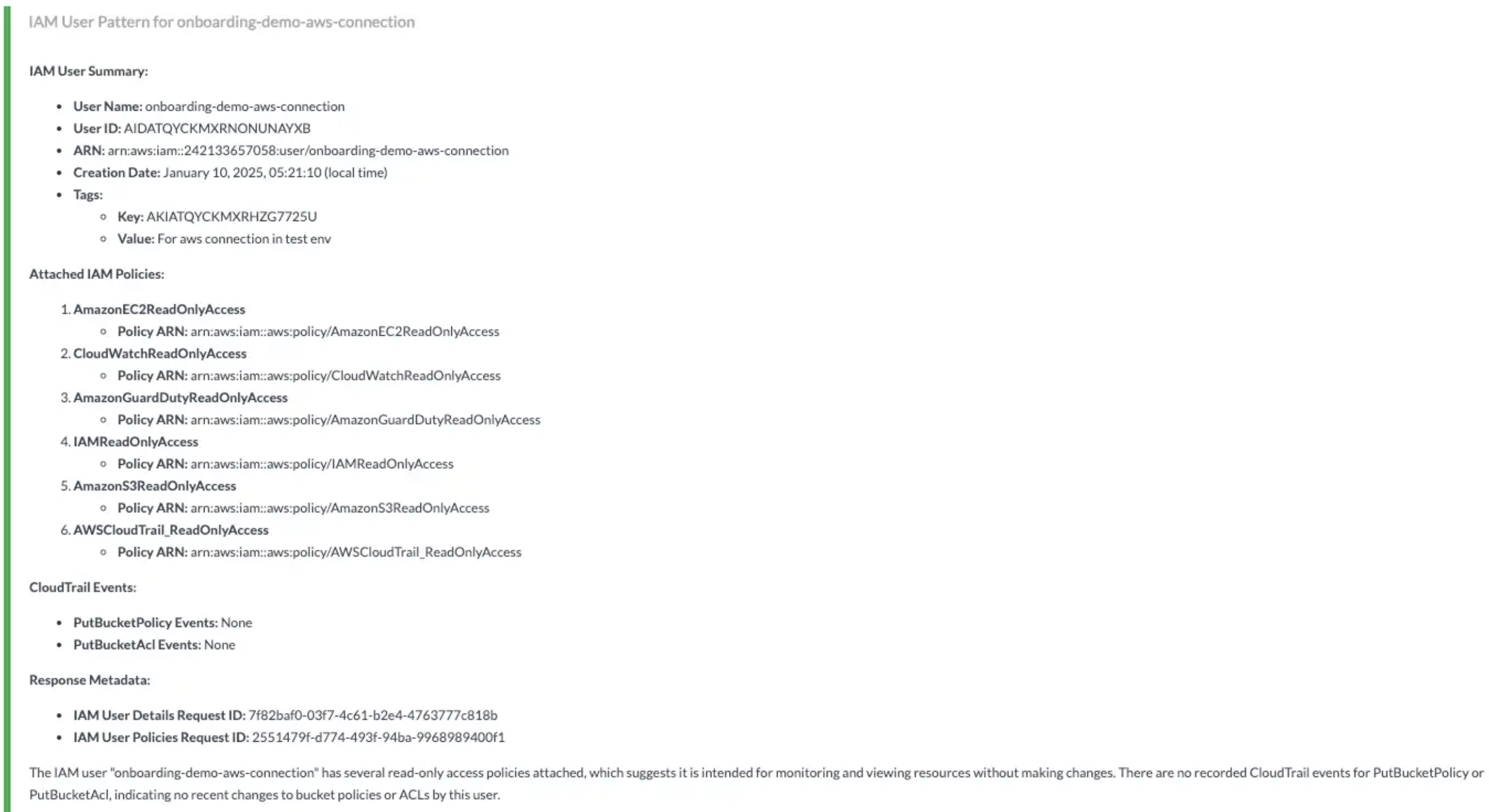 | **Policy Name** | **Access Type** | **Importance** |
| :- | :- | :- |
| `AmazonGuardDutyReadOnlyAccess` | Read-Only | **Required** |
| `IAMReadOnlyAccess` | Read-Only | Recommended |
| `AmazonEC2ReadOnlyAccess` | Read-Only | Optional |
| `AmazonS3ReadOnlyAccess` | Read-Only | Optional |
| `AWSCloudTrailReadOnlyAccess` | Read-Only | Optional |
| `CloudWatchReadOnlyAccess` | Read-Only | Optional |
| `AmazonEC2ContainerRegistry` | Read-Only | Optional |
1. **Sign in** to the same [AWS IAM Console](https://console.aws.amazon.com/iam/) created for AWS GuardDuty.
2. Search for **IAM** in the top menu bar.
3. In the **IAM** dashboard, click on IAM resources → **Policies**.
| **Policy Name** | **Access Type** | **Importance** |
| :- | :- | :- |
| `AmazonGuardDutyReadOnlyAccess` | Read-Only | **Required** |
| `IAMReadOnlyAccess` | Read-Only | Recommended |
| `AmazonEC2ReadOnlyAccess` | Read-Only | Optional |
| `AmazonS3ReadOnlyAccess` | Read-Only | Optional |
| `AWSCloudTrailReadOnlyAccess` | Read-Only | Optional |
| `CloudWatchReadOnlyAccess` | Read-Only | Optional |
| `AmazonEC2ContainerRegistry` | Read-Only | Optional |
1. **Sign in** to the same [AWS IAM Console](https://console.aws.amazon.com/iam/) created for AWS GuardDuty.
2. Search for **IAM** in the top menu bar.
3. In the **IAM** dashboard, click on IAM resources → **Policies**.
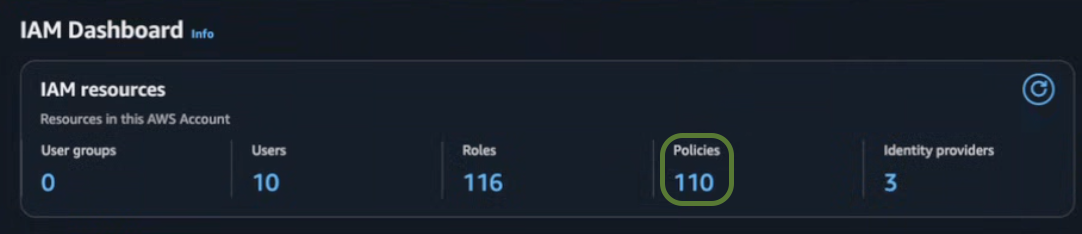 4. Click **Create policy** in the top right corner.
 5. Select **JSON** tab in the toggle tabs and paste the following:
 User can update the Policy Permissions mentioned in the JSON as per requirement.
```
{
"Version": "2012-10-17",
"Statement": [
{
"Effect": "Allow",
"Action": [
"ec2:DescribeInstances",
"ecs:DescribeTasks",
"ecr:DescribeImages",
"cloudtrail:LookupEvents",
"cloudtrail:DescribeTrails",
"cloudtrail:GetTrailStatus",
"logs:DescribeLogGroups",
"logs:DescribeLogStreams",
"logs:GetLogEvents",
"logs:FilterLogEvents",
"s3:GetBucketAcl",
"s3:GetBucketPublicAccessBlock",
"s3:GetBucketPolicy",
"s3:GetBucketTagging",
"s3:ListBucket",
"iam:GetUser",
"iam:ListAttachedUserPolicies",
"iam:SimulatePrincipalPolicy",
"guardduty:GetFindings",
"guardduty:ListFindings",
"guardduty:GetDetector",
"securityhub:GetFindings",
"securityhub:BatchUpdateFindings",
"securityhub:DescribeHub",
"securityhub:ListFindings"
],
"Resource": "*"
}
]
}
```
6. Click **Next**.
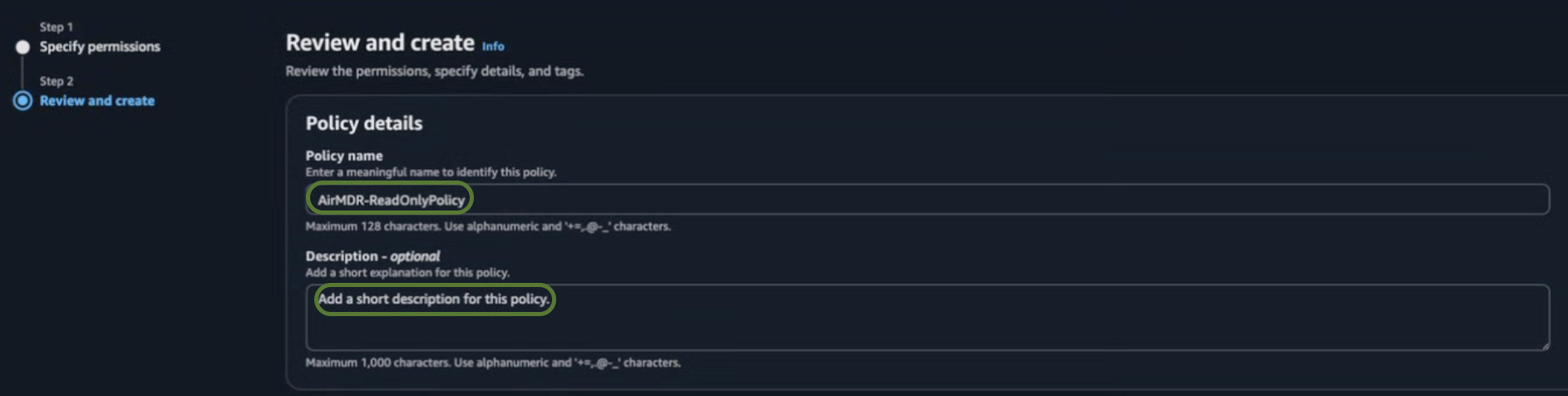
7. In the **Review and create** section, provide the required information for the **Policy details**.
* **Policy name** – Provide a meaningful name like `AirMDR-ReadOnlyPolicy`.
* **Description** (Optional) – Add a short description for this policy.
User can update the Policy Permissions mentioned in the JSON as per requirement.
```
{
"Version": "2012-10-17",
"Statement": [
{
"Effect": "Allow",
"Action": [
"ec2:DescribeInstances",
"ecs:DescribeTasks",
"ecr:DescribeImages",
"cloudtrail:LookupEvents",
"cloudtrail:DescribeTrails",
"cloudtrail:GetTrailStatus",
"logs:DescribeLogGroups",
"logs:DescribeLogStreams",
"logs:GetLogEvents",
"logs:FilterLogEvents",
"s3:GetBucketAcl",
"s3:GetBucketPublicAccessBlock",
"s3:GetBucketPolicy",
"s3:GetBucketTagging",
"s3:ListBucket",
"iam:GetUser",
"iam:ListAttachedUserPolicies",
"iam:SimulatePrincipalPolicy",
"guardduty:GetFindings",
"guardduty:ListFindings",
"guardduty:GetDetector",
"securityhub:GetFindings",
"securityhub:BatchUpdateFindings",
"securityhub:DescribeHub",
"securityhub:ListFindings"
],
"Resource": "*"
}
]
}
```
6. Click **Next**.
7. In the **Review and create** section, provide the required information for the **Policy details**.
* **Policy name** – Provide a meaningful name like `AirMDR-ReadOnlyPolicy`.
* **Description** (Optional) – Add a short description for this policy.
 8. Review your selections (Permissions defined in this policy), and if everything is correct.
* **Review Permissions** – Ensure the attached policies meet your security needs.
* **Review Trust Policy** – Verify the trust policy when you use cross-account access or service.
8. Review your selections (Permissions defined in this policy), and if everything is correct.
* **Review Permissions** – Ensure the attached policies meet your security needs.
* **Review Trust Policy** – Verify the trust policy when you use cross-account access or service.
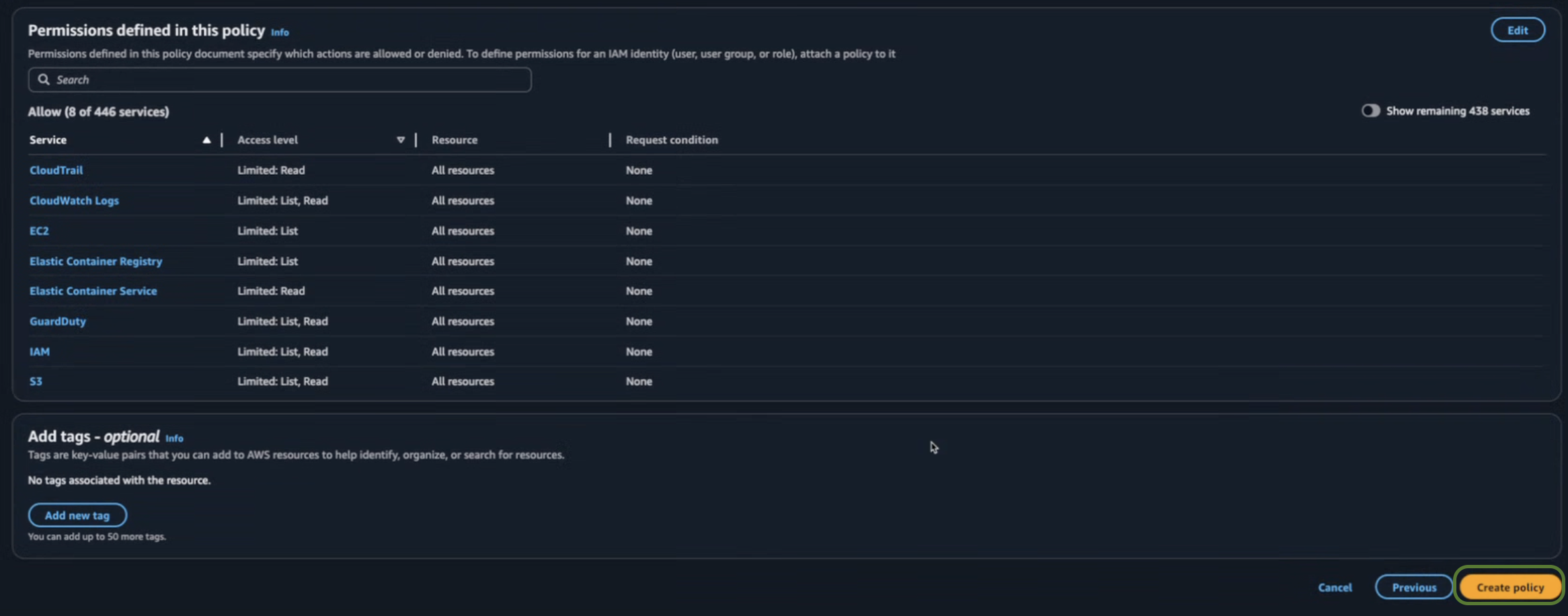 9. Click **Create policy**.
### Option 1: IAM User (Access Key Method)
* Navigate to **IAM → IAM Dashboard.**
* Click on IAM resources **→ User**.
* Click **Create user** in the top right corner.
9. Click **Create policy**.
### Option 1: IAM User (Access Key Method)
* Navigate to **IAM → IAM Dashboard.**
* Click on IAM resources **→ User**.
* Click **Create user** in the top right corner.
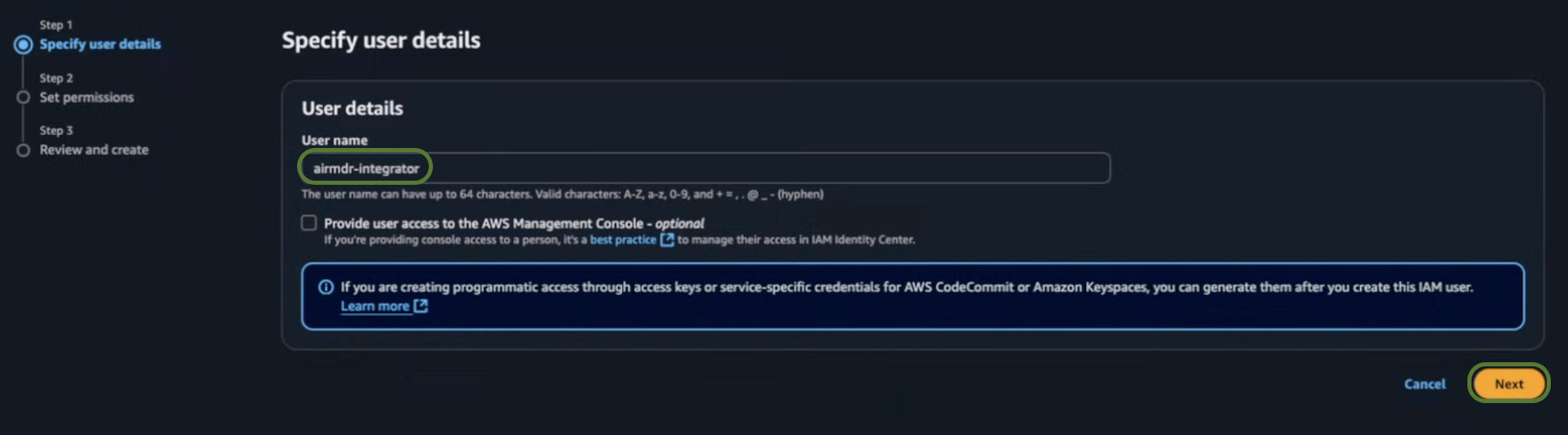
 * Enter a User name (e.g., `airmdr-integrator`).
* Click **Next**.
* Enter a User name (e.g., `airmdr-integrator`).
* Click **Next**.
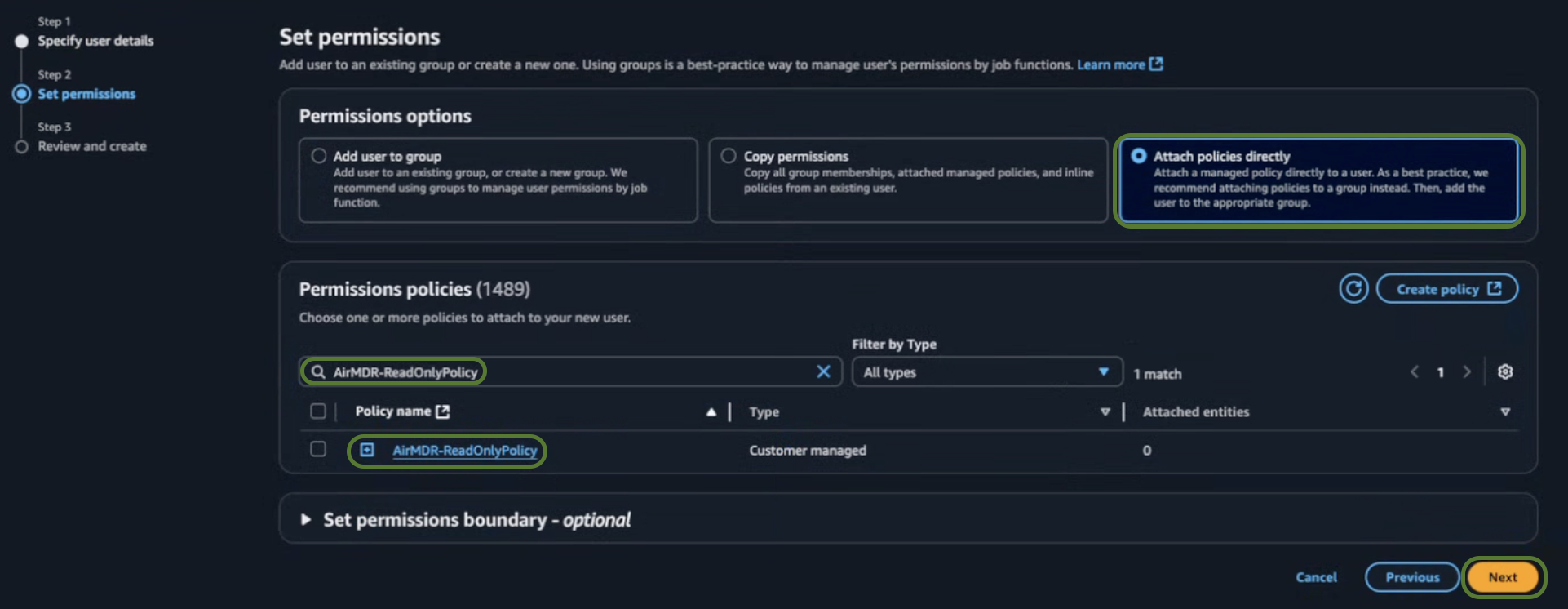
 * In the Set permissions section, select **Attach policies directly**.
* Search and select `AirMDR-ReadOnlyPolicy `.
Click [here](https://docs.airmdr.com/Integrations/AWS-Updated#create-iam-policy) for detailed steps to define the `AirMDR-ReadOnlyPolicy` in IAM.
* Click **Next.**
* In the Set permissions section, select **Attach policies directly**.
* Search and select `AirMDR-ReadOnlyPolicy `.
Click [here](https://docs.airmdr.com/Integrations/AWS-Updated#create-iam-policy) for detailed steps to define the `AirMDR-ReadOnlyPolicy` in IAM.
* Click **Next.**
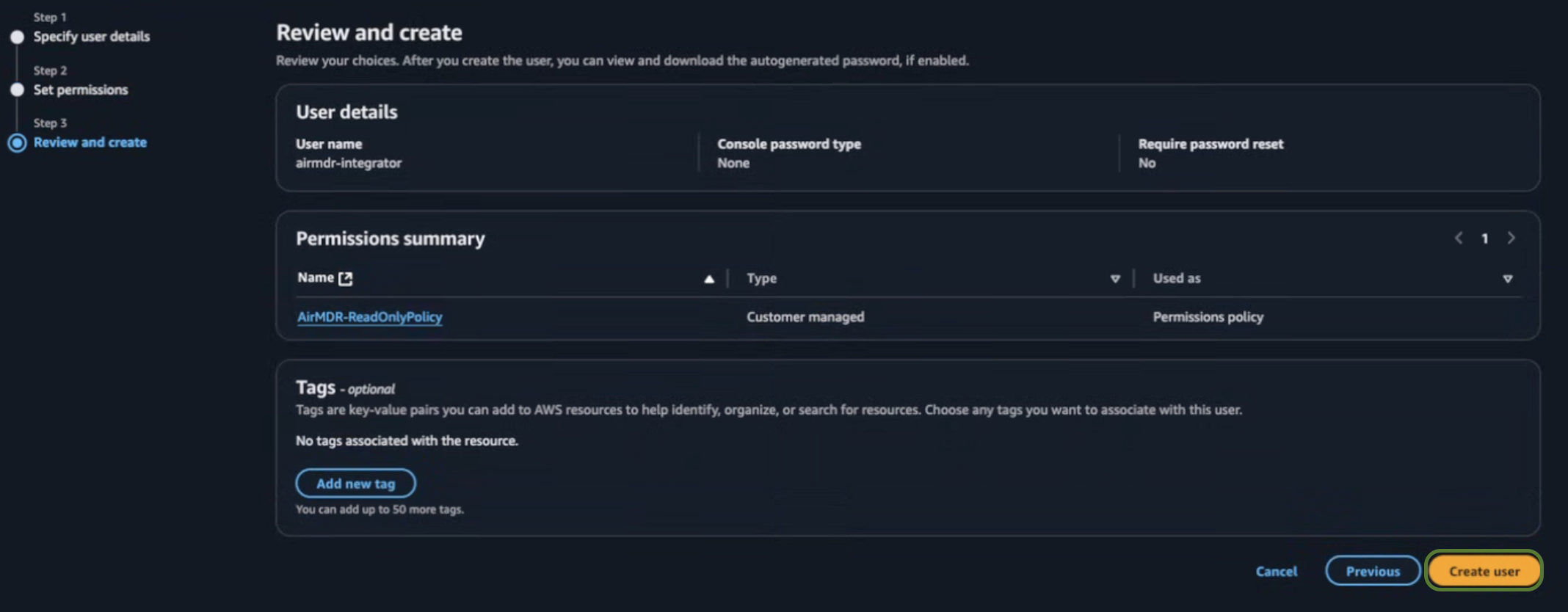
 * In the Review and create section, click **Create user**.
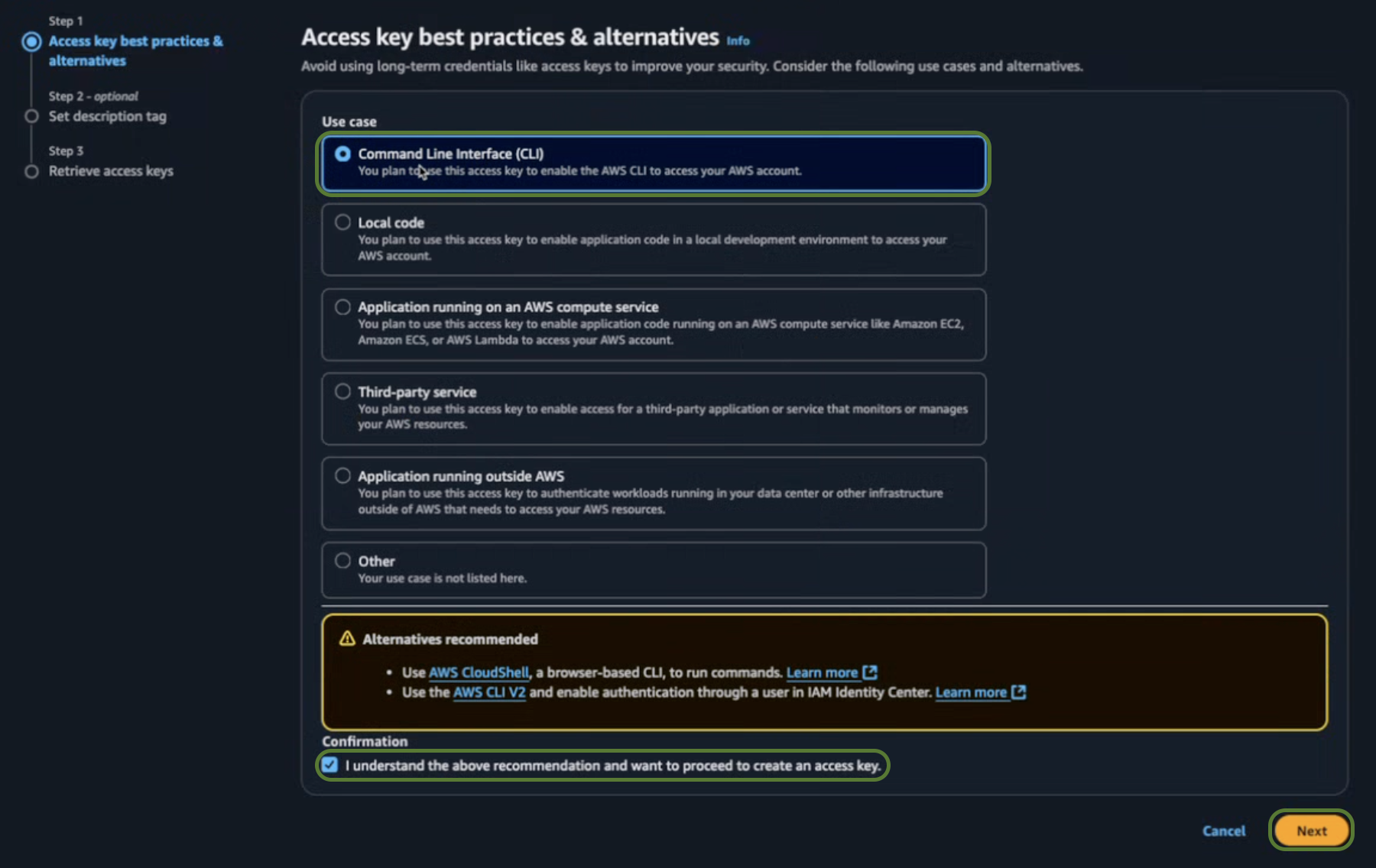
 * Search and select the User name (e.g., `airmdr-integrator`) created earlier.
* Click on **Create access key**.
* Select the **Command Line Interface (CLI)** Use case, and the confirmation checkbox.
* Click **Next**.
* Search and select the User name (e.g., `airmdr-integrator`) created earlier.
* Click on **Create access key**.
* Select the **Command Line Interface (CLI)** Use case, and the confirmation checkbox.
* Click **Next**.
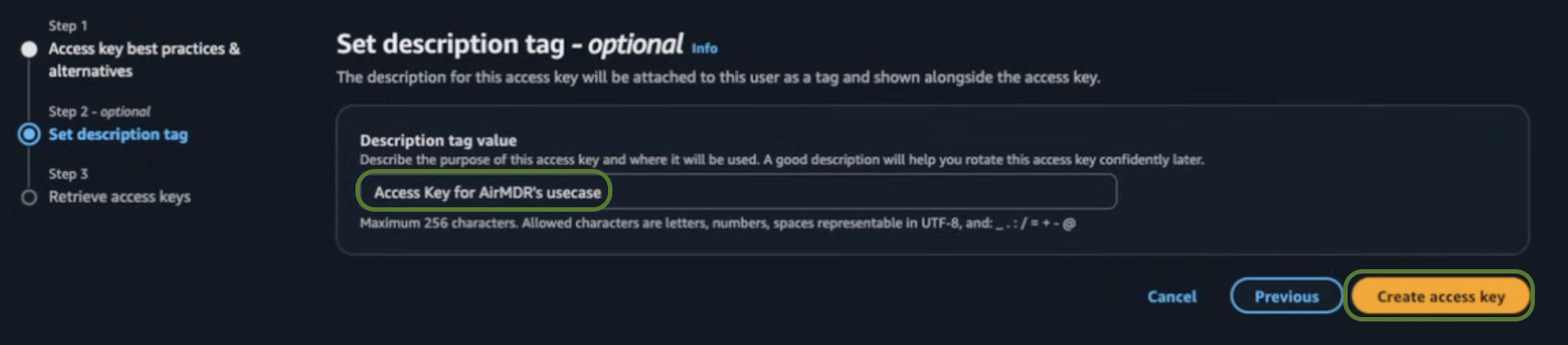
 * In the **set description tag - optional** section, provide the required information for the D**escription tag value**.
* **Description tag value** (Optional) – Access key for AirMDR's Use case.
* Click **Create access key**.
* In the **set description tag - optional** section, provide the required information for the D**escription tag value**.
* **Description tag value** (Optional) – Access key for AirMDR's Use case.
* Click **Create access key**.
 * On the Retrieve access keys screen, copy the:
* ✅ **Access Key ID**
* ✅ **Secret Access Key**
This is the only time you can view the **Access Key ID** and **Secret Access Key** so it is recommended to Download `.csv `file and save it securely in the password manager or organization vault for future reference
* Click **Done**.
### Option 2: IAM Role (Assume Role via STS)
If you need to grant **secure API access** to AWS services (e.g., EC2, Lambda, or third-party applications), you must create an **IAM role** with the right permissions.
* Navigate to **IAM → IAM Dashboard.**
* Click on IAM resources **→ Roles**.
* On the Retrieve access keys screen, copy the:
* ✅ **Access Key ID**
* ✅ **Secret Access Key**
This is the only time you can view the **Access Key ID** and **Secret Access Key** so it is recommended to Download `.csv `file and save it securely in the password manager or organization vault for future reference
* Click **Done**.
### Option 2: IAM Role (Assume Role via STS)
If you need to grant **secure API access** to AWS services (e.g., EC2, Lambda, or third-party applications), you must create an **IAM role** with the right permissions.
* Navigate to **IAM → IAM Dashboard.**
* Click on IAM resources **→ Roles**.
 * Click on **Create role** in the top right corner.
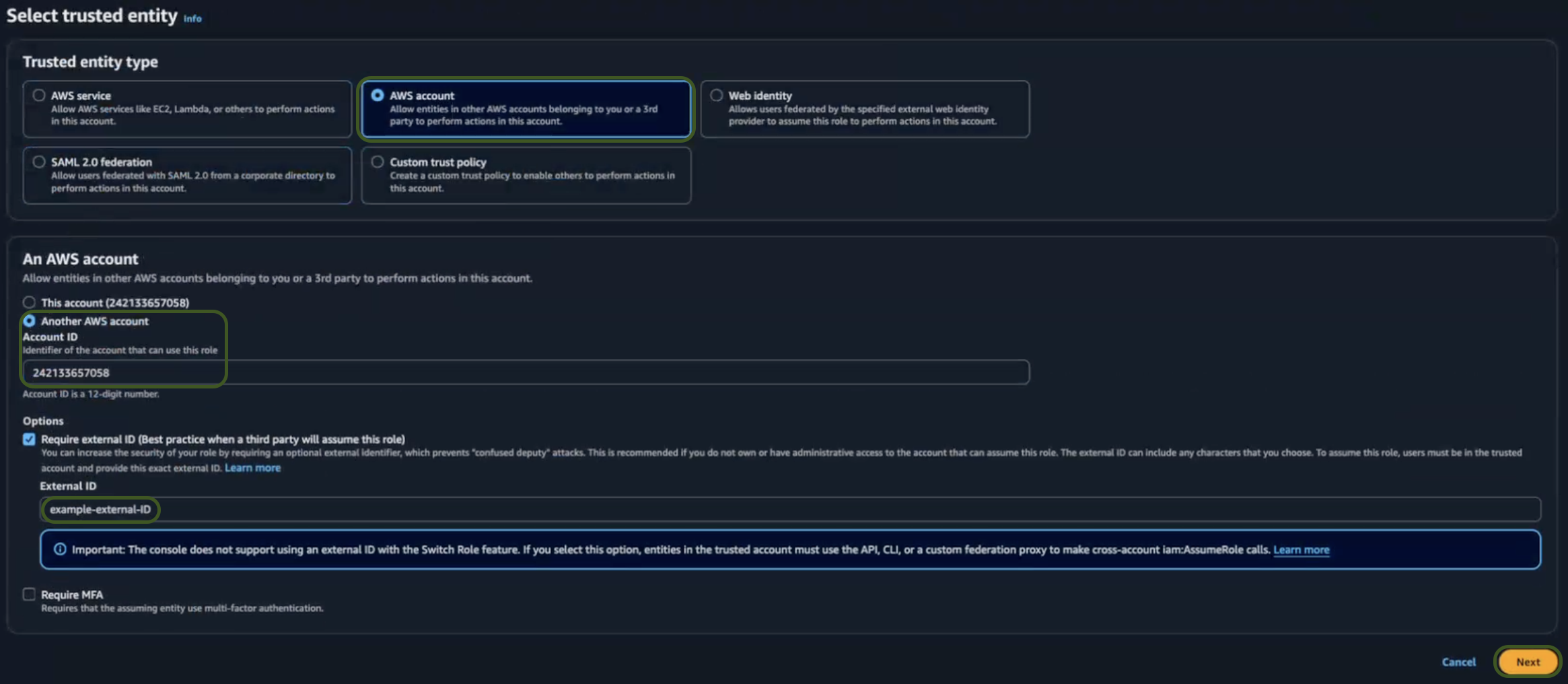
 * In the **Select a trusted entity → Trusted entity type section, chooseAWS Account** .
* In the **An AWS account** section, choose **Another AWS Account.**
* Enter the **AirMDR AWS Account ID**: **242133657058** only as an identifier of the account that can use this role.
Generally, the Account ID is a 12-digit Number, use only the Account ID mentioned above.
* Select the Required external ID Options checkbox (Best practice when a third party will assume this role).
* Provide a meaningful name for the **External ID** like `example-external-ID`.
**The** `ExternalId`**value must have a minimum of 2 characters and a maximum of 1,224 characters. The value must be alphanumeric without white space. It can also include the following symbols: plus (+), equal (=), comma (,), period (.), at (@), colon (:), forward slash (/), and hyphen (-)**
To enhance the Security:
1. Specify an External ID, a unique identifier that the trusted account must provide when assuming the role
2. To add an external\_id:
* Select the **Require an external ID** checkbox.
* Enter the unique agreed-upon external ID value.
* Do NOT check "**Require MFA**" unless the assuming account needs MFA.
* Click **Next**.
* In the **Select a trusted entity → Trusted entity type section, chooseAWS Account** .
* In the **An AWS account** section, choose **Another AWS Account.**
* Enter the **AirMDR AWS Account ID**: **242133657058** only as an identifier of the account that can use this role.
Generally, the Account ID is a 12-digit Number, use only the Account ID mentioned above.
* Select the Required external ID Options checkbox (Best practice when a third party will assume this role).
* Provide a meaningful name for the **External ID** like `example-external-ID`.
**The** `ExternalId`**value must have a minimum of 2 characters and a maximum of 1,224 characters. The value must be alphanumeric without white space. It can also include the following symbols: plus (+), equal (=), comma (,), period (.), at (@), colon (:), forward slash (/), and hyphen (-)**
To enhance the Security:
1. Specify an External ID, a unique identifier that the trusted account must provide when assuming the role
2. To add an external\_id:
* Select the **Require an external ID** checkbox.
* Enter the unique agreed-upon external ID value.
* Do NOT check "**Require MFA**" unless the assuming account needs MFA.
* Click **Next**.
 * In the **Add permissions** section, search and select `AirMDR-ReadOnlyPolicy`.
Click [here](https://docs.airmdr.com/Integrations/AWS-Updated#create-iam-policy) for detailed steps to define the `AirMDR-ReadOnlyPolicy` in IAM.
* Click **Next**.
* In the **Add permissions** section, search and select `AirMDR-ReadOnlyPolicy`.
Click [here](https://docs.airmdr.com/Integrations/AWS-Updated#create-iam-policy) for detailed steps to define the `AirMDR-ReadOnlyPolicy` in IAM.
* Click **Next**.
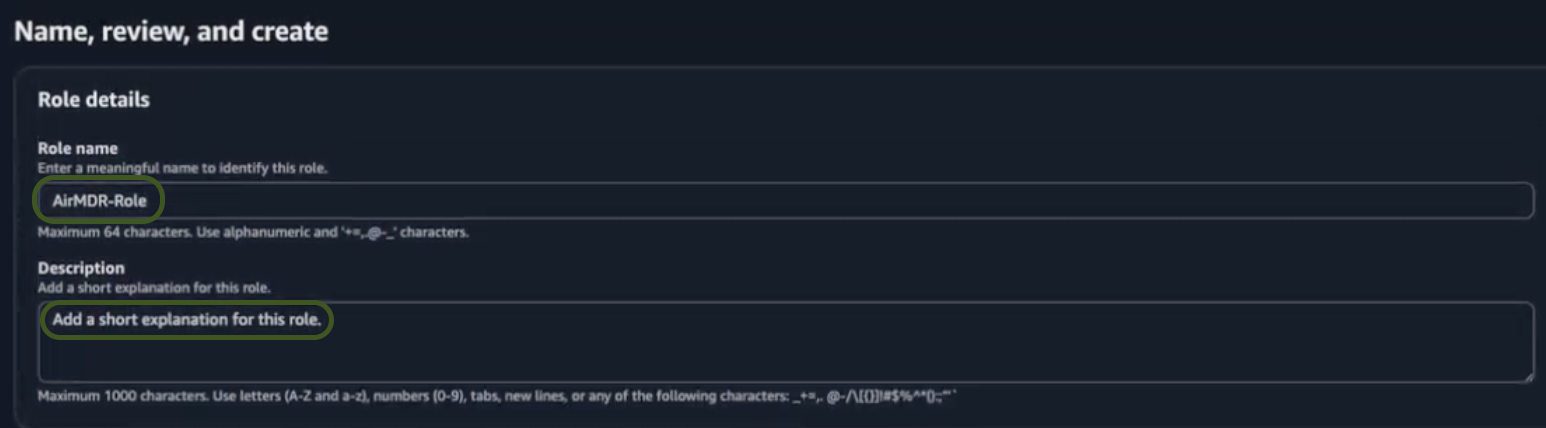
 * In the **Name, review and create** section.
* Provide the required information in the **Role details** section for the role.
* **Role Name** – Provide a meaningful name like `AirMDR-Role`.
* **Description** (Optional) – Add a short description for this role.
* In the **Name, review and create** section.
* Provide the required information in the **Role details** section for the role.
* **Role Name** – Provide a meaningful name like `AirMDR-Role`.
* **Description** (Optional) – Add a short description for this role.
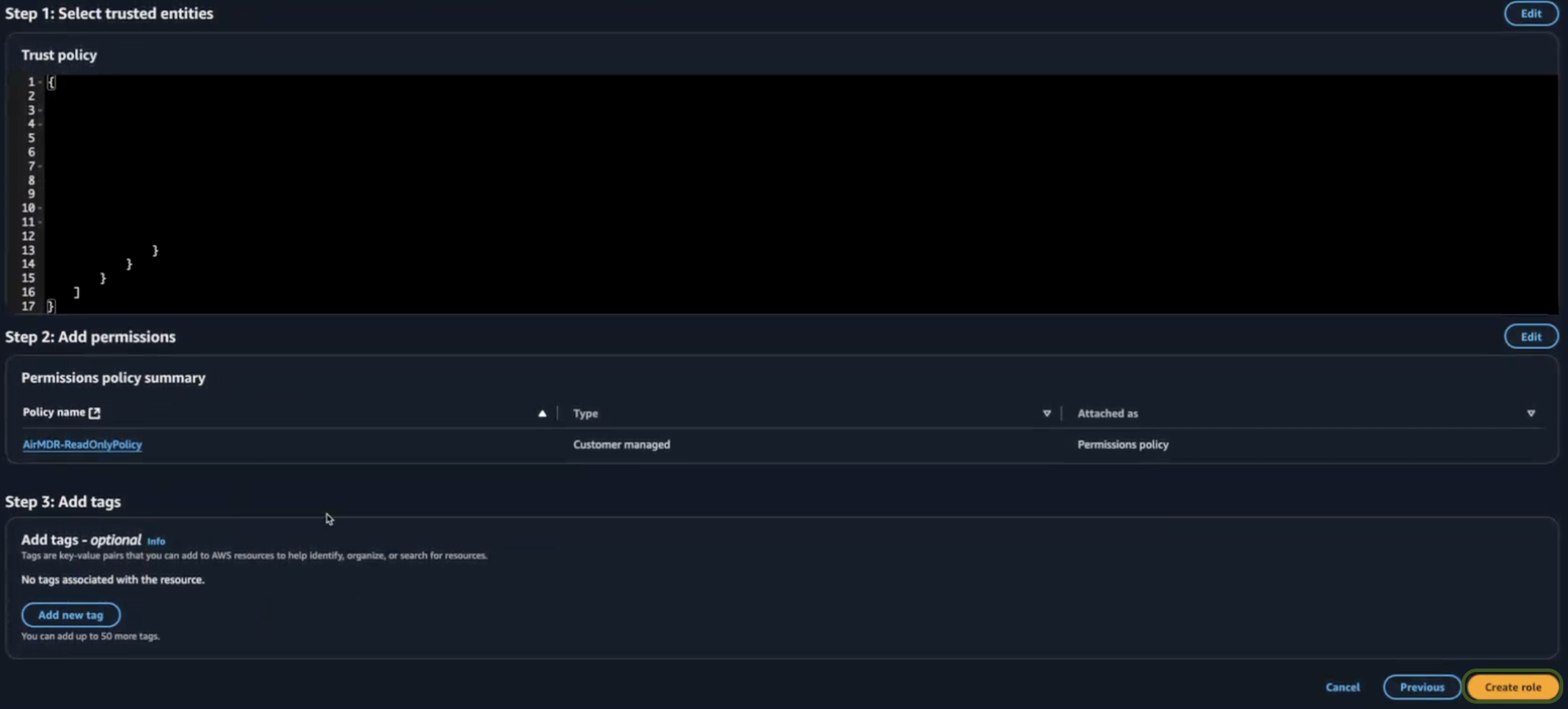
 * Review your selections (Permissions and Policies), and if everything is correct.
* **Review Permissions** – Ensure the attached policies meet your security needs.
* **Review Trust Policy** – Verify the trust policy when you use cross-account access or service.
* Click **Create role**.
* Review your selections (Permissions and Policies), and if everything is correct.
* **Review Permissions** – Ensure the attached policies meet your security needs.
* **Review Trust Policy** – Verify the trust policy when you use cross-account access or service.
* Click **Create role**.
 * Search and select the role (e.g., `AirMDR-Role`) created earlier.
* Once the role is created, click on the role name
* Copy and securely save the **Role ARN** (Amazon Resource Name):
* ✅ **Role ARN**
* ✅ **External ID** (entered earlier)
Securely save and share these credentials with the AirMDR support team to allow monitoring.
* Click **Done**.
### Option 3: Multi-Account Integration using AWS StackSet Method
Connects AirMDR to every account in an AWS Organization through two IAM roles: one in the management account that enumerates the organization, and one in each member account that AirMDR reads from.
**Who runs this:** an AWS administrator with IAM and CloudFormation StackSet permissions in the organization’s management account.
**Time:** about 20 minutes, plus StackSet deployment time.
***
## **How the access chain works**
Read this before you start — it is the part the previous version of this guide got wrong, and it determines what you put in each trust policy.
* Search and select the role (e.g., `AirMDR-Role`) created earlier.
* Once the role is created, click on the role name
* Copy and securely save the **Role ARN** (Amazon Resource Name):
* ✅ **Role ARN**
* ✅ **External ID** (entered earlier)
Securely save and share these credentials with the AirMDR support team to allow monitoring.
* Click **Done**.
### Option 3: Multi-Account Integration using AWS StackSet Method
Connects AirMDR to every account in an AWS Organization through two IAM roles: one in the management account that enumerates the organization, and one in each member account that AirMDR reads from.
**Who runs this:** an AWS administrator with IAM and CloudFormation StackSet permissions in the organization’s management account.
**Time:** about 20 minutes, plus StackSet deployment time.
***
## **How the access chain works**
Read this before you start — it is the part the previous version of this guide got wrong, and it determines what you put in each trust policy.
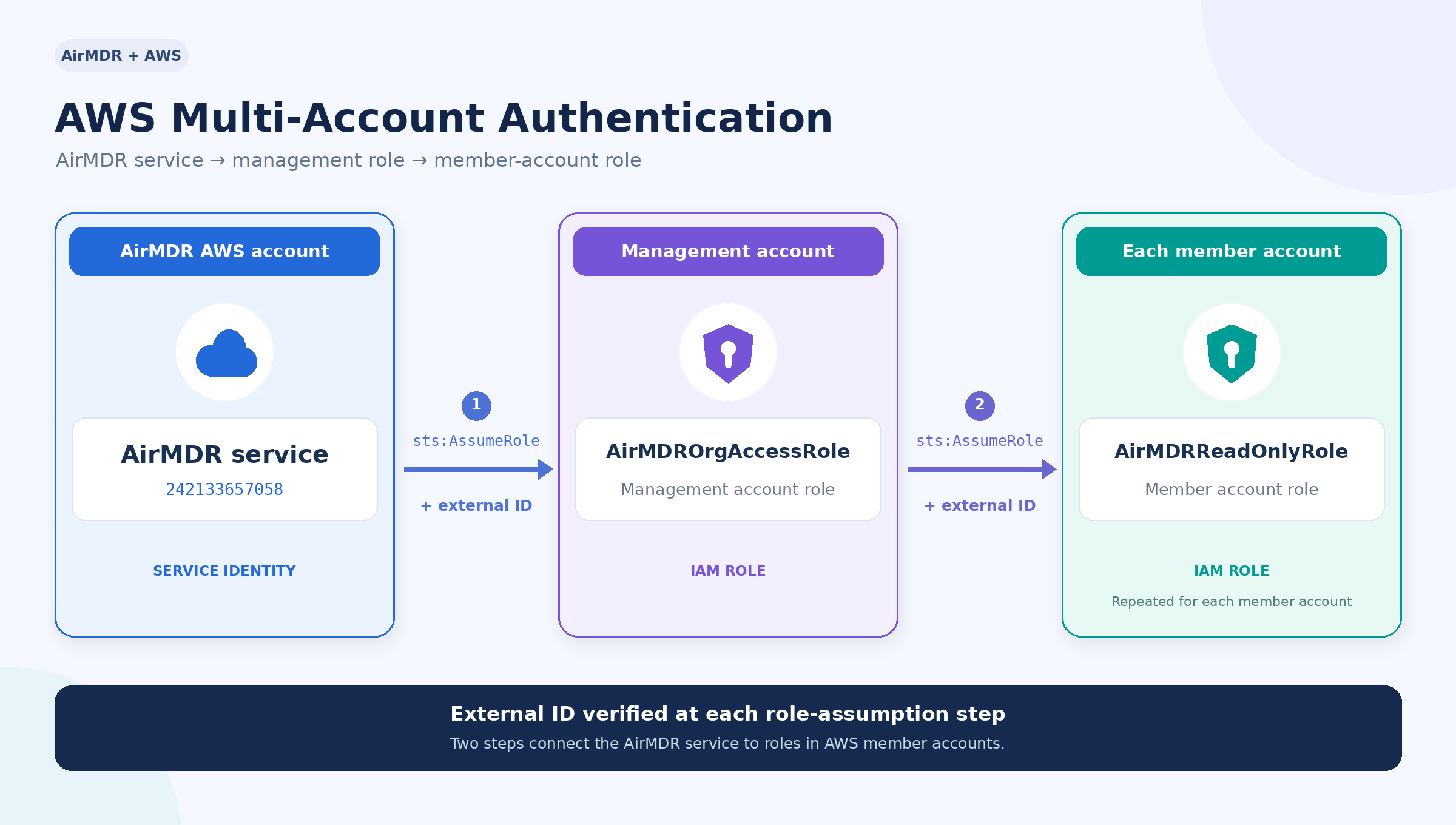 Two hops, not one. AirMDR assumes the management-account role, and then assumes the member-account role **from that session**. A member account therefore trusts its own organization’s management account, never AirMDR’s account directly.
This matters for the member role’s trust policy. If you set it to trust `242133657058` — as the earlier template did — the second hop is denied, because the principal making that call is `AirMDROrgAccessRole`, not AirMDR’s account.
> **Already deployed the old template**, where the member role trusts `242133657058` directly? It keeps working — AirMDR detects that topology and assumes accordingly. See [Migrating an existing deployment](https://app.slack.com/client/T05F60XJZ0Q/dms#migrating-an-existing-deployment) for why you may still want to redeploy.
***
## **Step 1 — Create the management account role**
Sign in to the **management (root) account** of your organization.
1. Go to **IAM → Roles → Create role**.
2. **Trusted entity type:** AWS account.
3. Select **Another AWS account** and enter account ID `242133657058`.
4. Tick **Require external ID** and enter a unique string. Save it — this is your `root_account_external_id`.
5. Attach the managed policy `AWSOrganizationsReadOnlyAccess`.
6. Name the role `AirMDROrgAccessRole` and create it.
External ID format: 2–1,224 characters, alphanumeric, no whitespace. These symbols are also allowed: `+ = , . @ : / -`. Use something unguessable, for example `airmdr-orgaccess-2026-a7f3c9e21b8d4f60`.
### **Step 1b — Add the two inline policies**
`AWSOrganizationsReadOnlyAccess` alone is **not enough**. It grants only `organizations:Describe*` and `organizations:List*`, with no `sts:AssumeRole`, so the role cannot reach a single member account. It also grants no read access, so any skill that runs against the management account fails.
Open the role → **Add permissions → Create inline policy → JSON**, and add both.
**Policy 1 —** `AirMDRAssumeMemberRoles`**.** Lets the role make the second hop:
```json theme={null}
{
"Version": "2012-10-17",
"Statement": [
{
"Sid": "AssumeMemberAccountReadRoles",
"Effect": "Allow",
"Action": "sts:AssumeRole",
"Resource": "arn:aws:iam::*:role/AirMDRReadOnlyRole"
}
]
}
```
If you changed `RoleName` in Step 2, match it here.
**Policy 2 —** `AirMDRManagementAccountRead`**.** The StackSet does not deploy into the management account, so that account is read through this role directly. Use the same JSON as [the member permission set](https://app.slack.com/client/T05F60XJZ0Q/dms#the-permission-set) below.
### **Step 1c — Record three values**
From the role’s summary page:
| **Value** | **Where** | **Example** |
| :- | :- | :- |
| `root_account_role_arn` | Role ARN | `arn:aws:iam::123456789012:role/AirMDROrgAccessRole` |
| `root_account_id` | The 12-digit account in that ARN | `123456789012` |
| `root_account_external_id` | What you entered in step 4 | `airmdr-orgaccess-2026-a7f3c9e21b8d4f60` |
`root_account_id` also tells AirMDR which account is the management account, so it can route reads there correctly instead of looking for a member role that does not exist.
***
## **Step 2 — Deploy the member role by StackSet**
Still in the management account.
1. **CloudFormation → StackSets → Create StackSet.**
2. **Permissions model:** Service-managed permissions.
3. **Prerequisite:** Template is ready. **Specify template:** Upload a template file.
4. Upload the YAML below.
Before uploading, change `ChildAccountExternalId`**’s default** to your own unique string. This is a different secret from the one in Step 1 — do not reuse it. It becomes your `cross_account_external_id`.
```yaml theme={null}
AWSTemplateFormatVersion: "2010-09-09"
Description: "AirMDR read-only role, deployed to every member account of the organization"
Parameters:
RoleName:
Type: String
Default: "AirMDRReadOnlyRole"
Description: "Name of the IAM role. Must match cross_account_role_name in AirMDR."
ManagementAccountId:
Type: String
AllowedPattern: "^[0-9]{12}$"
Description: "Your organization's management account ID - the account this StackSet is created from. NOT AirMDR's account."
OrgAccessRoleName:
Type: String
Default: "AirMDROrgAccessRole"
Description: "Name of the role created in Step 1, in the management account."
ChildAccountExternalId:
Type: String
NoEcho: true
MinLength: 2
MaxLength: 1224
AllowedPattern: "^[A-Za-z0-9+=,.@:/-]+$"
Description: "Unique external ID for the second hop. Becomes cross_account_external_id in AirMDR."
Resources:
AirMDRReadOnlyRole:
Type: AWS::IAM::Role
Properties:
RoleName: !Ref RoleName
Description: "Read-only access for the AirMDR MDR platform"
AssumeRolePolicyDocument:
Version: "2012-10-17"
Statement:
# Trusts the management account's org-access role, NOT AirMDR directly.
- Effect: Allow
Principal:
AWS: !Sub "arn:aws:iam::${ManagementAccountId}:role/${OrgAccessRoleName}"
Action: "sts:AssumeRole"
Condition:
StringEquals:
"sts:ExternalId": !Ref ChildAccountExternalId
Policies:
- PolicyName: "AirMDRReadOnlyPolicy"
PolicyDocument:
Version: "2012-10-17"
Statement:
- Effect: Allow
Action:
# Identity - used to verify the connection
- "sts:GetCallerIdentity"
# CloudTrail
- "cloudtrail:LookupEvents"
- "cloudtrail:DescribeTrails"
- "cloudtrail:GetTrailStatus"
# GuardDuty
- "guardduty:ListDetectors"
- "guardduty:ListFindings"
- "guardduty:GetFindings"
# CloudWatch Logs
- "logs:DescribeLogGroups"
- "logs:DescribeLogStreams"
- "logs:FilterLogEvents"
- "logs:GetLogEvents"
# CloudWatch Metrics
- "cloudwatch:GetMetricStatistics"
# Security Hub
- "securityhub:GetFindings"
- "securityhub:GetFindingsV2"
- "securityhub:GetEnabledStandards"
# Permission pre-flight
- "iam:SimulatePrincipalPolicy"
Resource: "*"
# Athena and its Glue catalog. Scope Resource to your own
# workgroup and databases if you prefer tighter control.
- Effect: Allow
Action:
- "athena:StartQueryExecution"
- "athena:GetQueryExecution"
- "athena:GetQueryResults"
- "glue:GetDatabase"
- "glue:GetTable"
- "glue:GetPartitions"
Resource: "*"
# S3 - REPLACE the placeholders with your actual log and Athena
# results buckets. Do not widen this to "*".
- Effect: Allow
Action:
- "s3:ListBucket"
- "s3:GetObject"
- "s3:GetBucketLocation"
Resource:
- "arn:aws:s3:::REPLACE-ME-log-bucket"
- "arn:aws:s3:::REPLACE-ME-log-bucket/*"
- "arn:aws:s3:::REPLACE-ME-athena-results"
- "arn:aws:s3:::REPLACE-ME-athena-results/*"
Tags:
- Key: "Purpose"
Value: "AirMDRReadOnly"
- Key: "ManagedBy"
Value: "CloudFormation-StackSets"
Outputs:
RoleArn:
Description: "ARN of the created role"
Value: !GetAtt AirMDRReadOnlyRole.Arn
```
5. **StackSet name:** e.g. `AirMDR-StackSet`.
6. **Parameters:** set `ManagementAccountId` to your own management account ID and `ChildAccountExternalId` to your chosen secret. Leave `RoleName` and `OrgAccessRoleName` at their defaults unless you renamed the Step 1 role.
7. **Configure options:** Managed execution → Inactive. Tick the IAM capabilities acknowledgement.
8. **Deployment options:**
* Add stacks to stack set → **Deploy new stacks**
* Deployment targets → **Deploy to organization**
* Automatic deployment → **Activated** (new accounts are covered automatically)
* Account removal behaviour → **Delete stacks**
* Specify regions → the region your security data is in. **This becomes** `region_name`**.** IAM roles are global, but the region you pick here is where AirMDR will query.
* Region concurrency → Sequential; Concurrency mode → Strict failure tolerance
9. **Review → Submit**, then wait for every stack instance to reach `CURRENT`.
> **Write actions.** This policy is read-only. Skills that change state in your account — archiving GuardDuty findings, updating Security Hub workflow status, writing or deleting S3 objects, revoking IAM role sessions — need `guardduty:ArchiveFindings`, `securityhub:BatchUpdateFindings`, `s3:PutObject`, `s3:DeleteObject`, `iam:PutRolePolicy` and `iam:GetRole`. Add them as a second, clearly-labelled statement only if you want AirMDR to take those actions.
### **The permission set**
The actions above are the complete set AirMDR calls. Use the same list for the management account’s inline policy in Step 1b — minus the `sts:AssumeRole` that is already in `AirMDRAssumeMemberRoles`.
***
## **Step 3 — Create the connection in AirMDR**
**Integrations → Amazon Web Services → Add connection → Multi-account.**
| **Field** | **Value** |
| :- | :- |
| `root_account_role_arn` | From Step 1c |
| `root_account_external_id` | From Step 1, first external ID |
| `root_account_id` | Your management account, 12 digits |
| `cross_account_role_name` | `AirMDRReadOnlyRole` — the **name**, not an ARN |
| `cross_account_external_id` | `ChildAccountExternalId` from Step 2 |
| `region_name` | The region chosen in Step 2 step 8 |
Leave `assume_role_in_root_account` unset. AirMDR works out which trust topology your member roles use on the first assume and reuses that answer for the rest of the query. Pin it only if you want to skip that one-off detection — `true` for the template in this guide, `false` for the older one. A pinned value is obeyed exactly, so an incorrect pin produces `AccessDenied` rather than silently falling back.
***
## **Step 4 — Verify**
Run **Verify authentication**. A green result confirms `AirMDROrgAccessRole` is assumable — and nothing more. It only calls `sts:GetCallerIdentity`, which needs no permission at all, so it cannot tell you whether the member roles work.
Prove the second hop with a real query. Run **Get GuardDuty findings** with no `account_id`, then read `AccountResults[]` in the response:
* Every account `status: "success"` — setup is complete.
* `AccessDenied` on `sts:AssumeRole` for every member — the trust policy, the external ID, or the `sts:AssumeRole` grant from Step 1b is wrong.
* `AccessDenied` on a `guardduty:` action — the chain works; that account is missing a permission, or GuardDuty is not enabled in that region.
* An entry for the management account only — the StackSet has not finished.
An empty `Findings` list on its own does not mean “no findings”. Always read `AccountResults[]`.
***
## **Account coverage**
Not every skill reaches every account, so set expectations accordingly.
**Query all member accounts automatically**, and accept an optional `account_id` input to target one: Get GuardDuty findings, Look up CloudTrail events, Filter CloudWatch log events, Get CloudWatch metrics, General AWS query.
**Run against the management account only:** everything else — listing GuardDuty detectors, listing CloudTrail trails, CloudWatch log groups and events, all S3 skills, all Security Hub skills, Athena queries, and the IAM skills. These need the Step 1b inline read policy on `AirMDROrgAccessRole`; without it they return `AccessDenied`. Broader fan-out for these is on the roadmap.
***
## **Migrating an existing deployment**
Earlier versions of this guide shipped a template whose member role trusted `arn:aws:iam::242133657058:root` — AirMDR’s account — rather than your management account role.
**Nothing breaks and there is nothing to change.** AirMDR detects which principal your member roles trust and assumes accordingly. An existing deployment keeps working untouched, on the original template, with no connection edit and no redeployment.
You would still want to move to the template above for its **permission scope**, not its trust policy: the older `AirMDRReadOnlyPolicy` granted only CloudTrail and GuardDuty reads, so CloudWatch, Security Hub, S3 and Athena skills return `AccessDenied` until it is widened. When you do redeploy, the trust policy changes with it and AirMDR follows automatically.
Two notes for the old topology:
* `AirMDROrgAccessRole` does **not** need the `sts:AssumeRole` policy from Step 1b, because nothing chains through it. Add the Step 1b *read* policy only if you want management-account data.
* Detection costs one denied `sts:AssumeRole` per client, which appears in your CloudTrail. If that noise matters to your own detections, pin `assume_role_in_root_account` to `false` and it stops.
***
## **Troubleshooting**
`Either accesskey and secretkey or role_arn or ... is required` — the connection is missing `root_account_role_arn`, or it was saved before the fix that added root-account support. Re-save the connection.
`sts:AssumeRole `**denied on every member account** — AirMDR tries both trust topologies before reporting this, so the role is genuinely unreachable. Check, in order: `cross_account_external_id` matches `ChildAccountExternalId` exactly; the StackSet reached `CURRENT` in that account; the `sts:AssumeRole` grant from Step 1b exists on `AirMDROrgAccessRole`; the member trust policy names either your management account role or `242133657058`. If `assume_role_in_root_account` is pinned, detection is off — clear it, or confirm the pin matches your template. The error text tells the first apart from the rest: `because no identity-based policy allows the sts:AssumeRole action` means the Step 1b grant is missing.
**A skill returns zero rows with no error** — read `AccountResults[]` before concluding the data is not there. A fan-out where every account failed still returns an empty top-level list.
`NoSuchBucket `**from an S3 skill** — bucket names are not discoverable; AirMDR has no `s3:ListAllMyBuckets`. Supply the exact bucket name, and make sure it is in the `Resource` list of the S3 statement.
**Only one region is queried** — region is fixed per connection. Add a second connection, with the StackSet extended to that region, to cover another one.
### Where to find the generated AWS Authentication Parameters in the Console (UI Steps)
| **Credential** | **How to Get It (UI Path)** |
| :- | :- |
| **Access Key ID** | IAM → Users → Select user → **Security credentials** tab → Scroll to **Access keys** section |
| **Secret Access Key** | Shown only once during Access Key creation. If lost, delete and **create a new access key** under "Access keys" |
| **Role ARN** | IAM → Roles → Click on created role (e.g., `AirMDROrgAccessRole`) → **Copy ARN** from top section |
| **External ID** | IAM → Roles → Select role → **Trust relationships** → View or edit policy to see `sts:ExternalId` |
| **Region Name** | Top-right corner of AWS Console (e.g., `us-east-1`, `ap-south-1`) or in the region dropdown in any service page |
| **Root Account ID** | Click account name (top-right) → **My Account** → Find **12-digit Account ID** under “Account settings” |
| **Cross Account Role Name** | IAM → Roles (in member account) → Name of role created (e.g., `AirMDRReadOnlyRole`) |
| **Cross Account External ID** | IAM → Roles (in member account) → Select role → **Trust relationships** → Check for `sts:ExternalId` value |
### Skills Provided by this Integration
The AWS integration provides skills to investigate security findings, query logs and metrics, access S3 objects, analyze historical data, and automate response actions.
Two hops, not one. AirMDR assumes the management-account role, and then assumes the member-account role **from that session**. A member account therefore trusts its own organization’s management account, never AirMDR’s account directly.
This matters for the member role’s trust policy. If you set it to trust `242133657058` — as the earlier template did — the second hop is denied, because the principal making that call is `AirMDROrgAccessRole`, not AirMDR’s account.
> **Already deployed the old template**, where the member role trusts `242133657058` directly? It keeps working — AirMDR detects that topology and assumes accordingly. See [Migrating an existing deployment](https://app.slack.com/client/T05F60XJZ0Q/dms#migrating-an-existing-deployment) for why you may still want to redeploy.
***
## **Step 1 — Create the management account role**
Sign in to the **management (root) account** of your organization.
1. Go to **IAM → Roles → Create role**.
2. **Trusted entity type:** AWS account.
3. Select **Another AWS account** and enter account ID `242133657058`.
4. Tick **Require external ID** and enter a unique string. Save it — this is your `root_account_external_id`.
5. Attach the managed policy `AWSOrganizationsReadOnlyAccess`.
6. Name the role `AirMDROrgAccessRole` and create it.
External ID format: 2–1,224 characters, alphanumeric, no whitespace. These symbols are also allowed: `+ = , . @ : / -`. Use something unguessable, for example `airmdr-orgaccess-2026-a7f3c9e21b8d4f60`.
### **Step 1b — Add the two inline policies**
`AWSOrganizationsReadOnlyAccess` alone is **not enough**. It grants only `organizations:Describe*` and `organizations:List*`, with no `sts:AssumeRole`, so the role cannot reach a single member account. It also grants no read access, so any skill that runs against the management account fails.
Open the role → **Add permissions → Create inline policy → JSON**, and add both.
**Policy 1 —** `AirMDRAssumeMemberRoles`**.** Lets the role make the second hop:
```json theme={null}
{
"Version": "2012-10-17",
"Statement": [
{
"Sid": "AssumeMemberAccountReadRoles",
"Effect": "Allow",
"Action": "sts:AssumeRole",
"Resource": "arn:aws:iam::*:role/AirMDRReadOnlyRole"
}
]
}
```
If you changed `RoleName` in Step 2, match it here.
**Policy 2 —** `AirMDRManagementAccountRead`**.** The StackSet does not deploy into the management account, so that account is read through this role directly. Use the same JSON as [the member permission set](https://app.slack.com/client/T05F60XJZ0Q/dms#the-permission-set) below.
### **Step 1c — Record three values**
From the role’s summary page:
| **Value** | **Where** | **Example** |
| :- | :- | :- |
| `root_account_role_arn` | Role ARN | `arn:aws:iam::123456789012:role/AirMDROrgAccessRole` |
| `root_account_id` | The 12-digit account in that ARN | `123456789012` |
| `root_account_external_id` | What you entered in step 4 | `airmdr-orgaccess-2026-a7f3c9e21b8d4f60` |
`root_account_id` also tells AirMDR which account is the management account, so it can route reads there correctly instead of looking for a member role that does not exist.
***
## **Step 2 — Deploy the member role by StackSet**
Still in the management account.
1. **CloudFormation → StackSets → Create StackSet.**
2. **Permissions model:** Service-managed permissions.
3. **Prerequisite:** Template is ready. **Specify template:** Upload a template file.
4. Upload the YAML below.
Before uploading, change `ChildAccountExternalId`**’s default** to your own unique string. This is a different secret from the one in Step 1 — do not reuse it. It becomes your `cross_account_external_id`.
```yaml theme={null}
AWSTemplateFormatVersion: "2010-09-09"
Description: "AirMDR read-only role, deployed to every member account of the organization"
Parameters:
RoleName:
Type: String
Default: "AirMDRReadOnlyRole"
Description: "Name of the IAM role. Must match cross_account_role_name in AirMDR."
ManagementAccountId:
Type: String
AllowedPattern: "^[0-9]{12}$"
Description: "Your organization's management account ID - the account this StackSet is created from. NOT AirMDR's account."
OrgAccessRoleName:
Type: String
Default: "AirMDROrgAccessRole"
Description: "Name of the role created in Step 1, in the management account."
ChildAccountExternalId:
Type: String
NoEcho: true
MinLength: 2
MaxLength: 1224
AllowedPattern: "^[A-Za-z0-9+=,.@:/-]+$"
Description: "Unique external ID for the second hop. Becomes cross_account_external_id in AirMDR."
Resources:
AirMDRReadOnlyRole:
Type: AWS::IAM::Role
Properties:
RoleName: !Ref RoleName
Description: "Read-only access for the AirMDR MDR platform"
AssumeRolePolicyDocument:
Version: "2012-10-17"
Statement:
# Trusts the management account's org-access role, NOT AirMDR directly.
- Effect: Allow
Principal:
AWS: !Sub "arn:aws:iam::${ManagementAccountId}:role/${OrgAccessRoleName}"
Action: "sts:AssumeRole"
Condition:
StringEquals:
"sts:ExternalId": !Ref ChildAccountExternalId
Policies:
- PolicyName: "AirMDRReadOnlyPolicy"
PolicyDocument:
Version: "2012-10-17"
Statement:
- Effect: Allow
Action:
# Identity - used to verify the connection
- "sts:GetCallerIdentity"
# CloudTrail
- "cloudtrail:LookupEvents"
- "cloudtrail:DescribeTrails"
- "cloudtrail:GetTrailStatus"
# GuardDuty
- "guardduty:ListDetectors"
- "guardduty:ListFindings"
- "guardduty:GetFindings"
# CloudWatch Logs
- "logs:DescribeLogGroups"
- "logs:DescribeLogStreams"
- "logs:FilterLogEvents"
- "logs:GetLogEvents"
# CloudWatch Metrics
- "cloudwatch:GetMetricStatistics"
# Security Hub
- "securityhub:GetFindings"
- "securityhub:GetFindingsV2"
- "securityhub:GetEnabledStandards"
# Permission pre-flight
- "iam:SimulatePrincipalPolicy"
Resource: "*"
# Athena and its Glue catalog. Scope Resource to your own
# workgroup and databases if you prefer tighter control.
- Effect: Allow
Action:
- "athena:StartQueryExecution"
- "athena:GetQueryExecution"
- "athena:GetQueryResults"
- "glue:GetDatabase"
- "glue:GetTable"
- "glue:GetPartitions"
Resource: "*"
# S3 - REPLACE the placeholders with your actual log and Athena
# results buckets. Do not widen this to "*".
- Effect: Allow
Action:
- "s3:ListBucket"
- "s3:GetObject"
- "s3:GetBucketLocation"
Resource:
- "arn:aws:s3:::REPLACE-ME-log-bucket"
- "arn:aws:s3:::REPLACE-ME-log-bucket/*"
- "arn:aws:s3:::REPLACE-ME-athena-results"
- "arn:aws:s3:::REPLACE-ME-athena-results/*"
Tags:
- Key: "Purpose"
Value: "AirMDRReadOnly"
- Key: "ManagedBy"
Value: "CloudFormation-StackSets"
Outputs:
RoleArn:
Description: "ARN of the created role"
Value: !GetAtt AirMDRReadOnlyRole.Arn
```
5. **StackSet name:** e.g. `AirMDR-StackSet`.
6. **Parameters:** set `ManagementAccountId` to your own management account ID and `ChildAccountExternalId` to your chosen secret. Leave `RoleName` and `OrgAccessRoleName` at their defaults unless you renamed the Step 1 role.
7. **Configure options:** Managed execution → Inactive. Tick the IAM capabilities acknowledgement.
8. **Deployment options:**
* Add stacks to stack set → **Deploy new stacks**
* Deployment targets → **Deploy to organization**
* Automatic deployment → **Activated** (new accounts are covered automatically)
* Account removal behaviour → **Delete stacks**
* Specify regions → the region your security data is in. **This becomes** `region_name`**.** IAM roles are global, but the region you pick here is where AirMDR will query.
* Region concurrency → Sequential; Concurrency mode → Strict failure tolerance
9. **Review → Submit**, then wait for every stack instance to reach `CURRENT`.
> **Write actions.** This policy is read-only. Skills that change state in your account — archiving GuardDuty findings, updating Security Hub workflow status, writing or deleting S3 objects, revoking IAM role sessions — need `guardduty:ArchiveFindings`, `securityhub:BatchUpdateFindings`, `s3:PutObject`, `s3:DeleteObject`, `iam:PutRolePolicy` and `iam:GetRole`. Add them as a second, clearly-labelled statement only if you want AirMDR to take those actions.
### **The permission set**
The actions above are the complete set AirMDR calls. Use the same list for the management account’s inline policy in Step 1b — minus the `sts:AssumeRole` that is already in `AirMDRAssumeMemberRoles`.
***
## **Step 3 — Create the connection in AirMDR**
**Integrations → Amazon Web Services → Add connection → Multi-account.**
| **Field** | **Value** |
| :- | :- |
| `root_account_role_arn` | From Step 1c |
| `root_account_external_id` | From Step 1, first external ID |
| `root_account_id` | Your management account, 12 digits |
| `cross_account_role_name` | `AirMDRReadOnlyRole` — the **name**, not an ARN |
| `cross_account_external_id` | `ChildAccountExternalId` from Step 2 |
| `region_name` | The region chosen in Step 2 step 8 |
Leave `assume_role_in_root_account` unset. AirMDR works out which trust topology your member roles use on the first assume and reuses that answer for the rest of the query. Pin it only if you want to skip that one-off detection — `true` for the template in this guide, `false` for the older one. A pinned value is obeyed exactly, so an incorrect pin produces `AccessDenied` rather than silently falling back.
***
## **Step 4 — Verify**
Run **Verify authentication**. A green result confirms `AirMDROrgAccessRole` is assumable — and nothing more. It only calls `sts:GetCallerIdentity`, which needs no permission at all, so it cannot tell you whether the member roles work.
Prove the second hop with a real query. Run **Get GuardDuty findings** with no `account_id`, then read `AccountResults[]` in the response:
* Every account `status: "success"` — setup is complete.
* `AccessDenied` on `sts:AssumeRole` for every member — the trust policy, the external ID, or the `sts:AssumeRole` grant from Step 1b is wrong.
* `AccessDenied` on a `guardduty:` action — the chain works; that account is missing a permission, or GuardDuty is not enabled in that region.
* An entry for the management account only — the StackSet has not finished.
An empty `Findings` list on its own does not mean “no findings”. Always read `AccountResults[]`.
***
## **Account coverage**
Not every skill reaches every account, so set expectations accordingly.
**Query all member accounts automatically**, and accept an optional `account_id` input to target one: Get GuardDuty findings, Look up CloudTrail events, Filter CloudWatch log events, Get CloudWatch metrics, General AWS query.
**Run against the management account only:** everything else — listing GuardDuty detectors, listing CloudTrail trails, CloudWatch log groups and events, all S3 skills, all Security Hub skills, Athena queries, and the IAM skills. These need the Step 1b inline read policy on `AirMDROrgAccessRole`; without it they return `AccessDenied`. Broader fan-out for these is on the roadmap.
***
## **Migrating an existing deployment**
Earlier versions of this guide shipped a template whose member role trusted `arn:aws:iam::242133657058:root` — AirMDR’s account — rather than your management account role.
**Nothing breaks and there is nothing to change.** AirMDR detects which principal your member roles trust and assumes accordingly. An existing deployment keeps working untouched, on the original template, with no connection edit and no redeployment.
You would still want to move to the template above for its **permission scope**, not its trust policy: the older `AirMDRReadOnlyPolicy` granted only CloudTrail and GuardDuty reads, so CloudWatch, Security Hub, S3 and Athena skills return `AccessDenied` until it is widened. When you do redeploy, the trust policy changes with it and AirMDR follows automatically.
Two notes for the old topology:
* `AirMDROrgAccessRole` does **not** need the `sts:AssumeRole` policy from Step 1b, because nothing chains through it. Add the Step 1b *read* policy only if you want management-account data.
* Detection costs one denied `sts:AssumeRole` per client, which appears in your CloudTrail. If that noise matters to your own detections, pin `assume_role_in_root_account` to `false` and it stops.
***
## **Troubleshooting**
`Either accesskey and secretkey or role_arn or ... is required` — the connection is missing `root_account_role_arn`, or it was saved before the fix that added root-account support. Re-save the connection.
`sts:AssumeRole `**denied on every member account** — AirMDR tries both trust topologies before reporting this, so the role is genuinely unreachable. Check, in order: `cross_account_external_id` matches `ChildAccountExternalId` exactly; the StackSet reached `CURRENT` in that account; the `sts:AssumeRole` grant from Step 1b exists on `AirMDROrgAccessRole`; the member trust policy names either your management account role or `242133657058`. If `assume_role_in_root_account` is pinned, detection is off — clear it, or confirm the pin matches your template. The error text tells the first apart from the rest: `because no identity-based policy allows the sts:AssumeRole action` means the Step 1b grant is missing.
**A skill returns zero rows with no error** — read `AccountResults[]` before concluding the data is not there. A fan-out where every account failed still returns an empty top-level list.
`NoSuchBucket `**from an S3 skill** — bucket names are not discoverable; AirMDR has no `s3:ListAllMyBuckets`. Supply the exact bucket name, and make sure it is in the `Resource` list of the S3 statement.
**Only one region is queried** — region is fixed per connection. Add a second connection, with the StackSet extended to that region, to cover another one.
### Where to find the generated AWS Authentication Parameters in the Console (UI Steps)
| **Credential** | **How to Get It (UI Path)** |
| :- | :- |
| **Access Key ID** | IAM → Users → Select user → **Security credentials** tab → Scroll to **Access keys** section |
| **Secret Access Key** | Shown only once during Access Key creation. If lost, delete and **create a new access key** under "Access keys" |
| **Role ARN** | IAM → Roles → Click on created role (e.g., `AirMDROrgAccessRole`) → **Copy ARN** from top section |
| **External ID** | IAM → Roles → Select role → **Trust relationships** → View or edit policy to see `sts:ExternalId` |
| **Region Name** | Top-right corner of AWS Console (e.g., `us-east-1`, `ap-south-1`) or in the region dropdown in any service page |
| **Root Account ID** | Click account name (top-right) → **My Account** → Find **12-digit Account ID** under “Account settings” |
| **Cross Account Role Name** | IAM → Roles (in member account) → Name of role created (e.g., `AirMDRReadOnlyRole`) |
| **Cross Account External ID** | IAM → Roles (in member account) → Select role → **Trust relationships** → Check for `sts:ExternalId` value |
### Skills Provided by this Integration
The AWS integration provides skills to investigate security findings, query logs and metrics, access S3 objects, analyze historical data, and automate response actions.
Permissions depend on the skills used and the resources accessed. Grant the required IAM actions to the IAM user or role configured for the AirMDR connection.
| Skill name | Purpose | Permissions required |
| - | - | - |
| Lookup AWS CloudTrail Events | Retrieve recent management events and supported Insights events using event attributes and time filters. Supports investigating account activity and changes to AWS resources. | `cloudtrail:LookupEvents` |
| List Cloudtrail Trails | List configured CloudTrail trails to identify logging destinations and support investigations. | `cloudtrail:ListTrails` |
CloudTrail `LookupEvents` retrieves management and supported Insights events within the last 90 days in a region. It does not retrieve data events. Query older events or data events from a configured logging destination, such as CloudTrail logs stored in S3 through Athena.
| Skill name | Purpose | Permissions required |
| - | - | - |
| List Cloudwatch Log Groups | Discover available CloudWatch Logs log groups in the configured account and region. | `logs:DescribeLogGroups` |
| Filter AWS CloudWatch Log Events | Search log events across streams in a log group using filter patterns and a specified time range. | `logs:FilterLogEvents` |
| Get AWS CloudWatch Log Events | Retrieve events from a specified log stream within a log group. | `logs:GetLogEvents`. Additionally, `logs:Unmask` when `unmask=true`. |
| Get AWS CloudWatch Metrics | Retrieve metric statistics for specified namespaces, metrics, dimensions, and time ranges. | `cloudwatch:GetMetricStatistics` |
| Build Cloudwatch Filter Pattern | Construct a CloudWatch Logs filter pattern using keywords, exclusion terms, and JSON field conditions. | None. This skill constructs a string locally without calling an AWS API. |
Grant `logs:Unmask` only when access to unmasked sensitive fields is required. Add `logs:DescribeLogStreams` if the implementation or playbook also discovers log streams before retrieving events.
| Skill name | Purpose | Permissions required |
| - | - | - |
| Get AWS Guard Duty Findings | Discover GuardDuty detectors, list matching findings, and retrieve detailed findings for threat investigation. | `guardduty:ListDetectors`, `guardduty:ListFindings`, `guardduty:GetFindings` |
| Archive Guardduty Findings | Archive selected findings after investigation while preserving them for later review. | `guardduty:ArchiveFindings` — write action. |
Add `guardduty:GetDetector` when the integration retrieves detector configuration or performs detector-detail checks.
| Skill name | Purpose | Permissions required |
| - | - | - |
| Get AWS SecurityHub Findings | Retrieve and filter security findings in AWS Security Finding Format (ASFF). | `securityhub:GetFindings` |
| Get AWS SecurityHub Findings v2 | Retrieve findings in Open Cybersecurity Schema Framework (OCSF) format using composite filters and sort criteria. | `securityhub:GetFindings` |
| List Securityhub Standards | List enabled security standards and their subscription status for the configured account and region. | `securityhub:GetEnabledStandards` |
| Update AWS SecurityHub Finding Status | Update a finding’s workflow status to `NEW`, `NOTIFIED`, `RESOLVED`, or `SUPPRESSED`. | `securityhub:BatchUpdateFindings` — write action. |
Both the `GetFindings` and `GetFindingsV2` APIs require `securityhub:GetFindings`. Do not add `securityhub:GetFindingsV2` as an IAM action.
| Skill name | Purpose | Permissions required |
| - | - | - |
| List S3 Objects | List object keys and metadata within a specified S3 bucket. | `s3:ListBucket` on the bucket ARN. |
| Get S3 Objects | Download the contents of specified objects for investigation or analysis. | `s3:GetObject` on object ARNs. Additionally, `kms:Decrypt` for SSE-KMS encrypted objects. |
| Put S3 Object | Upload an object or replace the current object at an existing key. | `s3:PutObject` on object ARNs. Additional permissions depend on encryption, ACL, and tagging options. |
| Delete S3 Objects | Delete specified object keys. An unversioned delete in a versioned bucket normally creates a delete marker. | `s3:DeleteObject` on object ARNs. Add `s3:DeleteObjectVersion` only if deleting specific versions is supported and used. |
For **Put S3 Object**, the following permissions are conditional:
| Request option | Additional permission |
| :- | :- |
| Set an object ACL | `s3:PutObjectAcl` |
| Set object tags during upload | `s3:PutObjectTagging` |
| Upload using SSE-KMS encryption | Applicable KMS permissions, including `kms:GenerateDataKey` and `kms:Decrypt`, with access permitted by the key policy. |
These permissions depend on the options included in the upload request.
| Skill name | Purpose | Permissions required |
| - | - | - |
| Execute AWS Athena Query | Execute SQL against authorized datasets, wait for query completion, and retrieve results. Supports historical log analysis and security investigations. | `athena:StartQueryExecution`, `athena:GetQueryExecution`, `athena:GetQueryResults`, plus access to source data, catalog metadata, and the query result location. |
For standard queries against Glue catalog tables backed by S3, configure the following additional access:
| Dependency | Permissions required |
| - | - |
| Source data in S3 | `s3:ListBucket` and `s3:GetObject` for the relevant source buckets and objects. |
| Glue database and table metadata | Applicable actions such as `glue:GetDatabase` and `glue:GetTable`. |
| Partitioned Glue tables | Applicable partition-read actions such as `glue:GetPartitions`, `glue:GetPartition`, and `glue:BatchGetPartition`. |
| Query result bucket | `s3:GetBucketLocation`, `s3:ListBucket`, and applicable multipart-listing permissions. |
| Query result objects | `s3:PutObject`, `s3:GetObject`, and applicable multipart permissions such as `s3:AbortMultipartUpload` and `s3:ListMultipartUploadParts`. |
| KMS-encrypted data or results | Applicable KMS permissions on the relevant keys. |
| Lake Formation governed tables | Applicable Lake Formation data permissions and `lakeformation:GetDataAccess` where required. |
Athena permissions alone do not provide access to the underlying data. Retrieving query results also requires S3 access to the result location. Even a `SELECT` query writes query results.
| Skill name | Purpose | Permissions required |
| - | - | - |
| Get AWS Caller Permissions | Simulate whether the configured IAM principal has the specified permissions. Supports identifying missing permissions before running other skills. | `iam:SimulatePrincipalPolicy` |
| Revoke AWS Role Sessions | Attach or refresh an inline deny policy to deny requests using role credentials issued before a specified cutoff time. | `iam:PutRolePolicy` on the target role — permissions management action. |
Role session revocation does not deactivate IAM user access keys. This method cannot edit IAM Identity Center permission-set roles or revoke service-linked role sessions. Restrict `iam:PutRolePolicy` to the intended target roles because it permits inline policy changes.
Permission simulation is a diagnostic check. It does not guarantee that a live AWS request will succeed under every applicable policy and resource configuration.
| Skill name | Purpose | Permissions required |
| - | - | - |
| General AWS Query | Execute a specified AWS service API method using Boto3. | Depends on the selected service, method, resources, and parameters. Examples include `ec2:DescribeInstances`, `iam:ListUsers`, and `s3:GetBucketPolicy`. |
A single EC2 read-only policy cannot cover every supported use of **General AWS Query**. Document the actions required by the methods used in customer playbooks.
To view the details of Input Parameters and Output for the respective skills
* Go to [AirMDR → AWS](https://app.airmdr.com/integrations?search=Amazon+Web+Services\&provider=f3c701f2-a808-482c-ab3c-473391eae6b2) Integration page.
* Select the **Skills** tab and click on the required listed skills.
### Permissions Required
Configure AWS access according to the skills your organization uses. Investigation skills require read or query permissions. Response skills require additional permissions to update findings, manage S3 objects, or revoke IAM role sessions.
#### AWS IAM Permissions
AirMDR requires specific AWS IAM actions according to the skills and workflows your organization uses. Grant these actions to the IAM user or role configured for the AirMDR connection.
Use separate policies for investigation, Athena queries, and response actions so that each connection receives only the access required for its workflows.
The tables below identify the permissions for each skill. Additional permissions may be required for encryption, cross-account execution, data catalog access, or resource discovery. AWS managed policies can provide broader access than a workflow requires; use the specific actions below when defining a custom policy.
| Skill | IAM actions required | Access scope or dependency |
| :- | :- | :- |
| Lookup AWS CloudTrail Events | `cloudtrail:LookupEvents` | Retrieve recent management and supported Insights events in the selected region. |
| List Cloudtrail Trails | `cloudtrail:ListTrails` | Discover configured CloudTrail trails. |
| List Cloudwatch Log Groups | `logs:DescribeLogGroups` | Discover log groups in the selected account and region. |
| Filter AWS CloudWatch Log Events | `logs:FilterLogEvents` | Restrict access to the required log groups. |
| Get AWS CloudWatch Log Events | `logs:GetLogEvents` | Restrict access to the required log streams. Add `logs:Unmask` only when `unmask=true`. |
| Get AWS CloudWatch Metrics | `cloudwatch:GetMetricStatistics` | Retrieve statistics for the requested metrics and dimensions. |
| Build Cloudwatch Filter Pattern | None | Constructs a filter pattern locally without calling an AWS API. |
| Get AWS Guard Duty Findings | `guardduty:ListDetectors`, `guardduty:ListFindings`, `guardduty:GetFindings` | Detector discovery and finding retrieval. Restrict detector-level actions to the required detector ARNs. |
| Get AWS SecurityHub Findings | `securityhub:GetFindings` | Retrieve ASFF findings available to the configured account. |
| Get AWS SecurityHub Findings v2 | `securityhub:GetFindings` | Retrieve OCSF findings. Both finding retrieval APIs use the same IAM action. |
| List Securityhub Standards | `securityhub:GetEnabledStandards` | Retrieve enabled standards and subscription status. |
| List S3 Objects | `s3:ListBucket` | Grant access on the bucket ARN. Use an `s3:prefix` condition when listings must be restricted to a prefix. |
| Get S3 Objects | `s3:GetObject` | Grant access on the required object ARNs or object prefixes. |
| Execute AWS Athena Query | `athena:StartQueryExecution`, `athena:GetQueryExecution`, `athena:GetQueryResults` | Restrict access to the required workgroup. Also configure source-data, catalog, and query-result permissions described below. |
| Get AWS Caller Permissions | `iam:SimulatePrincipalPolicy` | Grant access for the IAM principal whose permissions are evaluated. |
| General AWS Query | Depends on the selected service and API method. | Grant the actions required by the actual methods used. For example, `ec2:DescribeInstances`, `iam:ListUsers`, or `s3:GetBucketPolicy`. |
Use `securityhub:GetFindings` for both Security Hub finding retrieval skills. Do not use `securityhub:GetFindingsV2` or `securityhub:ListFindings` in the IAM policy.
Grant these permissions only when the corresponding response workflows are used.
| Skill | IAM action required | Access scope or dependency |
| :- | :- | :- |
| Archive Guardduty Findings | `guardduty:ArchiveFindings` | Restrict access to the required GuardDuty detector ARNs. |
| Update AWS SecurityHub Finding Status | `securityhub:BatchUpdateFindings` | Permit workflow-status updates for the intended findings. |
| Put S3 Object | `s3:PutObject` | Restrict access to the approved bucket and object prefix. Encryption, ACL, or tagging options may require additional permissions. |
| Delete S3 Objects | `s3:DeleteObject` | Restrict access to the approved object ARNs or prefixes. |
| Revoke AWS Role Sessions | `iam:PutRolePolicy` | Restrict access to the intended target role ARNs. This permission allows inline policy changes on those roles. |
Add the following permissions only when the associated feature or operation is used.
| Condition | Additional permissions or configuration |
| :- | :- |
| Retrieve GuardDuty detector configuration | `guardduty:GetDetector` |
| Discover CloudWatch log streams before retrieving events | `logs:DescribeLogStreams` |
| Retrieve unmasked sensitive log fields | `logs:Unmask` |
| Read SSE-KMS encrypted S3 objects | `kms:Decrypt` on the relevant KMS key, with access permitted by the key policy. |
| Upload S3 objects using SSE-KMS | Applicable key permissions, including `kms:GenerateDataKey` and `kms:Decrypt`, with access permitted by the key policy. |
| Set an ACL during an S3 upload | `s3:PutObjectAcl` |
| Set object tags during an S3 upload | `s3:PutObjectTagging` |
| Delete a specific S3 object version | `s3:DeleteObjectVersion`, only if the skill supports and uses version-specific deletion. |
| Use multipart upload operations | Applicable multipart permissions, such as `s3:AbortMultipartUpload` and `s3:ListMultipartUploadParts`, according to the transfer implementation. |
| Execute skills through a cross-account role | `sts:AssumeRole` on the required target-role ARNs, plus a compatible target-role trust policy and the configured external ID. |
| Discover AWS Organizations accounts | `organizations:ListAccounts` when account discovery uses this API. |
| Perform additional resource or configuration checks | Grant the actions used by those checks, such as `cloudtrail:GetTrailStatus`, `cloudtrail:DescribeTrails`, or `securityhub:DescribeHub`. |
For standard Athena queries against Glue catalog tables backed by S3, configure the following access in addition to the three Athena actions listed above.
| Resource or operation | Permissions required |
| :- | :- |
| Source S3 bucket | `s3:ListBucket` and applicable bucket-location access, such as `s3:GetBucketLocation`. |
| Source S3 objects | `s3:GetObject` on the required data prefixes. |
| Glue database and table metadata | Applicable metadata-read actions, such as `glue:GetDatabase` and `glue:GetTable`. Include the relevant catalog, database, and table resources. |
| Partitioned Glue tables | Applicable partition-read actions, such as `glue:GetPartitions`, `glue:GetPartition`, and `glue:BatchGetPartition`. |
| S3 query-result bucket | `s3:GetBucketLocation`, `s3:ListBucket`, and applicable multipart-listing permissions. |
| S3 query-result objects | `s3:PutObject`, `s3:GetObject`, and applicable multipart permissions. |
| KMS-encrypted source data or results | Applicable KMS permissions on the relevant keys. |
| Lake Formation governed tables | Applicable Lake Formation data permissions and `lakeformation:GetDataAccess` where required. |
| Explicit retrieval of workgroup settings | `athena:GetWorkGroup` if the implementation calls this API. |
Athena queries require access to the underlying data and query-result location. Even a `SELECT` query writes results. Other SQL operations, federated queries, and different catalog configurations can require additional permissions.
### Configure AWS in the AirMDR Integrations Dashboard
1. Navigate to [AirMDR](https://app.airmdr.com/auth/login), provide the credentials, and click **Login.**
2. Navigate to the AirMDR Integrations Dashboard in the left navigation pane and select **Integrations.**
3. Use the search option, enter the keyword "**Amazon Web Services**", select the **Connections** tab, and click the **+ Create** icon.
4. Enter an unique name to the Instance (e.g., `your org name-AWS`) to easily identify the user connection by AirMDR.
5. AirMDR supports multiple authentication methods for integrating with your AWS environment:
* **IAM User (Access Key Method)**
1. In the Authentication Details **→ DO IT YOURSELF**
2. Go to **Step. 2** and provide the values: Required Fields in the Authentication Details field params:
* `access_key`: Access Key ID of the IAM user
* `secret_key`: Secret Access Key associated with the IAM user
> This key is generated when creating the Access Key for the user.
3. In the **Step. 5** enter the region name.
* `region_name`: AWS region to be used for integration (e.g., `us-east-1`)
4. Click the **“Create”** button to save the integration configuration.
5. Click the **“Authenticate”** button to validate the credentials and authorize the connection.
* **IAM Role (Assume Role Method)**
1. In the Authentication Details **→ DO IT YOURSELF**
2. In the **Step. 3** provide the values: Required Fields in the Authentication Details field params:
* `role_arn`: ARN of the IAM role to assume
* `external_id`: External ID configured in the IAM role's trust policy
3. In the **Step. 5** enter the region name.
* `region_name`: AWS region to be used for integration (e.g., `us-east-1`)
4. Click the **“Create”** button to save the integration configuration.
5. Click the **“Authenticate”** button to validate the credentials and authorize the connection.
* **Multi-Account Integration using AWS Stackset Method**
1. In the Authentication Details **→ DO IT YOURSELF**
2. In the **Step. 4** provide the values: Required Fields in the Authentication Details field params:
* `root_account_role_arn`: ARN of the IAM role in the **root account** used to list accounts
* `root_account_external_id`: External ID in the root account role’s trust policy
* `root_account_id`: Account ID of the root/management account
* `cross_account_role_name`: Name of the IAM role created in **all member accounts**
* `cross_account_external_id`: External ID configured in member accounts’ trust policies
3. In the **Step. 5** enter the region name.
* `region_name`: AWS region to be used for integration (e.g., `us-east-1`)
4. Click the **“Create”** button to save the integration configuration.
5. Click the **“Authenticate”** button to validate the credentials and authorize the connection.
This documentation is built and hosted on [Mintlify](https://mintlify.com), a developer documentation platform.